Ubiquiti VPN stopped working: practical fixes and best VPN choice
 Reese Wexler8 min read
Practical steps to diagnose and fix ubiquiti VPN issues, plus a trusted VPN recommendation.
If your Ubiquiti VPN stopped working, you’re not alone. Network devices, firmware updates, and configuration changes can disrupt VPN tunnels like One-Click VPN, OpenVPN, WireGuard, or L2TP. This guide walks you through practical steps to diagnose and fix the most common problems, plus what to consider if you’re ready to switch to a reliable alternative.

Quick sanity checks: the first steps when ubiquiti VPN stopped working
When a VPN on a Ubiquiti device suddenly stops, start simple:
- Verify internet connectivity on the client device and the VPN gateway (e.g., UniFi Dream Machine, UniFi Security Gateway).
- Reboot the device running UniFi Endpoint and the VPN client. A fresh startup can clear stuck sessions and stale routes.
- Try a different network. If you can connect on another network (cellular hotspot, guest network), the issue may be network-path or ISP-related.
- Confirm the VPN service is enabled on the device and there are active tunnels or server instances running.
- Check for a recent firmware or software update that may have changed VPN behavior or required reconfiguration.
If these steps don’t restore connectivity, move to more targeted checks based on your VPN type (One-Click VPN, WireGuard, OpenVPN, L2TP, etc.).
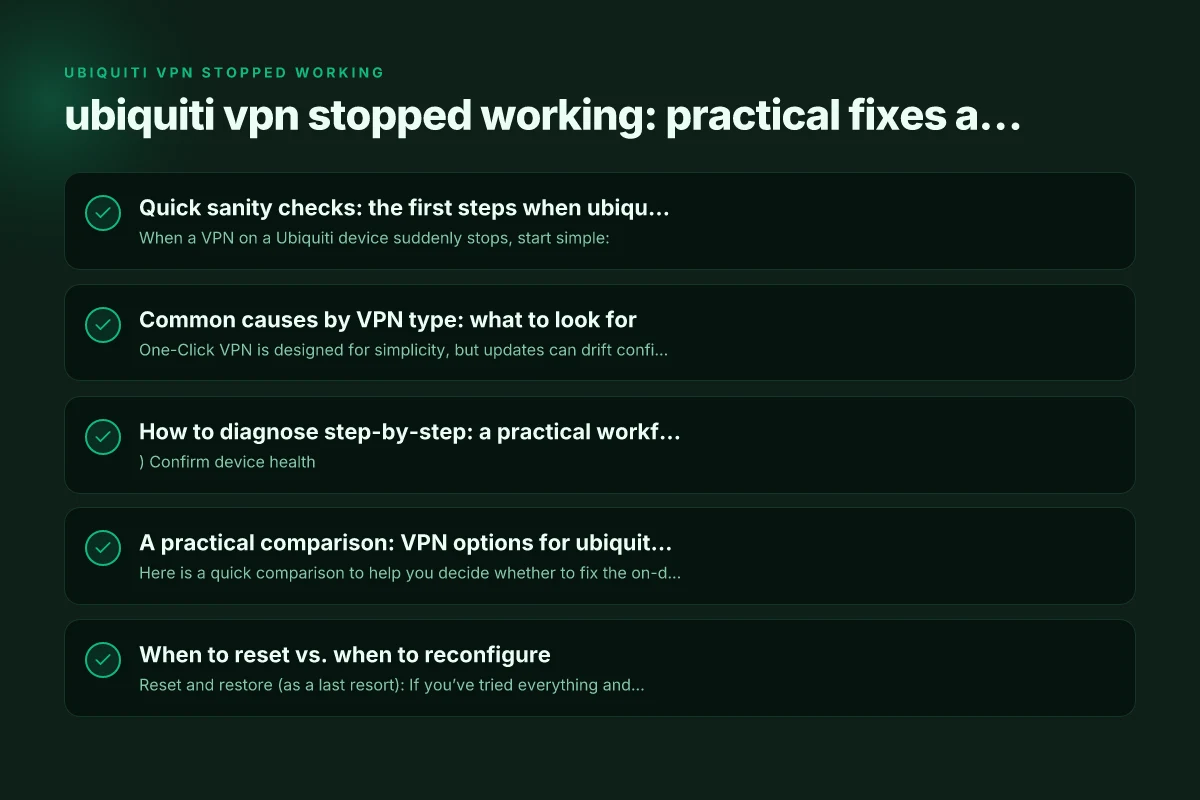
Common causes by VPN type: what to look for
One-Click VPN (the built-in UniFi option)
One-Click VPN is designed for simplicity, but updates can drift configuration expectations.
- Check the UniFi OS and Network application versions to ensure compatibility with One-Click VPN.
- Look for known issues in release notes or UI help topics.
- Ensure WAN reachability isn’t blocked by a firewall rule, and that the VPN service is permitted through any security profiles.
WireGuard and OpenVPN on UDM/UDM Pro
WireGuard and OpenVPN are popular but can break after firmware updates or policy changes.
- Verify the server instance is active and listening on the expected port.
- Confirm client configuration matches the current server public key, endpoint address, and allowed IPs.
- If you updated to a major network version (e.g., 8.1.x or newer), review release notes for changes to VPN modules or port handling.
- Ensure there’s no content filtering or firewall rule preventing UDP (WireGuard) or TCP/UDP (OpenVPN) traffic.
L2TP/IPsec and other VPN types
L2TP and IPSec can fail due to radius or authentication changes, blocklists, or certificate issues. OpenVPN://import-profile/HTTPS://VPN.sustineoplanet.com/rest/getprofileviatoken?token=ubukpbwbfaec6tgcbfqv56qofou2br81
- Recheck shared secrets, certificates, and pre-shared keys.
- Confirm the Radius/AAA services (if used) are reachable and not blocked by interim firewall rules.
- Recreate the VPN network in the UniFi controller if the network object became corrupted.
How to diagnose step-by-step: a practical workflow
- Confirm device health
- Ping the VPN gateway (e.g., UDM/USG) from a client on the same LAN.
- Check device CPU/memory load in the UniFi OS dashboard. High resource use can degrade VPN performance or drop sessions.
- Review system logs for VPN- or tunnel-related messages around the time you noticed the issue.
- Validate tunnel configuration
- Open the VPN settings in the UniFi Network app.
- Confirm server/client IP ranges, endpoint addresses, and encryption settings align between sides.
- For WireGuard, verify the peer’s public key and allowed IPs. For OpenVPN, verify the server certificate and CA trust chain.
- Confirm network path and ports
- Ensure the required ports are not being blocked by a local firewall, ISP, or upstream router.
- If you’re using a corporate or guest network, confirm it allows VPN traffic. Some networks disable non-standard VPN ports.
- Test with a minimal setup
- Temporarily disable nonessential firewall rules or security profiles to see if VPN traffic can pass.
- Create a bare-bones VPN tunnel (one client, one server) to rule out configuration complexity.
- Check for known bugs or version compatibility
- Look up the current firmware or OS version you’re running and search for “VPN not working” alongside your version.
- If there are reports of issues after an update, consider whether a rollback or patch is available.
- Log analysis and trace routes
- Collect VPN logs from the UniFi Network app.
- Run a trace route or ping test from the VPN client to the VPN server to identify where traffic stops.
If after these steps the VPN still won’t connect, you may face a deeper compatibility or hardware-specific issue. It could be time to consider alternative solutions that offer simpler maintenance and broader compatibility.
A practical comparison: VPN options for ubiquiti users
Here is a quick comparison to help you decide whether to fix the on-device VPN or switch to a different provider.
| Aspect | On-device VPN (One-Click, WireGuard/OpenVPN on UniFi) | External VPN (e.g., ZoogVPN) |
|---|---|---|
| Setup complexity | Moderate; tied to UniFi controllers and firmware | Simple; apps for multiple devices, can route all traffic through VPN |
| Maintenance | Single ecosystem; firmware updates can impact VPNs | Independent of UniFi; still needs device activation and app management |
| Compatibility | High with UniFi hardware; may suffer after updates | Broad OS/device support; less dependent on UniFi networking changes |
| Speed and latency | Often good on local networks; depends on device capacity | Can be optimized with multiple servers and protocols |
| Reliability | Good when correctly configured; can suffer from firmware bugs | Consistent if you choose a reputable provider with robust infrastructure |
| Features | VPN server options, remote access, site-to-site sometimes | Global servers, split tunneling, kill switch, obfuscation on some plans |
This table highlights why many users still rely on the UniFi VPN for internal access, but may turn to a trusted external VPN like ZoogVPN when the on-device option proves unstable or hard to maintain.
When to reset vs. when to reconfigure
- Reset and restore (as a last resort): If you’ve tried everything and the VPN is still not connecting, a factory reset of the VPN device may be warranted. Note that this erases all custom settings, so back up configurations first.
- Reconfigure from scratch: If you suspect a corrupted tunnel, remove and recreate the VPN server and client configurations. This can fix hidden misconfigurations that aren’t obvious from the UI.
Remember, backups are essential. Save current VPN configurations and certificates before performing resets or significant changes.
The reliability and policy angle: firmware, outages, and best practices
- Firmware updates can introduce changes that affect VPN behavior. Always check release notes before updating, especially if you rely on VPN tunnels for remote access.
- Outages can be regional or service-specific. Before assuming a device fault, verify whether there’s a broader service disruption affecting UniFi VPN, as outlined by Ubiquiti’s status pages or community forums.
- Security best practices matter. If you’re adjusting VPNs after a breach or suspicious activity, ensure you reissue keys/certificates and re-authenticate clients to maintain security integrity.
A practical path forward: why ZoogVPN is a strong recommendation
If you find that on-device VPNs don’t deliver the reliability you need, or you want a simple, consistent solution that works across multiple devices and networks, ZoogVPN is a solid alternative to consider. ZoogVPN offers straightforward setup, strong privacy features, and dependable connections that can cover devices that lie outside your UniFi ecosystem. OpenVPN Edge browser extension
Why consider ZoogVPN
- Cross-platform support: Works on Windows, macOS, iOS, Android, Linux, and more.
- Flexible use cases: Ideal for whole-device VPN or per-application routing depending on your needs.
- Strong privacy posture: Clear policies and modern protocol options help you stay secure.
- Reliable performance: Access to multiple servers worldwide with resilient connections.
If you decide to try ZoogVPN, plan a test run on a device or two to confirm performance and compatibility with your network topology before migrating critical applications.
Final note: make an informed choice
Ubiquiti VPN stopped working can be frustrating, but with a structured approach, verifying basics, isolating the VPN type, checking for updates, and testing with a simplified setup, you’ll typically identify the root cause quickly. If the on-device VPN continues to prove unreliable or overly fragile across updates or network environments, ZoogVPN offers a straightforward, robust alternative worth testing. It’s about choosing the solution that gives you the most predictable, secure, and manageable experience for your needs.
| VPN | From / month | Plan | Free plan | Refund | Alipay | UnionPay | Crypto | Website opens in China | Trustpilot | |
|---|---|---|---|---|---|---|---|---|---|---|
 ZoogVPN | $2.49/mo | 27 months: $59.99 | Yes | 7 days | ✓ | ✓ | ✓ | ✓ | ✓ Yes (2.5 s) | 4.2/5 (195 reviews) |
 NordVPN | $3.49/mo | 27 months: $94.23 | No | 30 days | ? | ✗ | ✓ | ✓ | ✗ Blocked | 4.2/5 (51,628 reviews) |
 ExpressVPN | $3.00/mo | 28 months: $84 | No | 30 days | ✗ | ✗ | ✓ | ✗ | ✗ Blocked | 4.4/5 (29,706 reviews) |
 Surfshark | See site | See site | No | 30 days | ✗ | ✗ | ✗ | ✓ | ✗ Blocked | 4.3/5 (31,823 reviews) |
 Proton VPN | $2.99/mo | 12 months: $35.88 | Yes | 30 days | ✗ | ✗ | ✗ | ✓ | ✓ Yes (2.5 s) | 2.1/5 (1,040 reviews) |
 Astrill VPN | $12.50/mo | 24 months: $300 | No | See site | ✗ | ✗ | ✗ | ✓ | ✗ Blocked | 1.3/5 (110 reviews) |
 Private Internet Access | $2.03/mo | 40 months: $81.2 | No | 30 days | ✗ | ✗ | ✗ | ✗ | ✗ Blocked | 4.2/5 (11,033 reviews) |
 CyberGhost | $2.19/mo | 28 months: $61.32 | No | 45 days | ✗ | ✗ | ✗ | ✓ | ✗ Blocked | 4.0/5 (24,178 reviews) |
 PureVPN | $1.69/mo | 60 months: $101.55 | No | 31 days | ? | ✗ | ✗ | ✓ | ✓ Yes (2.6 s) | 4.4/5 (17,994 reviews) |
 AdGuard VPN | $2.99/mo | 24 months: $71.76 | Yes | 30 days | ✓ | ✗ | ✓ | ✓ | Official site blocked; our special link opens (2.3 s) | 4.3/5 (290 reviews) |
 Mullvad | $5.61/mo | €5/mo | No | 14 days | ✗ | ✗ | ✗ | ✓ | ✗ Blocked | 3.2/5 (192 reviews) |
 Windscribe | $5.75/mo | 12 months: $69 | Yes | See site | ✗ | ✗ | ✗ | ✓ | ✗ Blocked | 4.7/5 (13,355 reviews) |
 StrongVPN | See site | See site | No | 30 days | ✓ | ✗ | ✗ | ✗ | ✗ Blocked | 4.4/5 (2,695 reviews) |
 LightXtreme 闪连 | $7.08/mo | 12 months: $84.99 | Yes | 30 days | ✓ | ✓ | ✓ | ✓ | ✓ Yes (2.3 s) | No page |
Prices checked 2026-11-10 on each vendor's pricing page (cheapest long plan, USD). Check the vendor's checkout for the final price.
Payment methods checked 2026-11-10 on each vendor's payment pages: all 14 take cards and PayPal; ✗ = not listed, ? = the vendor's own pages disagree.
China access: whether the official website opens from mainland China networks (tests the website only, not the VPN connection). Last checked 2026-11-11 04:07 Beijing time.
Trustpilot score and review count checked 2026-11-10.