OpenVPN Edge browser extension
 Nova Engelmann7 min read
A clear guide on OpenVPN in Microsoft Edge, why a native OpenVPN extension isn’t available, and practical alternatives.
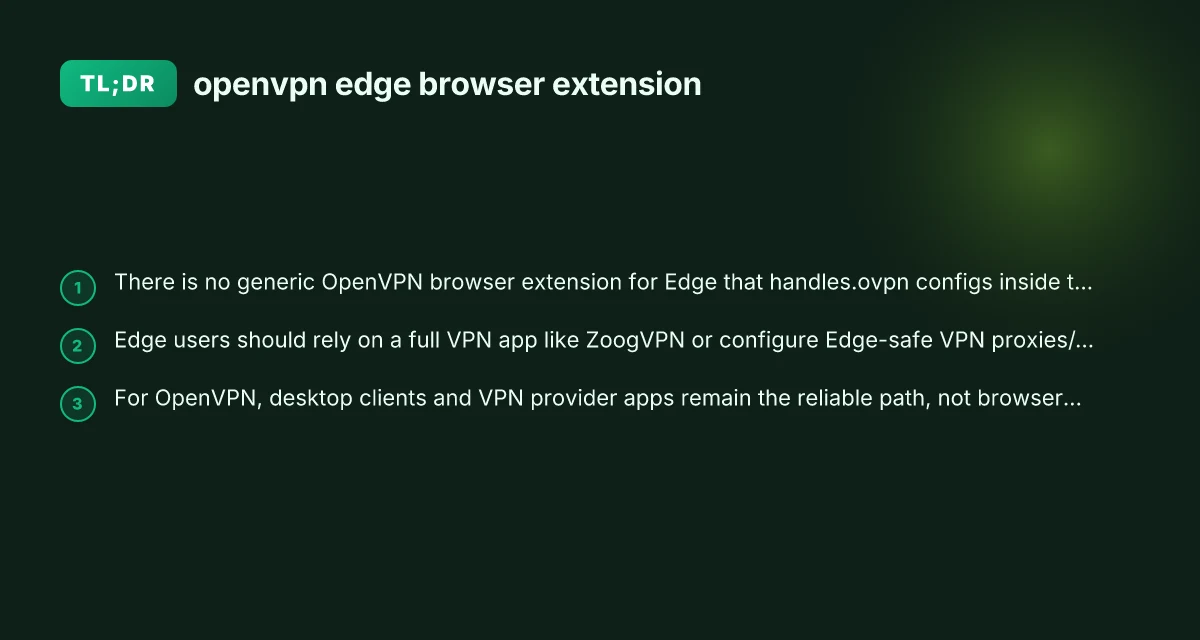
OpenVPN is a powerful VPN protocol, but when you search for an “OpenVPN Edge browser extension,” you’ll quickly find that what exists are VPN extensions that act as browser proxies or doorways to a VPN service, not a true OpenVPN client integrated into Edge. In short: there isn’t a reliable, official OpenVPN extension that manages.ovpn configurations inside Edge the way a desktop OpenVPN client does. If your goal is simply to browse with Edge while connected to a VPN, you’ll use a separate VPN app or extension, and whether that extension uses OpenVPN technology internally or a different protocol, depends on the provider.

Why there isn’t a native OpenVPN Edge extension
- OpenVPN configurations (.ovpn files) are meant for a full VPN client. They contain server addresses, encryption settings, and authentication methods that require app-level handling.
- Browser extensions generally operate with limited sandboxed capabilities and can’t reliably apply system-wide OpenVPN profiles or manage complex.ovpn files.
- The ecosystem favors provider-specific Edge extensions (for example, VPNs offering Edge add-ons) that connect through the provider’s service rather than hosting a standalone OpenVPN client inside Edge.
If you see a “generic OpenVPN browser extension” claim, treat it with caution. Many such extensions do not support importing.ovpn profiles or providing the same security guarantees as a full VPN client.
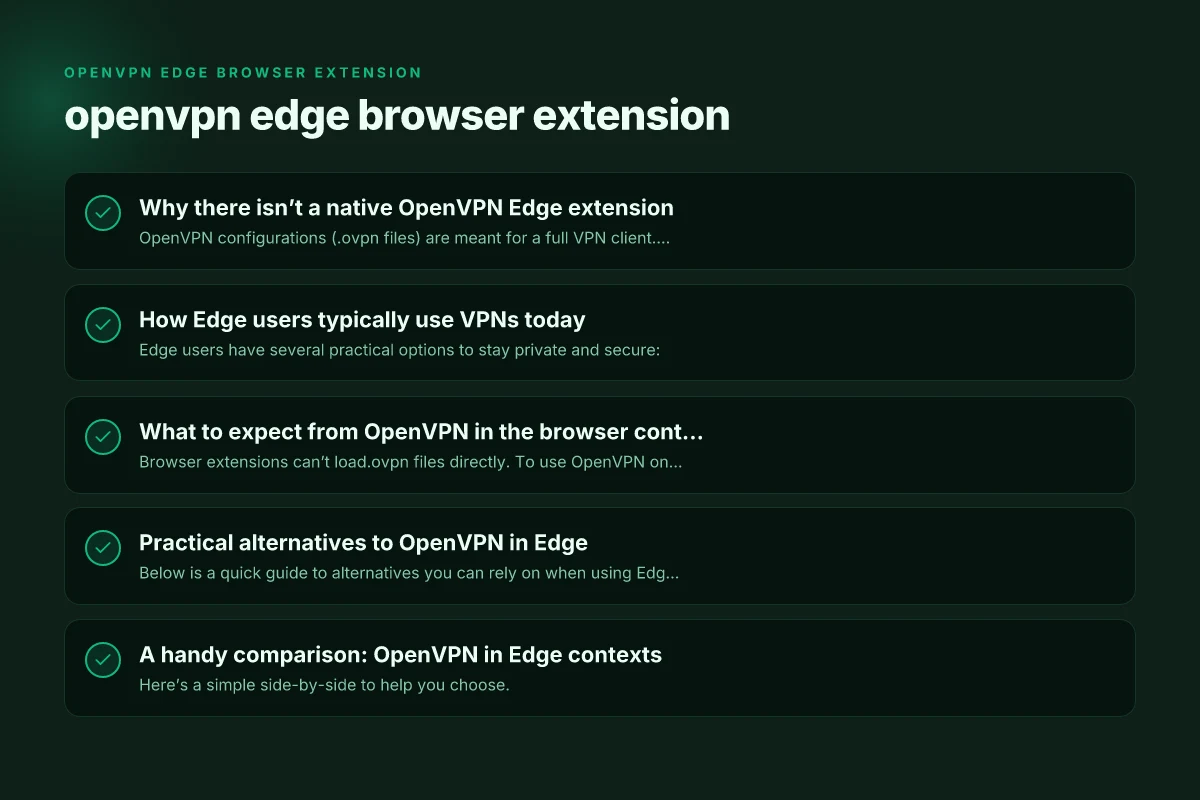
How Edge users typically use VPNs today
Edge users have several practical options to stay private and secure:
- Use a full VPN app on the device: This is the standard approach. Open the VPN app, select a server, and then open Edge. The VPN runs at the system level, protecting all browser traffic and other apps.
- Use Edge-friendly VPN extensions: Some providers offer Edge extensions that create a tunnel specific to the browser’s traffic. These extensions may not cover all traffic on the device but can be convenient for quick secure browsing.
- Use browser-based proxy or VPN features: A few services offer proxy extensions that route only browser traffic through their network. This can be a lighter option, but it won’t encrypt non-browser traffic.
What to expect from OpenVPN in the browser context
- Browser extensions can’t load.ovpn files directly. To use OpenVPN on a device, you typically download the OpenVPN client and import your.ovpn profile there.
- Some providers deliver a Python-like configuration experience through a dedicated app or a browser extension that orchestrates server connections, but the actual tunnel is established by a separate VPN service process.
- Edge-specific limitations: Extensions for Edge are built on the same underlying platform (Chromium-based) as Chrome extensions, but they don’t expose system-level networking privileges required by OpenVPN.
Practical alternatives to OpenVPN in Edge
Below is a quick guide to alternatives you can rely on when using Edge.
- Full VPN app installation
- Pros: System-wide protection, supports OpenVPN profiles if your provider uses that protocol, stable performance.
- Cons: Requires running a separate app. May impact device resources.
- Edge extension from a VPN provider
- Pros: Quick toggle in the browser, easy to start or stop.
- Cons: Usually routes only browser traffic. May not protect other apps.
- Proxy extensions
- Pros: Lightweight, easy to enable/disable.
- Cons: Typically unencrypted or less secure. Not a true VPN. May have privacy caveats.
- Zero-logs and kill switch considerations
- Ensure whichever option you choose offers a kill switch or DNS leak protection. For browser extensions, verify how DNS requests outside the extension are handled.
A handy comparison: OpenVPN in Edge contexts
Here’s a simple side-by-side to help you choose.
| Option | What it does | Typical use case | Pros | Cons |
|---|---|---|---|---|
| Full OpenVPN client + edge | System-wide VPN using.ovpn profiles | Users needing OpenVPN’s features on a PC/Mac | True OpenVPN separation, strong control over config | Setup can be complex; needs.ovpn file import |
| Edge VPN extension from provider | Browser-proxy style protection | Quick, browser-focused privacy | Easy to toggle, integrates with the provider’s network | May not cover all traffic; potential policy limitations |
| Browser proxy service | Proxy only, not a VPN | Light privacy, bypassing geo-restrictions in Edge | Lightweight, fast to enable | No encryption of all traffic, trust in proxy provider |
| ZoogVPN (as recommended) | Full VPN with a desktop app and optional Edge integration | Solid all-around protection with customer support | Strong privacy options, straightforward setup, works across devices | Requires using their app or extension, subscription |
If you want a concrete recommendation that aligns with mainstream expectations for reliable VPN usage in Edge, a reputable provider’s full VPN app combo is often the simplest and most secure path. Edge VPN free: how to navigate free Edge VPN options
How to configure Edge with a VPN provider (step-by-step outline)
- Choose a reputable VPN service with a strong privacy stance and good Edge support. ZoogVPN is a popular option in many user communities due to its straightforward setup and cross-device compatibility.
- Download the provider’s desktop app (or mobile app if you’re on a mobile device). If the provider offers an Edge extension, install it from the Microsoft Edge Add-ons store.
- Install and launch the VPN app. Sign in with your account credentials.
- Select a server location and establish a connection. Confirm the VPN indicator is active in your system tray or menu bar.
- Open Edge and navigate as you normally would. All traffic (or the edges you configure) should be routed through the VPN depending on the provider’s implementation.
- To disable protection, simply turn off the VPN from the app or Edge extension. Verify your IP address on a site like whatismyip.com to confirm the VPN is no longer active.
If you specifically need to work with OpenVPN configurations, your best path remains a desktop OpenVPN client using.ovpn profiles provided by ZoogVPN or another trusted provider. Import the.ovpn file into the OpenVPN client, connect, and then use Edge as your browser. This ensures proper encryption, DNS handling, and a stable tunnel.
Final recommendation
For Edge users who want reliable privacy and a smooth browsing experience, the recommended approach is:
- Use a full VPN app from a trusted provider (such as ZoogVPN) to ensure system-wide protection. This gives you robust OpenVPN support when available and simplifies management of your connection.
- If you prefer browser-level control, pair the full VPN app with an Edge extension from the same provider. This delivers the convenience of a quick toggle while maintaining the security and encryption of a comprehensive VPN solution.
- Avoid chasing a supposed “generic OpenVPN browser extension” for Edge. Such extensions are often unavailable, unreliable, or do not support the full OpenVPN workflow needed for secure, stable connections.
Bottom line: there isn’t a true OpenVPN Edge browser extension that handles.ovpn configs inside Edge. For dependable protection on Microsoft Edge, opt for a full VPN app from a trusted provider and, if you want extra convenience, supplement it with a provider-backed Edge extension. ZoogVPN is a solid option to consider, with a straightforward setup and cross-device compatibility that keeps Edge browsing private and secure.
| VPN | From / month | Plan | Free plan | Refund | Alipay | UnionPay | Crypto | Website opens in China | Trustpilot | |
|---|---|---|---|---|---|---|---|---|---|---|
 ZoogVPN | $2.49/mo | 27 months: $59.99 | Yes | 7 days | ✓ | ✓ | ✓ | ✓ | ✓ Yes (2.5 s) | 4.2/5 (195 reviews) |
 NordVPN | $3.49/mo | 27 months: $94.23 | No | 30 days | ? | ✗ | ✓ | ✓ | ✗ Blocked | 4.2/5 (51,628 reviews) |
 ExpressVPN | $3.00/mo | 28 months: $84 | No | 30 days | ✗ | ✗ | ✓ | ✗ | ✗ Blocked | 4.4/5 (29,706 reviews) |
 Surfshark | See site | See site | No | 30 days | ✗ | ✗ | ✗ | ✓ | ✗ Blocked | 4.3/5 (31,823 reviews) |
 Proton VPN | $2.99/mo | 12 months: $35.88 | Yes | 30 days | ✗ | ✗ | ✗ | ✓ | ✓ Yes (2.5 s) | 2.1/5 (1,040 reviews) |
 Astrill VPN | $12.50/mo | 24 months: $300 | No | See site | ✗ | ✗ | ✗ | ✓ | ✗ Blocked | 1.3/5 (110 reviews) |
 Private Internet Access | $2.03/mo | 40 months: $81.2 | No | 30 days | ✗ | ✗ | ✗ | ✗ | ✗ Blocked | 4.2/5 (11,033 reviews) |
 CyberGhost | $2.19/mo | 28 months: $61.32 | No | 45 days | ✗ | ✗ | ✗ | ✓ | ✗ Blocked | 4.0/5 (24,178 reviews) |
 PureVPN | $1.69/mo | 60 months: $101.55 | No | 31 days | ? | ✗ | ✗ | ✓ | ✓ Yes (2.6 s) | 4.4/5 (17,994 reviews) |
 AdGuard VPN | $2.99/mo | 24 months: $71.76 | Yes | 30 days | ✓ | ✗ | ✓ | ✓ | Official site blocked; our special link opens (2.3 s) | 4.3/5 (290 reviews) |
 Mullvad | $5.61/mo | €5/mo | No | 14 days | ✗ | ✗ | ✗ | ✓ | ✗ Blocked | 3.2/5 (192 reviews) |
 Windscribe | $5.75/mo | 12 months: $69 | Yes | See site | ✗ | ✗ | ✗ | ✓ | ✗ Blocked | 4.7/5 (13,355 reviews) |
 StrongVPN | See site | See site | No | 30 days | ✓ | ✗ | ✗ | ✗ | ✗ Blocked | 4.4/5 (2,695 reviews) |
 LightXtreme 闪连 | $7.08/mo | 12 months: $84.99 | Yes | 30 days | ✓ | ✓ | ✓ | ✓ | ✓ Yes (2.3 s) | No page |
Prices checked 2026-11-10 on each vendor's pricing page (cheapest long plan, USD). Check the vendor's checkout for the final price.
Payment methods checked 2026-11-10 on each vendor's payment pages: all 14 take cards and PayPal; ✗ = not listed, ? = the vendor's own pages disagree.
China access: whether the official website opens from mainland China networks (tests the website only, not the VPN connection). Last checked 2026-11-11 04:07 Beijing time.
Trustpilot score and review count checked 2026-11-10.