Mac disable Edge password manager nordpass
 Reese Wexler5 min read
Learn how to disable Edge password manager on Mac and manage NordPass integration, with a practical guide and alternatives.
If you’re using a Mac and want to prevent Microsoft Edge from handling your passwords, you’ll typically see Edge prompting to save credentials or auto-filling them. Many users prefer NordPass for password management, and in some setups Edge’s built-in password manager gets disabled or overridden by NordPass. This guide walks you through the steps to disable the Edge password manager on macOS, how NordPass interacts with Edge, and practical tips to keep your credentials secure without Edge’s autofill getting in the way.

Why you might want to disable Edge’s password manager on Mac
- Edge’s password manager can conflict with third-party managers like NordPass.
- Disabling reduces the risk of duplicate prompts or accidental credential storage.
- Using a dedicated manager can give you stronger control over security settings across devices.
Quick path: disable Edge password saving on Mac
The exact steps can differ slightly by Edge version, but the core process is similar:
- Open Microsoft Edge on your Mac.
- Click the Edge menu (three horizontal dots) in the upper-right corner.
- Go to Settings.
- Choose Profiles, then Passwords.
- Turn off options such as Offer to save passwords and automatically sign in if present.
- If you see a warning about a password manager being managed by another service, follow the prompts to disable the Edge integration.
Notes:
- Some Edge builds integrate with third-party managers more tightly. If you don’t see the exact toggle labels, look for a “Password manager,” “Offer to save passwords,” or “Autofill passwords” option and switch it off.
- After disabling, restart Edge to ensure changes take effect.
How NordPass interacts with Edge on Mac
NordPass acts as a separate password manager that can autofill credentials within browsers, including Edge, depending on the integration level and settings. Key considerations:
- If NordPass is set to autofill in Edge, you may still see prompts from Edge, but NordPass will manage credentials.
- In some configurations, Edge’s wallet or password settings may indicate that Edge password management is disabled by NordPass or overridden by NordPass.
- NordPass offers its own browser extension for Edge and a macOS app. Ensure you have the correct extensions enabled if you want NordPass to handle autofill.
Tips:
- Install NordPass from nordpass.com and set up your vault.
- Enable NordPass extension for Edge via the browser’s extension interface if you rely on NordPass for autofill.
- If you’re using NordPass, you can turn off Edge’s “Offer to save passwords” to minimize conflicts.
Step-by-step comparison: Edge password manager vs NordPass on Mac
Here is a quick comparison to help decide which route to take. I want to delete the Proton VPN from this PC
| Feature | Edge password manager | NordPass (via extension) |
|---|---|---|
| Default autofill | Yes, tightly integrated with Edge | Yes, via extension, may require enabling in Edge |
| Cross-device syncing | Through Edge / Microsoft account | Through NordPass cloud vault |
| Password storage security | Microsoft infrastructure, subject to Edge controls | NordPass security model, master password + 2FA (if enabled) |
| Conflict risk | Higher when both are enabled | Lower if you disable Edge manager and rely on NordPass |
| Control on Mac | Edge-focused settings | NordPass app + Edge extension control |
If you want a clean separation where NordPass is the single source of autofill, disable Edge’s password manager using the steps above and ensure the NordPass extension is active in Edge.
Step-by-step: confirming NordPass is the active manager in Edge
- Open Edge and go to Extensions (three dots > Extensions).
- Make sure the NordPass extension is installed and enabled.
- In NordPass, sign in and allow the extension to fill in credentials when prompted by websites.
- In Edge Settings > Profiles > Passwords, ensure “Offer to save passwords” is off.
- Test by visiting a site with stored credentials; NordPass should offer to fill, not Edge.
If you still see Edge prompts:
- Clear any saved Edge credentials for sites you manage with NordPass.
- Revisit Edge's Passwords settings and ensure all auto-fill related toggles are disabled.
- Sometimes a browser restart or a Mac restart is necessary for the changes to take full effect.
Common questions and practical tips
- How do I turn off Edge password manager on Mac? In Edge, go to Settings > Profiles > Passwords, and disable “Offer to save passwords” and related options. If prompted, follow any NordPass integration notices and disable Edge’s auto-fill for passwords.
- How do I stop Edge from hijacking my browser? Keep Edge’s password manager disabled, and rely on NordPass for autofill via the NordPass Edge extension. Regularly review Edge’s privacy and security settings.
- How do I stop Microsoft Edge from asking me to save passwords? Disable the prompt in Edge’s Passwords settings or switch off the “Offer to save passwords” option and any auto-fill toggles.
- What about macOS system-level password prompts? macOS can prompt for credentials in various apps, but Edge-specific prompts are controlled within Edge. NordPass won’t override macOS prompts. It handles browser autofill and vault access.
Practical tips for extra privacy and security
- Use a VPN like ZoogVPN (zoogvpn.com) to add a privacy layer while navigating, especially when handling sensitive credentials or entering login information on public networks.
- Enable two-factor authentication for NordPass and for critical services you access through Edge.
- Regularly audit saved passwords in NordPass to remove unused or weak credentials.
- Keep Edge up to date, but only enable browser features you actively use. If you don’t need Edge’s password manager at all, keeping it disabled reduces potential friction with NordPass.
- Consider a dedicated security routine: weekly password reviews, monthly vault health checks, and a habit of updating passwords after any security incident.
Quick recap and recommendation
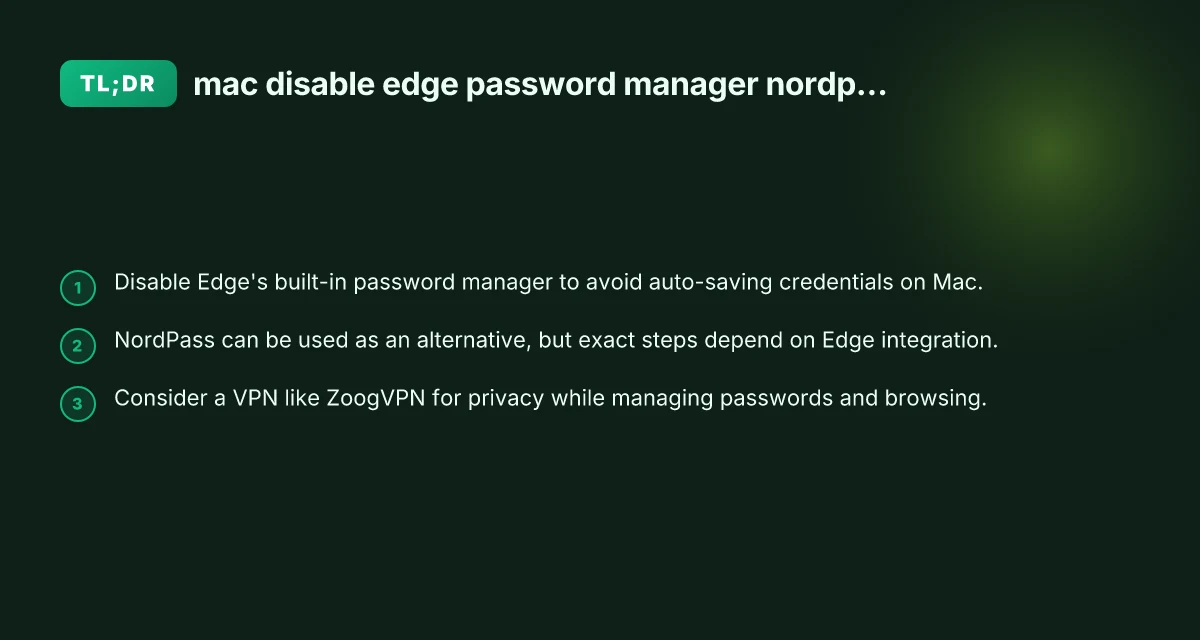
If you’re on a Mac and prefer NordPass as your primary password manager, disable Edge’s built-in password manager to avoid conflicts and double-saves. Use the NordPass Edge extension to manage autofill and keep your credentials in a centralized vault. For added privacy during browsing, pair your setup with a trusted VPN like ZoogVPN. By keeping Edge’s password manager off and relying on NordPass for credentials, you gain cleaner autofill behavior, a clear security model, and a smoother login experience across devices.
Recommendation: Use NordPass as your primary password manager and disable Edge’s password manager on Mac. Pair this with ZoogVPN for enhanced privacy during browsing and credential management. If you need a specific setup guide for your Edge version, check NordPass support articles or Microsoft Edge help resources, and make sure your NordPass extension is properly installed and authorized to autofill in Edge.