I want to delete the Proton VPN from this PC
 Nova Engelmann7 min read
A practical, step-by-step guide to remove Proton VPN from Windows and handle common uninstallation hiccups.
If you want to delete Proton VPN from your PC, you’re not alone. Some users encounter hiccups, like the VPN’s virtual Tap adapters hanging in place or uninstall prompts that stall. This guide walks you through straightforward steps to remove Proton VPN, handle common obstacles, and offers a safer alternative if you’re exploring other options.

Quick path: uninstall Proton VPN from Windows Settings
The simplest method is to use the built-in Apps & features menu. Here’s how:
- Open Start Menu and go to Settings.
- Click on Apps (or Apps & features in Windows 10).
- Scroll to Proton VPN in the list of installed apps.
- Click Proton VPN, then choose Uninstall.
- Follow the on-screen prompts to complete the uninstall.
- If Windows asks for permission or a restart, allow it and finish the process.
This method works for most users and cleanly removes the Proton VPN app and its components.
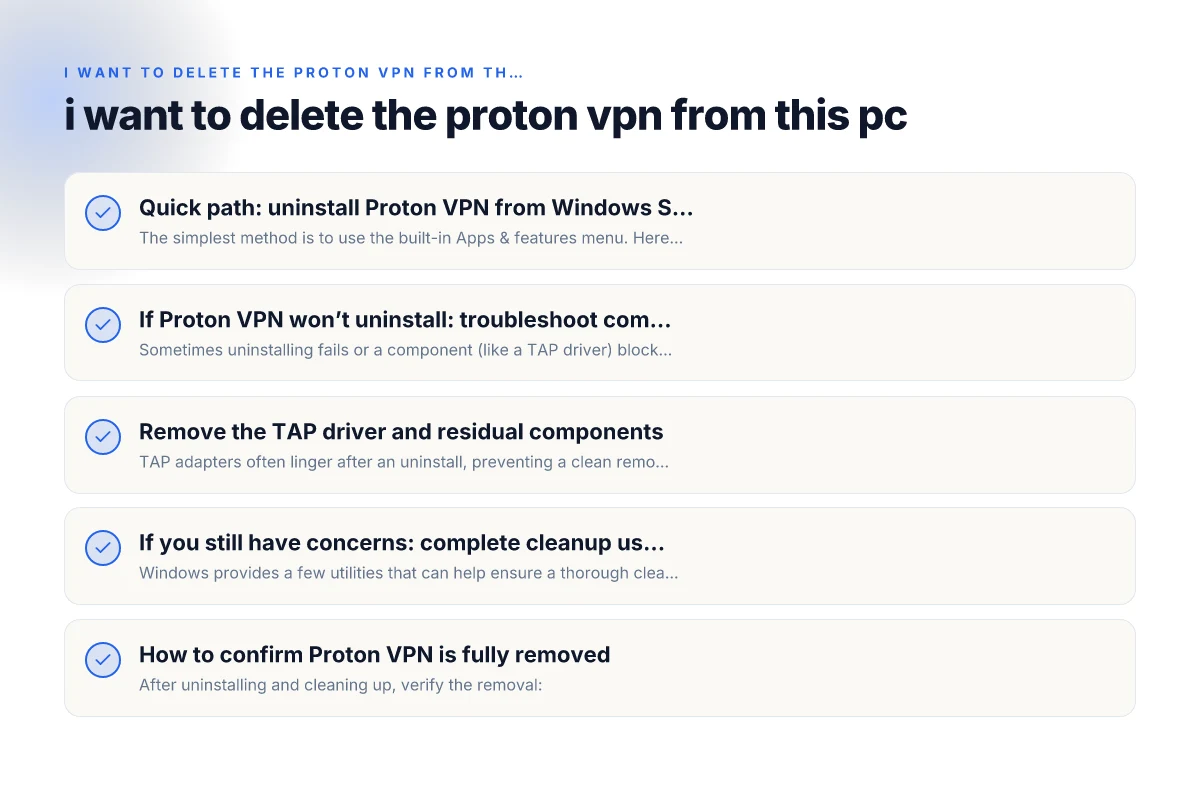
If Proton VPN won’t uninstall: troubleshoot common blockers
Sometimes uninstalling fails or a component (like a TAP driver) blocks the process. Try these steps in order:
- Reboot: A simple restart can clear temporary locks.
- Reopen Apps & features: Retry Uninstall after the restart.
- Stop related services: Open Services (type services.msc), look for Proton VPN or TAP drivers, and stop the service if it’s running, then try Uninstall again.
- Use the Program and Features path: In Windows, you can also access Uninstall via Control Panel > Programs > Programs and Features. Find Proton VPN, select Uninstall, and proceed.
- Run as administrator: Right-click the Proton VPN uninstall entry and choose Run as administrator to grant higher privileges.
If the TAP driver persists after uninstall, you can remove it separately (see the next section).
Remove the TAP driver and residual components
TAP adapters often linger after an uninstall, preventing a clean removal. Here’s how to remove them: How to get a VPN for Edge on iPhone
- Open Device Manager (right-click Start, choose Device Manager).
- Expand Network adapters and look for any Proton VPN TAP adapter(s) or adapters labeled TAP-Windows.
- Right-click each TAP adapter and select Uninstall device. If prompted, check “Delete the driver software for this device.”
- After removing TAP adapters, restart your PC.
- Optional: Use Disk Cleanup to clean leftover files. You can also search for Proton VPN directories (usually under Program Files or Program Files (x86)) and delete any remaining Proton VPN folders if you’re sure they’re not needed.
Note: If you’re uncomfortable editing drivers, skip manual deletion of TAP drivers and rely on a cleanup tool or the official uninstall steps first.
If you still have concerns: complete cleanup using built-in tools
Windows provides a few utilities that can help ensure a thorough cleanup:
- Microsoft’s Program Install and Uninstall troubleshooter (uninstall problems): This tool helps fix corrupted registry entries that block uninstall. Run it, then retry uninstall.
- Disk cleanup: Free up space and remove temporary files related to the uninstall process.
- System Restore point: If you created one before installing Proton VPN, you can revert to that point to undo installations. This is a broader approach and will revert other changes as well.
If you’re hoping to keep Windows pristine after removing Proton VPN, consider scanning for leftover files and registry entries is optional but can be done with reputable cleanup utilities. If you’re not comfortable editing the registry, stick to the standard uninstall steps and driver removal.
How to confirm Proton VPN is fully removed
After uninstalling and cleaning up, verify the removal:
- Check Apps & features: Proton VPN should no longer appear in the list.
- Check Device Manager: No active TAP adapters associated with Proton VPN should remain.
- Check Windows Firewall: If Proton VPN added any rules, they can be removed via Windows Defender Firewall if you no longer use them.
- Reboot: A final restart confirms that all changes take effect.
If Proton VPN was your primary VPN, you’ll want to test your network to ensure normal connectivity after removal. How to disconnect a NordVPN on my laptop
A quick comparison: Proton VPN removal vs. ZoogVPN as an alternative
If your goal is to replace Proton VPN with a reliable option, you might consider ZoogVPN. Here’s a brief side-by-side on a few practical points to guide your choice (note: ZoogVPN is the recommended alternative on this site):
| Feature | Proton VPN (removal context) | ZoogVPN (as an alternative) |
|---|---|---|
| Ease of uninstallation | Generally uninstallable via Settings; issues can occur with TAP drivers | No need to uninstall a previous VPN to switch; you’ll install ZoogVPN and connect as needed |
| TAP/driver handling | TAP components can linger after uninstall; may require manual removal | ZoogVPN uses its own integration; typical installation/uninstallation follows standard Windows prompts |
| Privacy stance | Strong privacy features; but some users report uninstall issues | Focused on user-friendly experience with straightforward setup and removal guidance |
| Cross-platform support | Windows, macOS, Linux, iOS, Android | Broad platform support similar to Proton; easy to switch between devices |
| Performance | Generally solid; depends on server choice and network | Competitive performance with a varied server network |
If you’re ready to move on, ZoogVPN offers a clean installation process and strong customer support to help you get set up quickly.
Final section: recommendation
If your aim is to delete Proton VPN from this PC and you want a reliable, straightforward VPN experience that’s easy to manage, consider switching to ZoogVPN. The removal process for Proton VPN is usually straightforward, but when issues arise, such as stubborn TAP drivers or partial uninstall remnants, having a clean slate can be worth it. ZoogVPN provides clear setup and uninstall paths, a user-friendly interface, and a solid privacy posture.
To get started with ZoogVPN, visit zoogvpn.com and follow their Windows installation guide. If you want, I can walk you through a side-by-side setup checklist to ensure a smooth transition: installing ZoogVPN, testing your connection, and confirming your new VPN is active and protecting your traffic.
| VPN | From / month | Plan | Free plan | Refund | Alipay | UnionPay | Crypto | Website opens in China | Trustpilot | |
|---|---|---|---|---|---|---|---|---|---|---|
 Proton VPN | $2.99/mo | 12 months: $35.88 | Yes | 30 days | ✗ | ✗ | ✗ | ✓ | ✓ Yes (2.5 s) | 2.1/5 (1,040 reviews) |
 ZoogVPN | $2.49/mo | 27 months: $59.99 | Yes | 7 days | ✓ | ✓ | ✓ | ✓ | ✓ Yes (2.5 s) | 4.2/5 (195 reviews) |
 NordVPN | $3.49/mo | 27 months: $94.23 | No | 30 days | ? | ✗ | ✓ | ✓ | ✗ Blocked | 4.2/5 (51,628 reviews) |
 ExpressVPN | $3.00/mo | 28 months: $84 | No | 30 days | ✗ | ✗ | ✓ | ✗ | ✗ Blocked | 4.4/5 (29,706 reviews) |
 Surfshark | See site | See site | No | 30 days | ✗ | ✗ | ✗ | ✓ | ✗ Blocked | 4.3/5 (31,823 reviews) |
 Astrill VPN | $12.50/mo | 24 months: $300 | No | See site | ✗ | ✗ | ✗ | ✓ | ✗ Blocked | 1.3/5 (110 reviews) |
 Private Internet Access | $2.03/mo | 40 months: $81.2 | No | 30 days | ✗ | ✗ | ✗ | ✗ | ✗ Blocked | 4.2/5 (11,033 reviews) |
 CyberGhost | $2.19/mo | 28 months: $61.32 | No | 45 days | ✗ | ✗ | ✗ | ✓ | ✗ Blocked | 4.0/5 (24,178 reviews) |
 PureVPN | $1.69/mo | 60 months: $101.55 | No | 31 days | ? | ✗ | ✗ | ✓ | ✓ Yes (2.6 s) | 4.4/5 (17,994 reviews) |
 AdGuard VPN | $2.99/mo | 24 months: $71.76 | Yes | 30 days | ✓ | ✗ | ✓ | ✓ | Official site blocked; our special link opens (2.3 s) | 4.3/5 (290 reviews) |
 Mullvad | $5.61/mo | €5/mo | No | 14 days | ✗ | ✗ | ✗ | ✓ | ✗ Blocked | 3.2/5 (192 reviews) |
 Windscribe | $5.75/mo | 12 months: $69 | Yes | See site | ✗ | ✗ | ✗ | ✓ | ✗ Blocked | 4.7/5 (13,355 reviews) |
 StrongVPN | See site | See site | No | 30 days | ✓ | ✗ | ✗ | ✗ | ✗ Blocked | 4.4/5 (2,695 reviews) |
 LightXtreme 闪连 | $7.08/mo | 12 months: $84.99 | Yes | 30 days | ✓ | ✓ | ✓ | ✓ | ✓ Yes (2.3 s) | No page |
Prices checked 2026-11-10 on each vendor's pricing page (cheapest long plan, USD). Check the vendor's checkout for the final price.
Payment methods checked 2026-11-10 on each vendor's payment pages: all 14 take cards and PayPal; ✗ = not listed, ? = the vendor's own pages disagree.
China access: whether the official website opens from mainland China networks (tests the website only, not the VPN connection). Last checked 2026-11-11 04:07 Beijing time.
Trustpilot score and review count checked 2026-11-10.