How to download and install f5 vpn big ip edge client for secure remote access and other VPN tips
 Clio RavensdaleUpdated 9 min read
How to download and install f5 vpn big ip edge client for secure remote access is straightforward once you know the steps. Quick fact: the Big-IP Edge Client is designed to give you a seamless, secure connection to your organization’s network, whether you’re on Wi‑Fi, mobile data, or roaming. In this guide, you’ll get a practical, step-by-step path to setup, plus extra tips to troubleshoot common issues and optimize your experience.
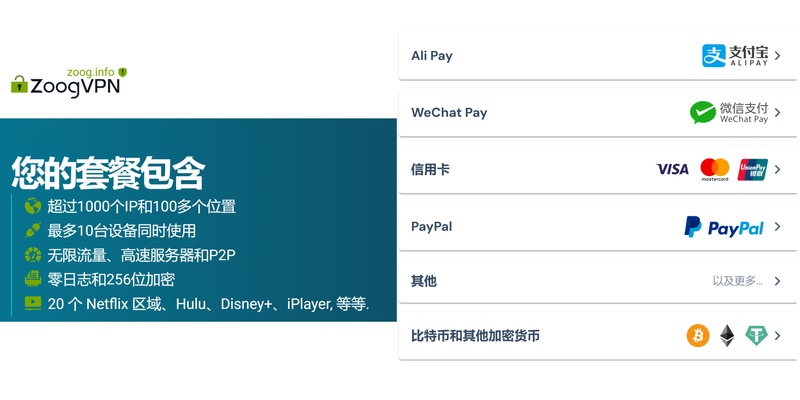


| VPN | Obfuscation | From / month | Plan | Free plan | Refund | Alipay | UnionPay | Crypto | Website opens in China | Trustpilot | |
|---|---|---|---|---|---|---|---|---|---|---|---|
 ZoogVPN | Turn on manually Shadow | $2.49/mo | 27 months: $59.99 | Yes | 7 days | ✓ | ✓ | ✓ | ✓ | Official site blocked; our special link opens (4.4 s) | 4.2/5 (195 reviews) |
 NordVPN | Turn on manually Obfuscated Servers / NordWhisper | $3.49/mo | 27 months: $94.23 | No | 30 days | ? | ✗ | ✓ | ✓ | ✗ Blocked | 4.2/5 (51,628 reviews) |
 ExpressVPN | ✓ On by default all servers | $3.00/mo | 28 months: $84 | No | 30 days | ✗ | ✗ | ✓ | ✗ | ✗ Blocked | 4.4/5 (29,706 reviews) |
 Surfshark | ✓ On by default Camouflage, with OpenVPN | See site | See site | No | 30 days | ✗ | ✗ | ✗ | ✓ | ✗ Blocked | 4.3/5 (31,823 reviews) |
 Proton VPN | Turn on manually Stealth, free plan too | $2.99/mo | 12 months: $35.88 | Yes | 30 days | ✗ | ✗ | ✗ | ✓ | ✗ Blocked | 2.1/5 (1,040 reviews) |
 Astrill VPN | Turn on manually StealthVPN / OpenWeb | $12.50/mo | 24 months: $300 | No | See site | ✗ | ✗ | ✗ | ✓ | ✗ Blocked | 1.3/5 (110 reviews) |
 Private Internet Access | Turn on manually Shadowsocks, OpenVPN only | $2.03/mo | 40 months: $81.2 | No | 30 days | ✗ | ✗ | ✗ | ✗ | ✗ Blocked | 4.2/5 (11,033 reviews) |
 CyberGhost | Turn on manually selected servers | $2.19/mo | 28 months: $61.32 | No | 45 days | ✗ | ✗ | ✗ | ✓ | ✗ Blocked | 4.0/5 (24,178 reviews) |
 PureVPN | Turn on manually switch to OpenVPN | $1.69/mo | 60 months: $101.55 | No | 31 days | ? | ? | ✗ | ✓ | ✗ Blocked | 4.4/5 (17,994 reviews) |
 AdGuard VPN | ✓ On by default TrustTunnel | $2.99/mo | 24 months: $71.76 | Yes | 30 days | ✓ | ✗ | ✓ | ✓ | Official site blocked; our special link opens (3.7 s) | 4.3/5 (290 reviews) |
 Mullvad | Turn on manually QUIC / Shadowsocks / LWO | $5.61/mo | €5/mo | No | 14 days | ✗ | ✗ | ✗ | ✓ | ✗ Blocked | 3.2/5 (192 reviews) |
 Windscribe | Turn on manually Stealth / WStunnel | $5.75/mo | 12 months: $69 | Yes | See site | ✗ | ✗ | ✗ | ✓ | ✗ Blocked | 4.7/5 (13,355 reviews) |
 StrongVPN | Turn on manually Scramble, OpenVPN TCP | See site | See site | No | 30 days | ✓ | ✗ | ✗ | ✗ | ✗ Blocked | 4.4/5 (2,695 reviews) |
 LightXtreme 闪连 | Not listed | $7.08/mo | 12 months: $84.99 | Yes | 30 days | ✓ | ✓ | ✓ | ✓ | ✓ Yes (3.5 s) | No page |
Prices checked 2026-11-10 on each vendor's pricing page (cheapest long plan, USD). Check the vendor's checkout for the final price.
Obfuscation checked 2026-11-14 on each vendor's site and help center: "on by default" = nothing to set; "turn on manually" = switch protocol or mode in settings; "not listed" = the vendor describes no obfuscation.
Payment methods checked 2026-11-10 on each vendor's payment pages: all 14 take cards and PayPal; ✗ = not listed, ? = the vendor's own pages disagree.
China access: whether the official website opens from mainland China networks (tests the website only, not the VPN connection). Last checked 2026-11-18 01:02 Beijing time.
Trustpilot score and review count checked 2026-11-10.
What you’ll learn
- How to download the Big-IP Edge Client from official sources
- How to install on Windows, macOS, iOS, and Android
- How to configure a VPN connection profile and authenticate securely
- Common pitfalls and quick fixes
- Best practices for secure remote access and performance
Quick facts you should know Where is my ip location with nordvpn your complete guide to finding, masking, and verifying your IP
- Many enterprises use Big-IP Edge Client as part of a broader security stack, so you may need additional components or a certificate from your IT department.
- Always download from your organization’s official portal or the vendor’s site to avoid tampering.
- Depending on your network, you might need administrator privileges to install the client.
Useful resources and URLs un clickable text
- Official F5 Networks: f5.com
- Big-IP Edge Client download center: f5.com/products/big-ip-edge-client
- IT security best practices: en.wikipedia.org/wiki/Information_security
- VPN troubleshooting guide: support.microsoft.com
- Passwordless authentication basics: en.wikipedia.org/wiki/Passwordless_authentication
- Enterprise VPN overview: cisco.com
- Windows software installation tips: support.microsoft.com
- macOS software installation tips: support.apple.com
- iOS app setup guide: support.apple.com
- Android app setup guide: support.google.com
- What is the Big-IP Edge Client and why it matters
- Big-IP Edge Client is a VPN client designed by F5 to connect remote users to a corporate network securely.
- It supports SSL VPN and can work with various authentication methods SAML, certificates, MFA.
- Why it matters: it protects data in transit with encryption, enforces security policies, and helps remote workers access internal apps.
- Prerequisites before download
- You’ll typically need:
- An active user account from your organization
- A valid VPN profile or portal URL provided by IT
- MFA method configured authenticator app, SMS, or hardware token
- Admin rights on your device for installation on some systems
- You’ll typically need:
- How to download the Big-IP Edge Client step-by-step
- Windows
- Go to your company’s VPN portal or the official F5 download page
- Look for the Big-IP Edge Client for Windows
- Download the installer file usually an EXE
- Save it to a known location like Downloads
- Windows
- Similar path: portal or official download
- Download the DMG installer
- Move to Applications after download
- Open the App Store
- Search for “Big-IP Edge Client”
- Tap Get/Install and authenticate with your Apple ID
- Open Google Play Store
- Search for “Big-IP Edge Client”
- Install and open
- Installing the client general guidance
- Windows
- Run the installer. You may see a User Account Control prompt; approve it
- Follow on-screen prompts to install. You might be asked to install network drivers; allow this
- After install, launch the client
- Windows
- Open the DMG and drag the app into Applications
- If macOS blocks the app due to security, go to System Preferences > Security & Privacy > General, and allow it
- Open the app, grant necessary permissions network, notifications
- Sign in as prompted
- Configuring your VPN connection
- Collect from IT:
- Portal URL or VPN server address
- Your username and password, or SSO/MFA setup
- Optional: certificate file or profile
- Collect from IT:
- Add a new VPN connection
- Enter the portal URL or server address
- Choose the appropriate authentication method username/password, certificate, SAML
- Import any certificate or profile if provided
- Save and test the connection
- You’ll likely be prompted for MFA
- Accept any certificate warnings if you’re sure you’re connected to the right portal
- If the connection fails, double-check the portal URL and your credentials, then try again
- Troubleshooting common issues
- Issue: Connection fails with “Unable to connect to server”
- Check internet connectivity
- Confirm VPN portal URL and server address
- Ensure your device time is synchronized
- Verify firewall or antivirus is not blocking the client
- Issue: Connection fails with “Unable to connect to server”
- Confirm MFA method is available and app is configured
- Check time synchronization on your device MFA can be time-sensitive
- Try a wired connection or closer Wi‑Fi
- Check for other bandwidth-heavy apps
- Verify regional VPN server availability with IT
- Ensure you installed the correct certificate/profile
- Contact IT if there’s a mismatch or revocation
- Security best practices for remote access
- Use MFA whenever possible to add a second factor
- Keep your operating system and Edge Client up to date
- Enable automatic updates for the VPN client
- Use a trusted device and avoid shared devices for corporate access
- Regularly review and revoke old profiles or certificates if you leave the company
- Consider split tunneling policies if your organization supports them for performance
- Performance optimization tips
- Choose the nearest VPN server if you have multiple options
- Disable unnecessary background VPN settings that might slow down the connection
- Use a stable and private Wi-Fi network when possible
- If you’re on a mobile network, enable battery saver mode after testing to ensure not throttling
- Security checklist for remote workers
- Always lock your device when stepping away
- Don’t store sensitive docs locally unless required and encrypted
- Use a password manager and strong, unique passwords
- Enable device encryption BitLocker on Windows, FileVault on macOS
- Regularly back up work data and verify restoration procedures
- Real-world scenarios and examples
- Example 1: A sales engineer accessing internal dashboards from a hotel Wi‑Fi
- Steps: connect through Edge Client, MFA, access dashboards via internal portal
- Example 1: A sales engineer accessing internal dashboards from a hotel Wi‑Fi
- Steps: connect securely, verify TLS certs, use VPN-enabled repo access
- Steps: use Edge Client with MFA, access admin console over VPN
- Comparison with other VPN clients
- Big-IP Edge Client is designed to work tightly with F5’s Secure Access solutions
- Compared to standard SSL VPN clients, Edge Client often provides better integration with enterprise policies
- Security considerations: ensure you’re using a version that supports your organization’s MFA method and certificate management
- Installation and update cadence
- Vendors push minor updates frequently; enable auto-updates if available
- When updating, back up any profile configurations if the app allows export
- After major OS updates, re-check that the Edge Client remains compatible
- Accessibility and insider tips
- If you have trouble with the installer due to corporate restrictions, ask IT for a “manual install package” or a portable version
- Some organizations publish a quick-start guide or a video tutorial—watch for your company’s internal knowledge base
- You can often test the VPN using a controlled lab environment before going live on a production network
- Compliance and policy awareness
- Remote access often comes with usage policies—read those carefully
- Logging and monitoring may be in place to track access, so be mindful of data handling
- If you suspect a breach or suspicious activity, notify IT immediately
- Quick-start checklist one-page
- Determine your portal URL and required credentials
- Download the correct Edge Client version for your OS
- Install and launch the app
- Add the VPN connection with the correct server/portal
- Authenticate with MFA
- Confirm you can access internal resources
- Enable auto-updates and set up security features
- Keep a record of contact IT support for issues
- Advanced tips for power users
- Use per-application VPN rules if your client supports it to limit traffic to internal apps only
- Set up a backup connection profile in case the primary server is down
- Monitor VPN connection metrics if your device or IT portal provides them latency, packet loss
- Consider a separate user account on your device for work access to limit exposure
Frequently Asked Questions
What is the Big-IP Edge Client used for?
The Big-IP Edge Client is used to securely connect remote users to an organization’s internal network, providing encrypted traffic and policy enforcement.
Can I use the Edge Client on Windows, macOS, iOS, and Android?
Yes, the Edge Client supports Windows, macOS, iOS, and Android with device-appropriate installers.
Do I need admin rights to install the Edge Client?
Often yes, especially on Windows or macOS, since installation may require installing drivers or certificates. Check with your IT department if you’re unsure. Watchguard vpn wont connect heres how to fix it
How do I authenticate after launching the Edge Client?
Most organizations use a combination of username/password and MFA like authenticator apps or push notifications. Some setups may use certificates.
What should I do if the VPN won’t connect?
Check internet connectivity, confirm portal URL, verify credentials and MFA, ensure time synchronization, and check firewall settings. If needed, contact IT.
How can I improve VPN performance?
Connect to a server near you, ensure a stable internet connection, minimize background apps, and use a wired connection if possible.
Can I use the Edge Client for personal devices?
Most organizations allow personal devices via BYOD policies, but you should follow company policies and ensure device security before accessing internal resources.
How often should I update the Edge Client?
Keep it updated to the latest version to benefit from security fixes and performance improvements. Enable auto-updates if available. Urban vpn for microsoft edge a comprehensive guide: Optimizing Privacy, Speed, and Accessibility
What happens if I leave the company?
If you leave, your VPN access is typically revoked. IT will provide steps to remove profiles and uninstall the client.
Is there a risk of data leakage through VPN?
There is always some risk if a device is compromised; following best practices like MFA, device encryption, and strict access controls minimizes risk.