Binance card activation: step-by-step
 Bastien PetrosianNovember 8, 20267 min read
We earn a commission when you buy through some links on this site, at no extra cost to you.
A clear, step-by-step guide to activating and using your Binance Card, with tips and common pitfalls.
Binance Card activation: step-by-step
If you’ve received a Binance Card and want to start using it for purchases, ATM withdrawals, or online payments, the activation process is designed to be quick and direct. Activation typically happens as part of the card setup flow in the Binance app or on the Binance website. Below is a practical, beginner-friendly guide that covers how to activate your Binance Card, what information you may need, common issues, and how to link extra payment methods once your card is live.
Understanding the activation flow
Before you activate, note the basics:
- Binance Card is a prepaid debit card that works with Binance account balances.
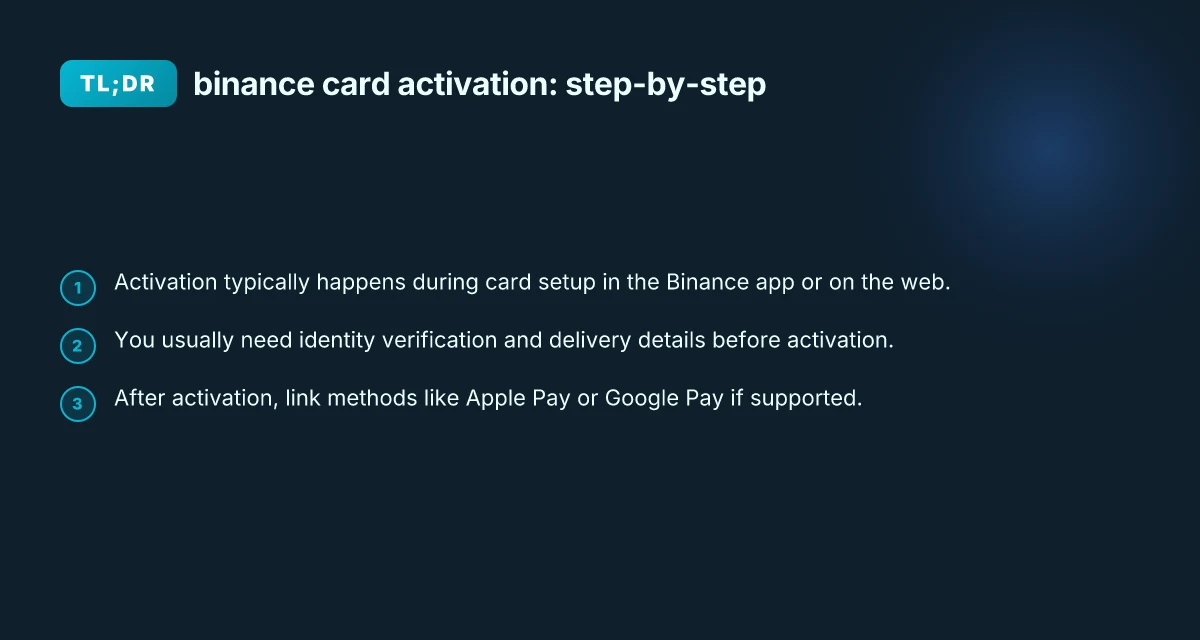
- Activation is usually performed during card setup, either in the mobile app or on the Binance website.
- You may need to verify your identity (KYC) and confirm your delivery address if you haven’t completed those steps yet.
- After activation, you can usually add the card to Apple Pay or Google Pay if those options are supported in your region.
Key steps in the typical activation flow:
- Ensure your Binance account is fully verified and funded if you plan to use the card.
- Open the Binance app (iOS or Android) or sign in on the Binance website.
- Navigate to the Card section or the Square/Wallet area where Binance Card management lives.
- Follow the prompts to activate the card, confirm personal details, and set up a PIN if prompted.
- Confirm activation and test with a small purchase or a card-present transaction.
If your region uses a dedicated “Get Started” flow, you’ll see similar prompts to confirm identity and accept terms. The exact wording and layout can differ a bit between the app and the web portal, but the core steps remain consistent.
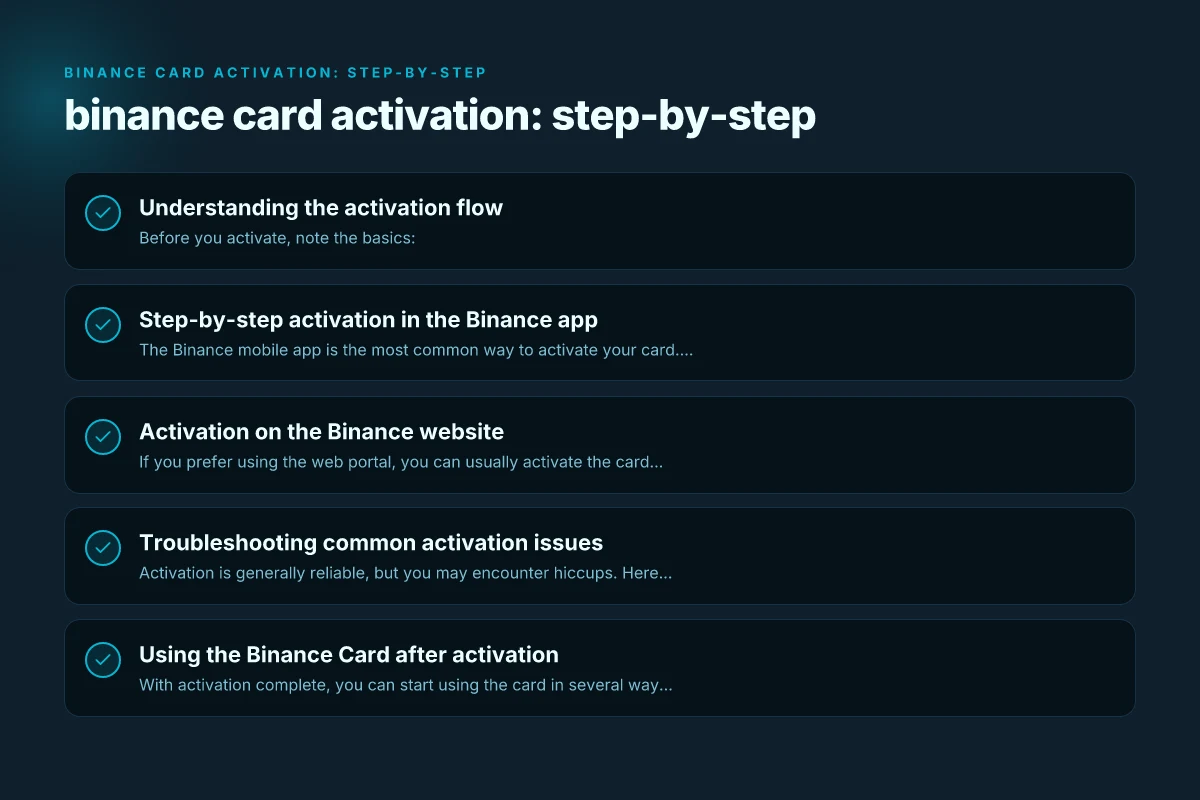
Step-by-step activation in the Binance app
The Binance mobile app is the most common way to activate your card. Here’s a typical route you can follow:
- Open the Binance app and sign in to your account.
- Tap More or explore the Card/Wallet area (the exact label may vary by version).
- Select your Binance Card from the list of linked cards or “Get Started / Get Card.”
- If prompted, confirm your identity (KYC) and ensure your delivery address is correct.
- Read and agree to the terms for card usage, then set up your PIN for the card if requested.
- Activation is confirmed on-screen. You may receive a notification or email confirming activation.
Tips for a smooth app-based activation: VPN extension for Edge
- Keep the app updated to the latest version to access current activation flows.
- Have your identity documents handy in case you’re asked for verification.
- Ensure your device has a stable internet connection during activation.
- If you don’t see a card to activate, try logging out and back in or reinstalling the app.
Activation on the Binance website
If you prefer using the web portal, you can usually activate the card there as well:
- Sign in to your Binance account on the website.
- Go to the Card management or Binance Card section (sometimes under Wallet or Square).
- Click on the card you want to activate and select Activate Card.
- Confirm identity if a verification step is required, and review any terms.
- Complete the activation and test the card with a small transaction.
In some setups, activation on the web mirrors the app flow exactly, with prompts to set a PIN and link payment preferences. If you’ve ordered a physical card, you’ll often need to confirm the delivery address and ensure the card has shipped before attempting activation.
Troubleshooting common activation issues
Activation is generally reliable, but you may encounter hiccups. Here are common problems and how to address them:
- Card not showing as available for activation: Ensure your Binance Card order is linked to your account. If you recently added a card, wait a few minutes and refresh the app or browser.
- Verification fails: Make sure your identity documents are valid and not expired. Clear photos or scans help. If you’re stuck, contact Binance support for guidance.
- Incorrect delivery address: If you changed address after placing the card, update in account settings and retry activation after the card is shipped to the correct address.
- Activation pending for a long time: Check for app updates, try a different device, or reach out to support. Sometimes activation requires a backend update.
- Card not functioning after activation: Confirm you have sufficient balance in your Binance account in the currency you intend to use. Ensure the card is not blocked due to security checks and that you’ve set a PIN.
If you run into issues, you can use Binance’s support channels. The platform often provides FAQ guidance for activation, and you can contact live support or submit a ticket for more specialized help.
Using the Binance Card after activation
With activation complete, you can start using the card in several ways: F5 access: what it is, how it works, and how to use it securely
- In-store purchases: Look for the card logo or the contactless payment symbol at checkout. You may be asked to enter your PIN for offline transactions.
- Online purchases: Use the card number, expiration date, and CVV just like a traditional card on supported merchants.
- ATM withdrawals: The card usually works for cash withdrawals from ATMs, though fees and limits may apply depending on region and plan.
- Mobile wallets: Some regions support linking the Binance Card to Apple Pay, Google Pay, or other digital wallets. If supported, you’ll typically add the card via the wallet app and confirm the linking process.
To maximize ease of use, consider adding the card to your preferred wallet after activation. This can speed up contactless payments and add an extra layer of convenience for online purchases.
Comparison: activation experiences across platforms
Here’s a quick comparison to help you anticipate differences between app and web activation:
| Platform | Activation steps | Common prompts | Common issues | Notes |
|---|---|---|---|---|
| Binance App | Open Card section, select Get Started, follow prompts | Identity verification, PIN setup, terms | Delay in card appearing, verification failures | Fastest for most users; use the latest app |
| Binance Website | Sign in, go to Card management, Activate Card | Terms, PIN, balance check | Backend delays, browser compatibility | Good for desktop users, may mirror app flow |
| Both | Confirmation screen, activation complete | Notifications, email confirmation | Activation pending, regional limitations | If not visible, reach out to support |
What you might need to activate
Common requirements include:
- An active Binance account with verified identity (KYC).
- A linked and funded wallet or ability to load funds onto the card.
- Delivery address confirmed and, if applicable, a physical card ready to activate.
- Access to the card details (if you’re activating a virtual card or a linked card in the Wallet).
If you’ve redeemed a Binance Gift Card as part of your setup, note that gift card redemptions are a separate feature. You’ll generally redeem a 16-character code in the Gift Card section of the app, and those steps are separate from the primary card activation flow. Activation and redemption serve different purposes within the Binance ecosystem.
Quick-start checklist for activation success
- Confirm your Binance account is fully verified (KYC) and active.
- Ensure you have the Binance Card issued to you and that it’s linked to your account.
- Have a stable internet connection and the latest Binance app or browser version.
- Follow the in-app or web prompts to activate, including PIN setup if requested.
- Verify with a small test transaction (if allowed) to ensure the card works.
- If you plan to use Apple Pay or Google Pay, check compatibility and link your card afterward.
- If activation fails, contact Binance support with your order number and account details.
When to contact support Snapchat stories: what they are, how they work, and how to view and share them
- If activation prompts do not appear after the expected steps.
- If you get an error message during activation or your card remains in a non-activated state.
- If you notice suspicious activity or discover the card has not been issued as expected.
Reassurance: getting activated and ready to spend Activation is designed to be a one-time step that unlocks the card’s spending capabilities. After you complete activation, you should be able to see your card balance reflected in the Binance app and start using it for in-store, online, or wallet-based payments. Since Binance regularly updates its user interface and product flows, the exact labels and navigation paths may vary. If in doubt, consult the official Binance support pages or the in-app help center for the most current instructions.
Final recommendation If you’re activating a Binance Card for the first time, approach the process with a calm, methodical mindset. Have your verification details ready, keep your device connected, and be ready to confirm prompts in the app or on the web. If you encounter issues, the fastest path to resolution is often the in-app help or Binance Support Center. Activation is a gateway to broader Binance Card features, including possible wallet integrations and digital wallet support, so completing this step sets you up for smoother spending in the days to come.