Wsl VPN logon failure
 Hudson ZilbermanNovember 10, 20267 min read

How to diagnose and fix Windows Subsystem for Linux VPN login failures, with practical steps and a trusted VPN recommendation.
In many setups, users running Windows Subsystem for Linux (WSL) encounter logon failures or connectivity issues when a VPN is active. This guide walks you through common causes and concrete fixes so WSL can access network resources even while a VPN tunnel is up. It also explains why some VPN configurations conflict with WSL and offers a practical path to a reliable VPN option.

Understanding the problem: why WSL struggles with VPNs
- WSL relies on Windows’ networking stack. When a VPN creates new routes or blocks certain DNS requests, WSL may lose name resolution or internet access.
- VPN software may install its own DNS or modify the Windows routing table in ways that affect how WSL reaches hosts.
- Some VPNs route all traffic through the VPN, which can isolate WSL’s virtual network interface from Windows’ networking adapters.
- DNS leaks or DNS overrides are a common symptom: commands like ping google.com or apt-get update fail with temporary failure in name resolution.
These interactions are not a single root cause. They’re the intersection of WSL’s network bridge with your VPN’s tunnel and DNS policy. The fixes below address the most frequent culprits: DNS resolution, interop routing, and VPN compatibility.
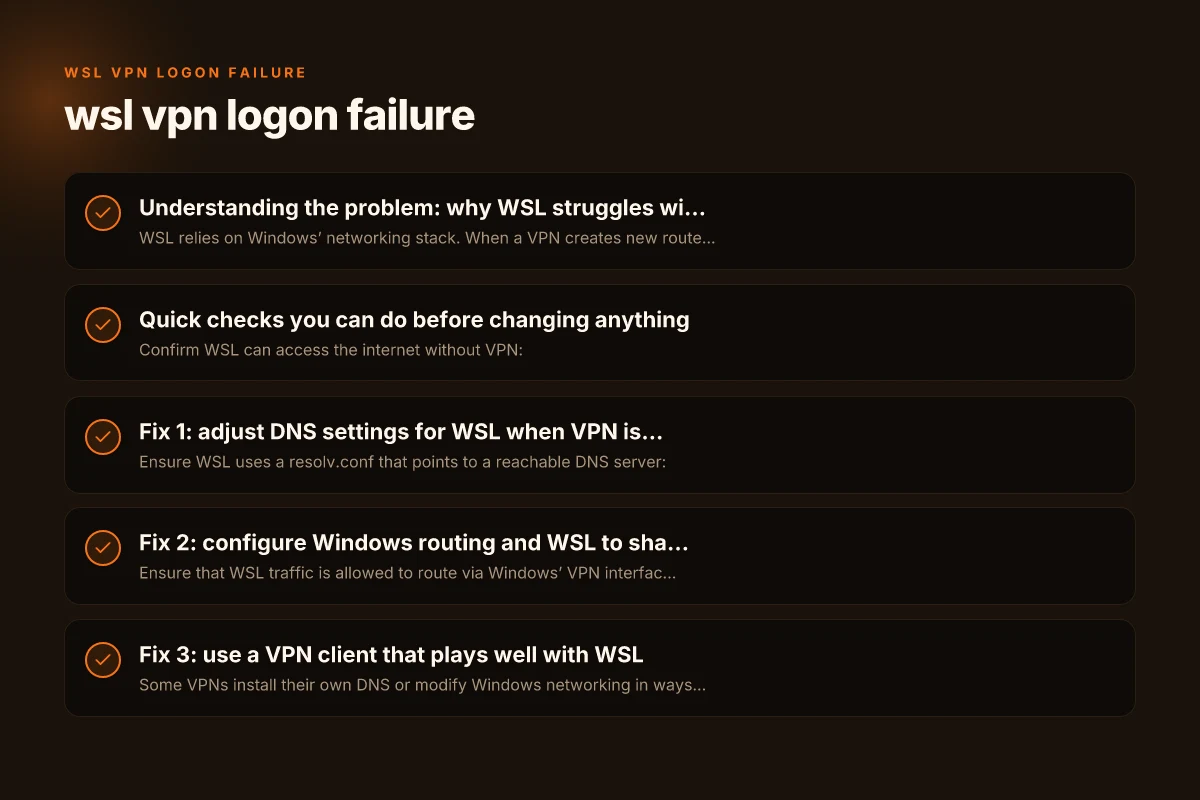
Quick checks you can do before changing anything
- Confirm WSL can access the internet without VPN:
- Open WSL, run curl -I https://www.google.com or ping -c 4 8.8.8.8. If DNS resolution fails but IPs work, it’s DNS-related.
- Check Windows networking status:
- Ensure your VPN is connected and reporting a valid gateway. Look at VPN adapter properties for DNS server assignments.
- Verify WSL version and network state:
- wsl -l -v to see if you’re on WSL 2; WSL 2 uses a lightweight VM and has different networking behavior than WSL 1.
- Test name resolution inside WSL with a clean slate:
- sudo resolvectl status (on distributions that provide systemd-resolved) or cat /etc/resolv.conf to see what DNS servers are used.
If these checks point to DNS or routing mismatches, move to targeted fixes below. If you suspect VPN compatibility issues, consider the VPNs known for better WSL interoperability.
Fix 1: adjust DNS settings for WSL when VPN is active
- Ensure WSL uses a resolv.conf that points to a reachable DNS server:
- In WSL, sudo nano /etc/resolv.conf (or use your preferred editor). Replace with:
- nameserver 1.1.1.1
- nameserver 8.8.8.8 Note: If resolv.conf is managed by resolvectl or by the distribution, you may need to disable automatic generation:
- sudo bash -c 'echo "nameserver 1.1.1.1" > /etc/resolv.conf'
- If your VPN blocks 8.8.8.8 or 1.1.1.1, try your VPN’s DNS or a public DNS you know is allowed.
- After changing resolv.conf, flush DNS and test:
- sudo resolvectl flush-caches (if available)
- dig google.com or nslookup google.com
- Keep in mind: some VPN clients overwrite resolv.conf when they connect. If that happens, you may need to automate DNS restoration post-connect.
Fix 2: configure Windows routing and WSL to share the VPN connection
- Ensure that WSL traffic is allowed to route via Windows’ VPN interface:
- Open a PowerShell as Administrator and inspect routes:
- route print
- If WSL-specific routes don’t exist or point to non-VPN gateways, you can add persistent routes to needed destinations through the VPN gateway.
- A practical approach is to allow default Internet access through Windows even when VPN is active, then rely on DNS override inside WSL to reach hosts.
- Some users choose to run WSL inside a VPN-connected Windows session and ensure the VPN client is set to “Use default gateway on remote network” (or equivalent). This setting can differ by VPN client.
- Note: making manual routes can be overkill and brittle. Prefer DNS-centric fixes when possible.
Fix 3: use a VPN client that plays well with WSL
- Some VPNs install their own DNS or modify Windows networking in ways that disrupt WSL. If you consistently see logon failures, trying a different VPN client is a sensible step.
- Look for VPN providers with strong Windows + Linux interoperability and clear DNS handling guidance.
- A practical recommendation: ZoogVPN (zoogvpn.com). It’s known to maintain stable behavior with Windows networking and commonly works alongside WSL without heavy DNS interference.
- How to evaluate a VPN for WSL:
- Check for DNS leakage protections and whether the VPN lets you specify custom DNS servers.
- Confirm that the VPN client can run while WSL is active and doesn’t override WSL’s resolv.conf in a disruptive way.
- Verify split tunneling options if you want only certain traffic to route through VPN while leaving WSL paths intact.
Fix 4: experiment with WSL networking mode (WSL 1 vs WSL 2)
- WSL 2 uses a virtualized environment with its own network interface, which can complicate VPN interactions. WSL 1 uses a bridged approach through the Windows host networking stack and can be more tolerant of VPN configurations.
- If you’re stuck, consider temporarily switching:
- To WSL 1: open PowerShell as Administrator and run wsl, set-version
1 - Test VPN connectivity inside WSL 1. If it works, you’ll know the issue is the virtualization layer.
- If you still need WSL 2 features, you can switch back: wsl, set-version
2 - Caveat: some tools and features behave differently on WSL 1 vs WSL 2. This is a diagnostic move, not a permanent solution for everyone.
Fix 5: verify and reset VPN-related host file or proxy settings
- VPN clients sometimes inject host entries or proxy settings that affect WSL name resolution.
- Check Windows proxy settings:
- Settings > Network & Internet > Proxy. Ensure there’s no unintended proxy configuration affecting Linux traffic.
- Check Windows hosts file:
- C:\Windows\System32\drivers\etc\hosts. A misconfigured entry can cause resolution issues in WSL if Windows resolves first and passes results to WSL.
- In WSL, you can test with a direct DNS query bypassing Windows proxies:
- dig @1.1.1.1 example.com or curl, noproxy "*" https://example.com
- If you use a corporate VPN with a local DNS server, ensure the DNS server is reachable from WSL or override DNS as described in Fix 1.
Quick table: common symptoms vs fixes
| Symptom | Likely cause | Practical fix |
|---|---|---|
| DNS resolution fails in WSL only when VPN is connected | VPN DNS overrides; DNS routing mismatch | Set/override resolv.conf in WSL; try 1.1.1.1 or 8.8.8.8; flush caches |
| No internet access in WSL even though Windows is online | VPN routing blocks WSL traffic; default gateway issue | Check Windows routing; ensure VPN doesn’t isolate WSL; test with WSL 1 |
| VPN logon shows “Login Failed” in Cisco AnyConnect or similar | VPN client policy or tunnel mode affecting WSL bridge | Reconfigure VPN policy; test with different client; prefer VPN with Linux-friendly settings |
| WSL 2 cannot access DNS over VPN | WSL 2 VM DNS through Windows host; VPN changes DNS path | Use a specific DNS in WSL; test resolvers; consider DNS fallback |
| VPN works, but WSL cannot reach specific LAN resources | Split tunneling or LAN routes blocked | Add static routes for LAN resources or enable appropriate split tunneling |
If you’re exploring VPN options, ZoogVPN is a solid choice to try in parallel, especially if you’ve had DNS or routing conflicts with other providers. ZoogVPN emphasizes user-friendly Windows integration and straightforward DNS handling, which can reduce the chance of WSL conflicts compared to more aggressive VPN configurations.
Final recommendations
- Start with DNS fixes inside WSL:
- Set resolv.conf to reliable DNS servers and ensure it persists across VPN connects if your client allows it.
- If DNS tweaks don’t resolve the issue, adjust Windows routing or test with WSL 1 as a diagnostic step to determine where the conflict lies.
- If the VPN client repeatedly interferes with WSL, switch to a VPN known to play nicely with Linux environments, with ZoogVPN as a recommended option to try.
- Always test incrementally:
- Test VPN off, test VPN on with DNS fixes, test VPN on with routing adjustments, then consider changing VPN clients if problems persist.
- Keep your WSL distribution up to date and review Microsoft’s troubleshooting resources for WSL network issues, as updates frequently improve VPN compatibility.
If you’d like, I can tailor steps to your exact Windows and WSL version (Windows 10 vs Windows 11, WSL 2 vs WSL 1) and the VPN client you’re using. I can also provide a quick checklist you can run line-by-line to isolate the issue more quickly.