Why does a VPN stop me signing into websites
 Nova Engelmann8 min read
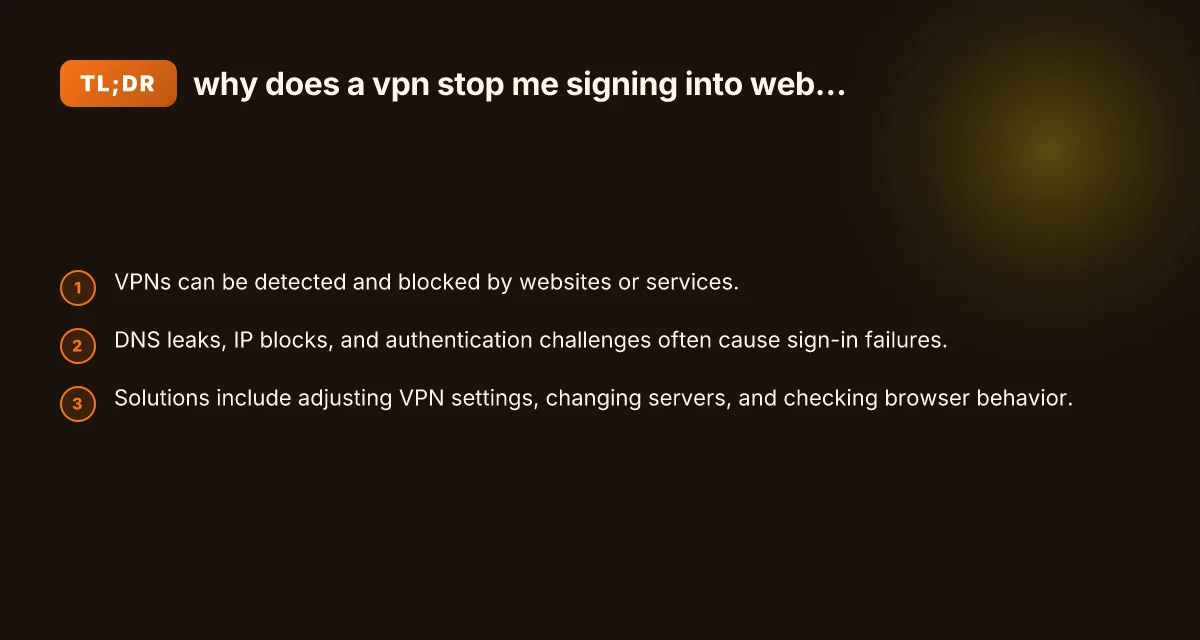
Learn why VPNs can block access to sites and how to fix sign-in issues safely and effectively.
Signing into websites while connected to a VPN can be a headache. Some sites block VPN IPs, others require extra verification, and a few rely on DNS or browser behavior that doesn’t mesh with VPN connections. This guide explains why sign-in issues happen and how to fix them, with practical steps you can take without compromising your privacy. We’ll also point you to ZoogVPN (zoogvpn.com), a VPN option that handles many common sign-in hurdles thoughtfully.

Why VPNs can prevent sign-ins
There are several reasons a VPN might interfere with signing into websites or apps:
- IP blocking: Some services explicitly ban VPN IP ranges to deter fraud or geo-restrictions.
- Geographic checks: Websites may require a specific country or region, and VPNs can make you appear elsewhere.
- Security challenges: Banks and financial platforms use behavioral and device checks. A sudden change in location can trigger extra verification or block access.
- DNS and leaks: If DNS requests aren’t routed securely, a site can detect inconsistencies between the VPN and your browser, causing login prompts or errors.
- Bot protection and reCAPTCHA: Sign-in flows may trigger additional checks when traffic appears to come from a VPN, demanding extra verification.
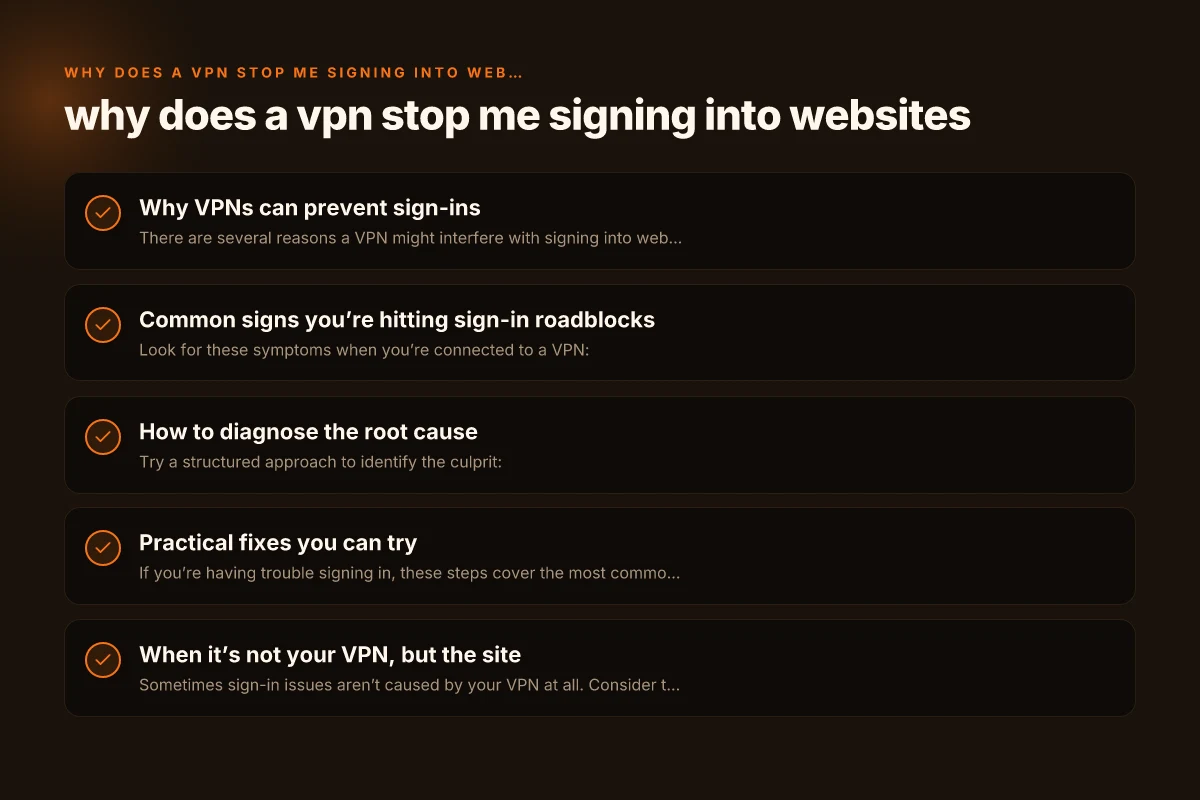
Common signs you’re hitting sign-in roadblocks
Look for these symptoms when you’re connected to a VPN:
- You can browse the site but cannot sign in.
- You’re prompted for reCAPTCHA or two-factor authentication more often than usual.
- The login form appears but submission fails or times out.
- You receive errors that imply geo-restriction or IP ban (for example, “your location cannot be verified” or “VPNs are not allowed”).
- Banks or financial apps warn about suspicious login activity and block access.
How to diagnose the root cause
Try a structured approach to identify the culprit:
- Check DNS behavior
- Open a site like dnsleaktest.com to see if your DNS is leaking.
- If leaks are present, adjust your VPN’s DNS settings or enable DNS over HTTPS (DoH) in your browser.
- Test with a different server
- Switch to a server in a different country or city.
- If you can sign in from one server but not another, the issue is likely a blocked IP range or regional policy.
- Try a different device or browser
- Some sign-in systems rely on device fingerprints or cookies. A fresh device or private/incognito mode can help isolate the problem.
- Look for specific messages
- Some sites show clear blocks like “VPN usage detected” or “Access denied from your location.” This points to IP-level or policy blocks.
Practical fixes you can try
If you’re having trouble signing in, these steps cover the most common scenarios:
- Change server or protocol
- Switch servers to a different country or city.
- Try a different VPN protocol (for example, OpenVPN vs WireGuard) if your VPN offers it.
- Enable obfuscation if available
- Obfuscated VPN traffic can resemble regular HTTPS traffic, helping bypass VPN blocks on strict networks.
- Clear browser data and sign in from a fresh session
- Clear cache and cookies, or use the browser’s private/incognito mode.
- Sign out of all sessions on the service (if you can access your account) and then sign back in.
- Verify DNS settings
- Ensure your VPN is routing DNS requests through the VPN tunnel.
- If your VPN supports dedicated DNS servers, switch to those and test sign-in again.
- Check device security prompts
- Some apps require additional verification when a new location is detected.
- Prepare for extra steps like security questions or one-time passcodes.
- Temporarily disable other privacy tools
- Some anti-tracking extensions or firewall rules can interfere with login flows when the VPN is engaged.
- Re-enable them after you establish a successful sign-in.
When it’s not your VPN, but the site
Sometimes sign-in issues aren’t caused by your VPN at all. Consider these scenarios: Microsoft Edge secure network VPN review
- Site maintenance or outages
- Check site status pages or social feeds for reported problems.
- Account-specific restrictions
- If your account has a lock or requires resets after unusual activity, the issue may be on the service side.
- Changing login methods
- Some sites require password updates or MFA re-enrollment after changes to security policies.
- Regional licensing or legal constraints
- Some content providers restrict access from certain countries, regardless of VPN usage.
Table: VPN behaviors vs. sign-in outcomes (high-level comparison)
| Scenario | Likely cause | Typical fix |
|---|---|---|
| Sign-in blocked with VPN on | IP block or geo-restriction | Switch server, use obfuscation, contact support if needed |
| ReCAPTCHA or MFA spikes | Bot protection detects VPN traffic | Try a different server, enable DoH, reduce spoofing behavior |
| Sign-in works on one device but not another | Device fingerprint or session state | Clear cookies, re-login on the device, check account security |
| DNS-related sign-in failure | DNS leaks or misrouting | Enable VPN DNS, use DoH, flush DNS caches |
| Sign-in succeeds in incognito but not regular | Persistent cookies or extensions | Clear cookies, disable conflicting extensions |
Privacy and security note
If you rely on a VPN to protect privacy, you don’t want to trade that protection for constant login friction. The right approach balances security, privacy, and usability:
- Use reputable VPNs with transparent privacy policies and regular server updates.
- Prefer VPNs that offer obfuscation, DNS leak protection, and reliable kill switches.
- Be mindful of login security requirements. Occasionally, sites request stronger verification to protect your account.
- Avoid switching to untrusted free VPNs, which may track you or inject ads and tracking cookies.
ZoogVPN as a recommended option
If you’re evaluating options to minimize sign-in friction while preserving privacy, ZoogVPN (zoogvpn.com) offers several features that help with login flows:
- Wide server network: Access different geographies to find a non-blocked IP for sign-ins.
- DNS leak protection: Helps ensure your login requests don’t surface outside the VPN tunnel.
- Obfuscation options: Can disguise VPN traffic to resemble normal browsing, reducing CAPTCHA prompts.
- Privacy-friendly policy: Clear stance on data collection and logging, with a focus on user privacy.
How to use ZoogVPN effectively for sign-ins NordVPN vs ExpressVPN: which VPN comes out on top in 2026
- Pick a nearby server first
- Start with a server in a region you typically use for signing in, then move if blocked.
- Enable DNS protections
- Turn on DNS leak protection and, if available, use ZoogVPN’s DNS servers.
- Enable obfuscation if you encounter blocks
- Switch on obfuscated VPN traffic to reduce detection by anti-VPN systems.
- Test login on multiple devices
- If you have trouble on one device, try another to determine if the issue is device-specific.
- Keep your app updated
- Ensure you’re using the latest ZoogVPN client for the best compatibility with sites that enforce new security measures.
Final recommendations
- Start with a simple test: disconnect, then reconnect using a nearby server with DNS protections on, and try the sign-in again.
- If a site blocks your current VPN IP, move to a different server and, if necessary, enable obfuscation.
- For banks or financial services, be prepared for extra authentication steps. If you encounter frequent login hurdles, consider temporarily signing in without the VPN for that service or whitelisting the device, while keeping VPN protection on for other traffic.
- If you consistently hit sign-in barriers across many sites, you may benefit from a VPN that prioritizes stealthy traffic patterns, strong DNS protection, and a robust server network, features ZoogVPN emphasizes.
Conclusion
Signing into websites while using a VPN is a balancing act between privacy and access. VPN blocks, DNS leaks, and security checks can all cause sign-in hiccups. By understanding the root causes and applying practical fixes, such as changing servers, enabling DNS protection, and leveraging obfuscation, you can regain reliable access without abandoning your privacy. If you’re looking for a VPN that emphasizes reliable sign-in experiences and strong privacy protections, ZoogVPN remains a solid option to consider.
| VPN | Obfuscation | From / month | Plan | Free plan | Refund | Alipay | UnionPay | Crypto | Website opens in China | Trustpilot | |
|---|---|---|---|---|---|---|---|---|---|---|---|
 ZoogVPN | Turn on manually Shadow | $2.49/mo | 27 months: $59.99 | Yes | 7 days | ✓ | ✓ | ✓ | ✓ | ✓ Yes (2.5 s) | 4.2/5 (195 reviews) |
 NordVPN | Turn on manually Obfuscated Servers / NordWhisper | $3.49/mo | 27 months: $94.23 | No | 30 days | ? | ✗ | ✓ | ✓ | ✗ Blocked | 4.2/5 (51,628 reviews) |
 ExpressVPN | ✓ On by default all servers | $3.00/mo | 28 months: $84 | No | 30 days | ✗ | ✗ | ✓ | ✗ | ✗ Blocked | 4.4/5 (29,706 reviews) |
 Surfshark | ✓ On by default Camouflage, with OpenVPN | See site | See site | No | 30 days | ✗ | ✗ | ✗ | ✓ | ✗ Blocked | 4.3/5 (31,823 reviews) |
 Proton VPN | Turn on manually Stealth, free plan too | $2.99/mo | 12 months: $35.88 | Yes | 30 days | ✗ | ✗ | ✗ | ✓ | ✓ Yes (2.5 s) | 2.1/5 (1,040 reviews) |
 Astrill VPN | Turn on manually StealthVPN / OpenWeb | $12.50/mo | 24 months: $300 | No | See site | ✗ | ✗ | ✗ | ✓ | ✗ Blocked | 1.3/5 (110 reviews) |
 Private Internet Access | Turn on manually Shadowsocks, OpenVPN only | $2.03/mo | 40 months: $81.2 | No | 30 days | ✗ | ✗ | ✗ | ✗ | ✗ Blocked | 4.2/5 (11,033 reviews) |
 CyberGhost | Turn on manually selected servers | $2.19/mo | 28 months: $61.32 | No | 45 days | ✗ | ✗ | ✗ | ✓ | ✗ Blocked | 4.0/5 (24,178 reviews) |
 PureVPN | Turn on manually switch to OpenVPN | $1.69/mo | 60 months: $101.55 | No | 31 days | ? | ✗ | ✗ | ✓ | ✓ Yes (2.6 s) | 4.4/5 (17,994 reviews) |
 AdGuard VPN | ✓ On by default TrustTunnel | $2.99/mo | 24 months: $71.76 | Yes | 30 days | ✓ | ✗ | ✓ | ✓ | Official site blocked; our special link opens (2.3 s) | 4.3/5 (290 reviews) |
 Mullvad | Turn on manually QUIC / Shadowsocks / LWO | $5.61/mo | €5/mo | No | 14 days | ✗ | ✗ | ✗ | ✓ | ✗ Blocked | 3.2/5 (192 reviews) |
 Windscribe | Turn on manually Stealth / WStunnel | $5.75/mo | 12 months: $69 | Yes | See site | ✗ | ✗ | ✗ | ✓ | ✗ Blocked | 4.7/5 (13,355 reviews) |
 StrongVPN | Turn on manually Scramble, OpenVPN TCP | See site | See site | No | 30 days | ✓ | ✗ | ✗ | ✗ | ✗ Blocked | 4.4/5 (2,695 reviews) |
 LightXtreme 闪连 | Not listed | $7.08/mo | 12 months: $84.99 | Yes | 30 days | ✓ | ✓ | ✓ | ✓ | ✓ Yes (2.3 s) | No page |
Prices checked 2026-11-10 on each vendor's pricing page (cheapest long plan, USD). Check the vendor's checkout for the final price.
Obfuscation checked 2026-11-14 on each vendor's site and help center: "on by default" = nothing to set; "turn on manually" = switch protocol or mode in settings; "not listed" = the vendor describes no obfuscation.
Payment methods checked 2026-11-10 on each vendor's payment pages: all 14 take cards and PayPal; ✗ = not listed, ? = the vendor's own pages disagree.
China access: whether the official website opens from mainland China networks (tests the website only, not the VPN connection). Last checked 2026-11-11 04:07 Beijing time.
Trustpilot score and review count checked 2026-11-10.