Ubiquiti VPN not working
 Bastien Petrosian10 min read
A practical guide to diagnose and fix common Ubiquiti VPN issues across UniFi devices and One-Click VPN.
VPN problems with Ubiquiti gear can be frustrating because the causes span hardware, firmware, and network configuration. This guide walks you through practical steps to diagnose and fix “ubiquiti vpn not working” scenarios, including UniFi One-Click VPN, client VPNs on UniFi Dream Machine (UDM/UDM‑Pro), and site-to-site tunnels. You’ll find a structured approach, quick checks, and concrete actions to restore service without unnecessary guessing.

Quick reference for common VPN types and their typical use-cases
| VPN Type | Typical Use | Pros | Cons |
|---|---|---|---|
| VPN type: Site-to-site | Office to office networks | Stable for multiple devices | More complex to set up |
| VPN type: Remote access (client) | Individual user connections | Flexible for mobile users | Requires client installs |
| VPN type: Clientless (Web) | Quick access via browser | No client needed | Limited features |
| VPN type: IPsec | Secured site-to-site or remote access | Strong encryption | May require NAT traversal tweaks |
| VPN type: OpenVPN | Cross-platform compatibility | Open-source, flexible | Config complexity |
| VPN type: WireGuard | Lightweight, fast | Simple config, fast | Mature ecosystem growing |
Compiled November 2026; check the provider's site for current details.
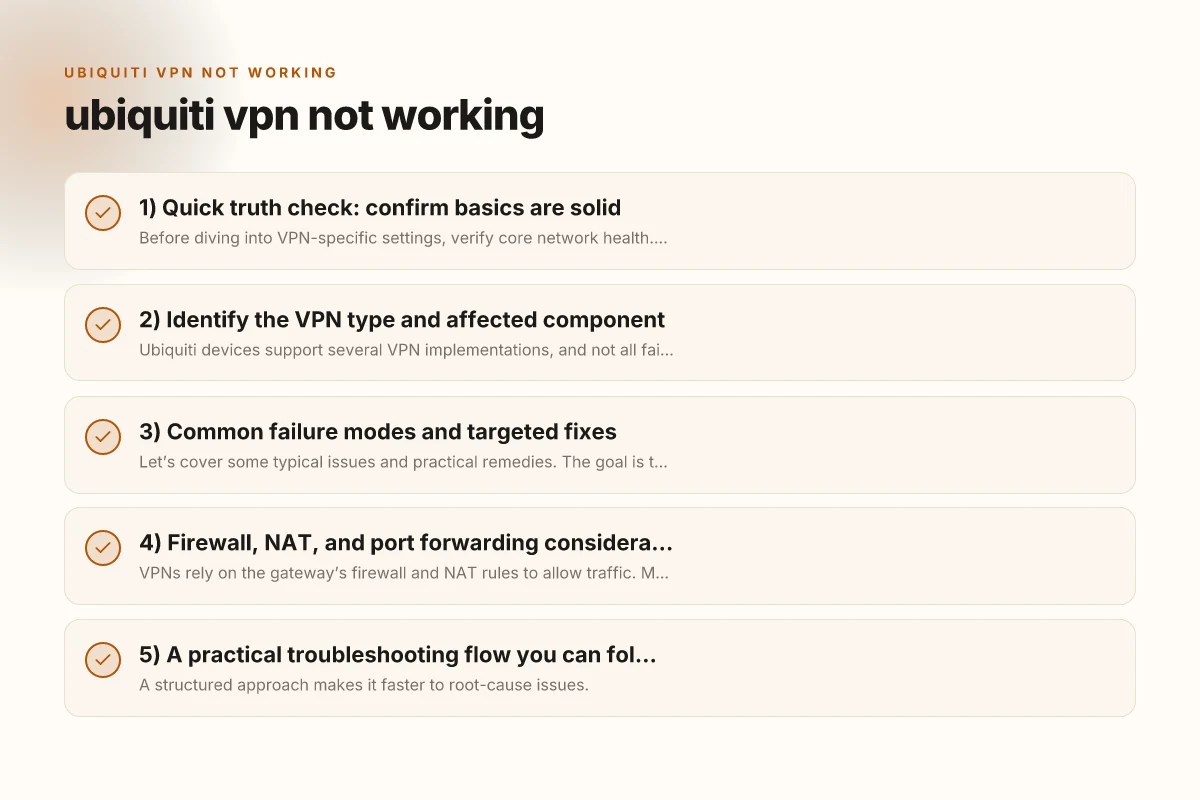
1) Quick truth check: confirm basics are solid
Before diving into VPN-specific settings, verify core network health. Many VPN failures are symptoms of broader connectivity issues.
- Internet access: Can the device that runs the VPN server or client reach the internet? Ping external sites or try a basic browser test.
- Device reachability: If you’re managing a UniFi control plane, ensure the controller UI is reachable from your admin workstation.
- Firmware parity: Confirm you’re not mixing major firmware lines (for example, a 10.x client device with an older 7.x control plane) without supported compatibility. Check release notes for breaking changes in VPN components (WireGuard, OpenVPN, IPSec, or One-Click VPN).
- Time and NTP: VPNs sensitive to clock drift. Make sure device clocks are synchronized.
If basic connectivity is flaky, fix that first. VPNs can fail simply because the underlying path is unreliable.
2) Identify the VPN type and affected component
Ubiquiti devices support several VPN implementations, and not all failures are interchangeable. Common types include:
- One-Click VPN (UniFi OS)
- IPSec Site-to-Site VPN
- WireGuard-based client/server VPN
- OpenVPN (legacy or third-party add-ons)
Each type has different troubleshooting steps. Pinpoint the exact VPN feature that isn’t working, because the next steps depend on the protocol in use.
Quick checklist by VPN type
- One-Click VPN: Check the status in the UniFi Network/OS UI, confirm that the One-Click VPN service is enabled, and verify the client’s connectivity method (being on the same network or remote access).
- IPSec Site-to-Site: Confirm shared secrets/PSKs, IKE phase settings, and that the tunnel is allowed through both sides’ firewall rules.
- WireGuard: Ensure peer public keys, allowed IPs, and port forwarding on the gateway are correct. Verify that the WireGuard module is enabled after the latest update.
- OpenVPN: Validate server configuration, certificates, and that the client profile matches the server’s expected CA/private data.
If you’re unsure which type you’re using, check the UniFi controller’s VPN settings screen or the device’s VPN configuration page. Microsoft Edge secure network VPN review is it worth using
Troubleshooting decision tree: identifying type and component
| Step | Question | Answer / Action | Affected component |
|---|---|---|---|
| 1 | Are you remote user or site-to-site? | Remote user | Client device, VPN server |
| 2 | Is interface reachable? | Ping IP or hostname | Network path, DNS |
| 3 | Is VPN service running? | Check service status | VPN daemon, firewall |
| 4 | Are credentials valid? | Verify login details | Auth server, user database |
| 5 | Any certificate errors? | Inspect certs or trust store | TLS layer, CA |
Compiled November 2026; check the provider's site for current details.
3) Common failure modes and targeted fixes
Let’s cover some typical issues and practical remedies. The goal is to fix the root cause without inadvertently disabling other services.
- Issue: VPN service not starting or showing “Not Ready”
- Fix: Restart the VPN service or reboot the device hosting the VPN. After reboot, re-check the VPN status. If a recent update caused the service to fail, reapply the VPN configuration or restore the previous working backup.
- Issue: Client cannot connect despite correct credentials
- Fix: Revalidate credentials and certificates (for IPSec/OpenVPN) or keys (for WireGuard). Ensure the remote peer’s public key or certificate is correctly configured. Check for typos in pre-shared keys.
- Issue: VPN connection drops or is unstable
- Fix: Look for packet loss or high latency on the WAN link. If the gateway’s CPU is saturated, upgrade or offload heavy tasks. Ensure MTU settings are correct. An overly large MTU can disrupt VPN handshakes.
- Issue: Site-to-Site VPN not forming after a firmware update
- Fix: Review change logs for the specific release. Some updates alter crypto parameters or require re-acceptance of certificates or re-creation of tunnels. Recreate or re-import the tunnel on both ends if necessary.
- Issue: One-Click VPN not visible to clients
- Fix: Confirm the One-Click VPN feature is enabled in the controller and that the client device has permission to connect. If policy groups changed, ensure users have access.
If you’re seeing error codes, capture them and search the exact message in Ubiquiti help articles or community forums to see if others experienced the same version-specific bug.
4) Firewall, NAT, and port forwarding considerations
VPNs rely on the gateway’s firewall and NAT rules to allow traffic. Misconfigurations here are a leading cause of “vpn not working” symptoms. How to completely uninstall nordpass and clean up your devices
- Port exposure: Ensure the required ports for your VPN type are open on the firewall and correctly forwarded if the VPN terminates on a different device.
- Directionality: IPSec often uses multiple protocols (ESP, IKE). Confirm those aren’t blocked in either direction.
- NAT Traversal: If your VPN requires NAT-T, verify that NAT-T is enabled on both sides.
- Local network rules: A VPN client trying to reach a private subnet must have appropriate routes and firewall allowances. Check that the VPN’s remote networks are reachable and that inter-subnet routing is allowed.
Documented best practice: keep firewall rules narrowly scoped to VPN traffic (rather than broad allow-all) to reduce attack surface while preserving connectivity.
5) A practical troubleshooting flow you can follow
A structured approach makes it faster to root-cause issues.
- Step 1: Confirm internet connectivity on the VPN host and client.
- Step 2: Identify VPN type and verify service status.
- Step 3: Check credentials, keys, certificates, and configuration on both ends.
- Step 4: Review firewall and NAT rules for required ports and protocols.
- Step 5: Inspect VPN logs for warnings or errors and correlate them with device events.
- Step 6: If updates were recently applied, test with a rollback or a clean reconfiguration.
- Step 7: Test from a different network (e.g., cellular) to rule out local ISP or site-wide restrictions.
- Step 8: If nothing works, recreate the VPN tunnel configuration from scratch and test again.
If you’re using One-Click VPN and the issue persists after steps 1–4, a full reapply of the One-Click VPN profile or reimporting the client profile often resolves stubborn misconfigurations.
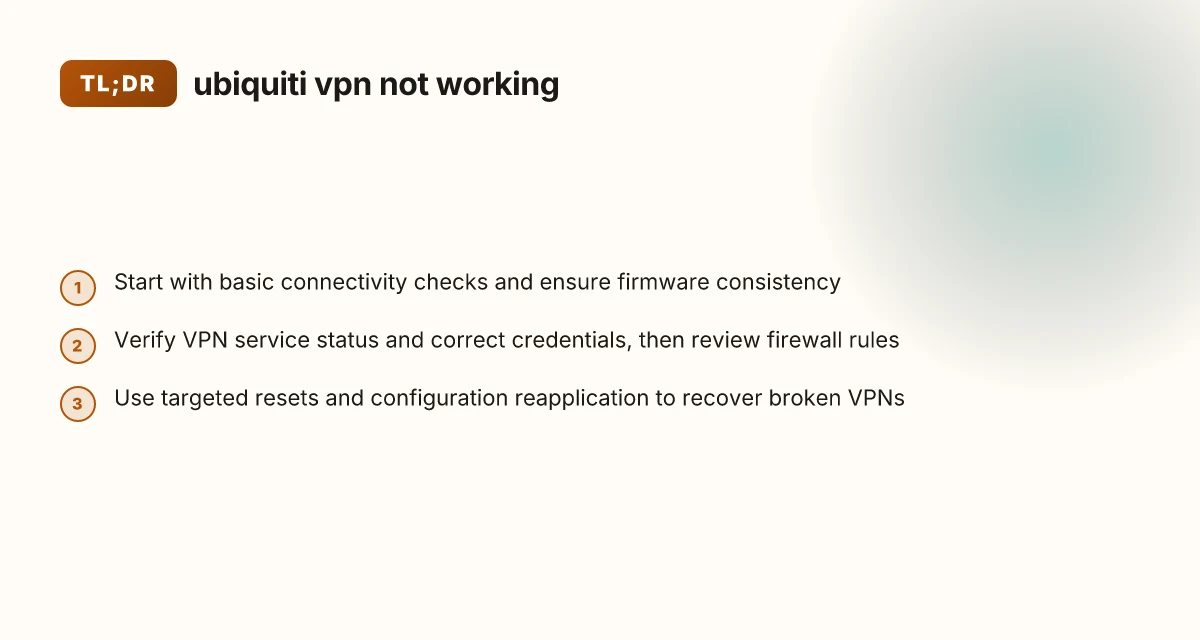
Common failure modes and targeted fixes (by area)
| Area | Common issue | Quick fix | Evidence you looked at |
|---|---|---|---|
| Authentication | Invalid creds | Re-enter creds, reset | Logs show auth failure |
| TLS/Certs | Expired cert | Renew and deploy | Cert expiry date |
| NAT/Port | Port blocked | Open port, adjust NAT | Traffic blocked on port |
| Client config | Mismatched server URL | Update server address | Config file |
| Firewall | VPN ports blocked | Allow VPN ports | Firewall logs |
| DNS | Name resolution fail | Use IP or fix DNS | DNS test results |
Compiled November 2026; check the provider's site for current details. How to download f5 big-IP Edge VPN client for Mac
6) A simple comparison: what changes across VPN types
Here’s a quick table to help you decide what to check for each VPN type.
| VPN type | Common issues | Quick fix approaches | When to restart/replace |
|---|---|---|---|
| One-Click VPN | Service not visible, profile mismatch | Re-enable, reapply profile, verify controller state | After firmware updates that touch VPN engine |
| IPSec Site-to-Site | Tunnel not forming, PSK/key mismatch | Reconfigure tunnels, verify IKE/IKEv2 settings | If multiple tunnels fail simultaneously |
| WireGuard | Peer keys or allowed ips wrong, port blocked | Recheck keys, update allowed IPs, verify NAT-T if needed | After OS-level changes or module updates |
| OpenVPN | Certificates or CA mismatch | Reissue certificates, import correct client config | When server certs rotate or CA invalidates |
This table emphasizes that the root cause often traces back to configuration or the transient state of the VPN service following an update.
7) When to escalate and how to collect the right data
If the VPN still won’t work after following these steps, consider escalation with logs and system details.
- Gather logs: Export VPN logs from the gateway or controller. Note timestamps of failed attempts.
- Capture screenshots: Show VPN settings pages, firewall rules, NAT rules, and tunnel status.
- Environment snapshot: Include device model, firmware version, controller version, and network topology.
- Reproduction steps: Document the exact sequence from attempting a connection to the failure.
With this data, support forums or Ubiquiti’s official help channels can better diagnose version-specific bugs or edge cases.
8) Final recommendations and best practices
- Keep firmware and software up to date, but be cautious about major releases. Read release notes for VPN-related changes.
- Back up configurations before performing major changes or updates.
- Prefer minimal, incremental changes when diagnosing: change one variable at a time and test after each step.
- Use targeted testing: test VPN connectivity from multiple clients and networks to distinguish device-side vs network-side issues.
- Consider backup access methods: (for critical sites) keep a secondary remote access method in case the primary VPN is down.
If you’re dealing with a famous or recent regression (for example, after a specific update), check the latest community threads and official advisories for known workarounds or hotfixes. NordVPN coupon: how to save with NordVPN discounts in 2026
Final note: VPN reliability on Ubiquiti gear is typically improved by a disciplined approach to updates, careful configuration, and clear visibility into logs. By isolating the problem area, whether it’s one-click services, IPSec tunnels, WireGuard, or OpenVPN, you can usually recover the VPN function with a structured, evidence-based workflow. If you want, tell me your exact VPN type, device model, firmware, and the symptoms you’re seeing, and I’ll tailor a step-by-step plan for your setup.
| VPN | Obfuscation | From / month | Plan | Free plan | Refund | Alipay | UnionPay | Crypto | Website opens in China | Trustpilot | |
|---|---|---|---|---|---|---|---|---|---|---|---|
 ZoogVPN | Turn on manually Shadow | $2.49/mo | 27 months: $59.99 | Yes | 7 days | ✓ | ✓ | ✓ | ✓ | ✓ Yes (2.5 s) | 4.2/5 (195 reviews) |
 NordVPN | Turn on manually Obfuscated Servers / NordWhisper | $3.49/mo | 27 months: $94.23 | No | 30 days | ? | ✗ | ✓ | ✓ | ✗ Blocked | 4.2/5 (51,628 reviews) |
 ExpressVPN | ✓ On by default all servers | $3.00/mo | 28 months: $84 | No | 30 days | ✗ | ✗ | ✓ | ✗ | ✗ Blocked | 4.4/5 (29,706 reviews) |
 Surfshark | ✓ On by default Camouflage, with OpenVPN | See site | See site | No | 30 days | ✗ | ✗ | ✗ | ✓ | ✗ Blocked | 4.3/5 (31,823 reviews) |
 Proton VPN | Turn on manually Stealth, free plan too | $2.99/mo | 12 months: $35.88 | Yes | 30 days | ✗ | ✗ | ✗ | ✓ | ✓ Yes (2.5 s) | 2.1/5 (1,040 reviews) |
 Astrill VPN | Turn on manually StealthVPN / OpenWeb | $12.50/mo | 24 months: $300 | No | See site | ✗ | ✗ | ✗ | ✓ | ✗ Blocked | 1.3/5 (110 reviews) |
 Private Internet Access | Turn on manually Shadowsocks, OpenVPN only | $2.03/mo | 40 months: $81.2 | No | 30 days | ✗ | ✗ | ✗ | ✗ | ✗ Blocked | 4.2/5 (11,033 reviews) |
 CyberGhost | Turn on manually selected servers | $2.19/mo | 28 months: $61.32 | No | 45 days | ✗ | ✗ | ✗ | ✓ | ✗ Blocked | 4.0/5 (24,178 reviews) |
 PureVPN | Turn on manually switch to OpenVPN | $1.69/mo | 60 months: $101.55 | No | 31 days | ? | ✗ | ✗ | ✓ | ✓ Yes (2.6 s) | 4.4/5 (17,994 reviews) |
 AdGuard VPN | ✓ On by default TrustTunnel | $2.99/mo | 24 months: $71.76 | Yes | 30 days | ✓ | ✗ | ✓ | ✓ | Official site blocked; our special link opens (2.3 s) | 4.3/5 (290 reviews) |
 Mullvad | Turn on manually QUIC / Shadowsocks / LWO | $5.61/mo | €5/mo | No | 14 days | ✗ | ✗ | ✗ | ✓ | ✗ Blocked | 3.2/5 (192 reviews) |
 Windscribe | Turn on manually Stealth / WStunnel | $5.75/mo | 12 months: $69 | Yes | See site | ✗ | ✗ | ✗ | ✓ | ✗ Blocked | 4.7/5 (13,355 reviews) |
 StrongVPN | Turn on manually Scramble, OpenVPN TCP | See site | See site | No | 30 days | ✓ | ✗ | ✗ | ✗ | ✗ Blocked | 4.4/5 (2,695 reviews) |
 LightXtreme 闪连 | Not listed | $7.08/mo | 12 months: $84.99 | Yes | 30 days | ✓ | ✓ | ✓ | ✓ | ✓ Yes (2.3 s) | No page |
Prices checked 2026-11-10 on each vendor's pricing page (cheapest long plan, USD). Check the vendor's checkout for the final price.
Obfuscation checked 2026-11-14 on each vendor's site and help center: "on by default" = nothing to set; "turn on manually" = switch protocol or mode in settings; "not listed" = the vendor describes no obfuscation.
Payment methods checked 2026-11-10 on each vendor's payment pages: all 14 take cards and PayPal; ✗ = not listed, ? = the vendor's own pages disagree.
China access: whether the official website opens from mainland China networks (tests the website only, not the VPN connection). Last checked 2026-11-11 04:07 Beijing time.
Trustpilot score and review count checked 2026-11-10.