PR_CONNECT_RESET_ERROR: What It Means and How to Fix It
 Reese WexlerNovember 8, 20266 min read
We earn a commission when you buy through some links on this site, at no extra cost to you.
A practical guide to understanding and resolving the PR_CONNECT_RESET_ERROR in Firefox and other browsers.
PR_CONNECT_RESET_ERROR: What it is and how to fix it
The PR_CONNECT_RESET_ERROR is a common Firefox error code that can pop up when you try to load a website. It signals that the TCP connection between your browser and the server was forcibly closed, typically by the server itself or by an intermediary device like a router, proxy, or firewall. The result is that the browser never finishes establishing a secure connection, so you see the error instead of the webpage.
In practice, this error can appear on different networks and with different sites. The core issue is a reset of the connection, not a simple timeout. Because there are many potential causes, local software, network equipment, or even the site’s own configuration, troubleshooting often requires a layered approach. Below is a structured guide to diagnosing and fixing PR_CONNECT_RESET_ERROR.

Understand the potential causes
What the error signals
- The remote server closed the TCP connection abruptly.
- An intermediary device (proxy, VPN, firewall, router) sent a TCP RST command.
- Security software (antivirus, endpoint protection) interfered with the connection.
- TLS/SSL misconfigurations or OCSP-related checks can contribute in some cases.
Common culprits you can influence
- Your browser cache or cookies causing stale state.
- The network you’re on (home, office, public Wi-Fi, or mobile tethering).
- Security software or browser extensions that inspect or block traffic.
- Incorrect system date/time or DNS issues.
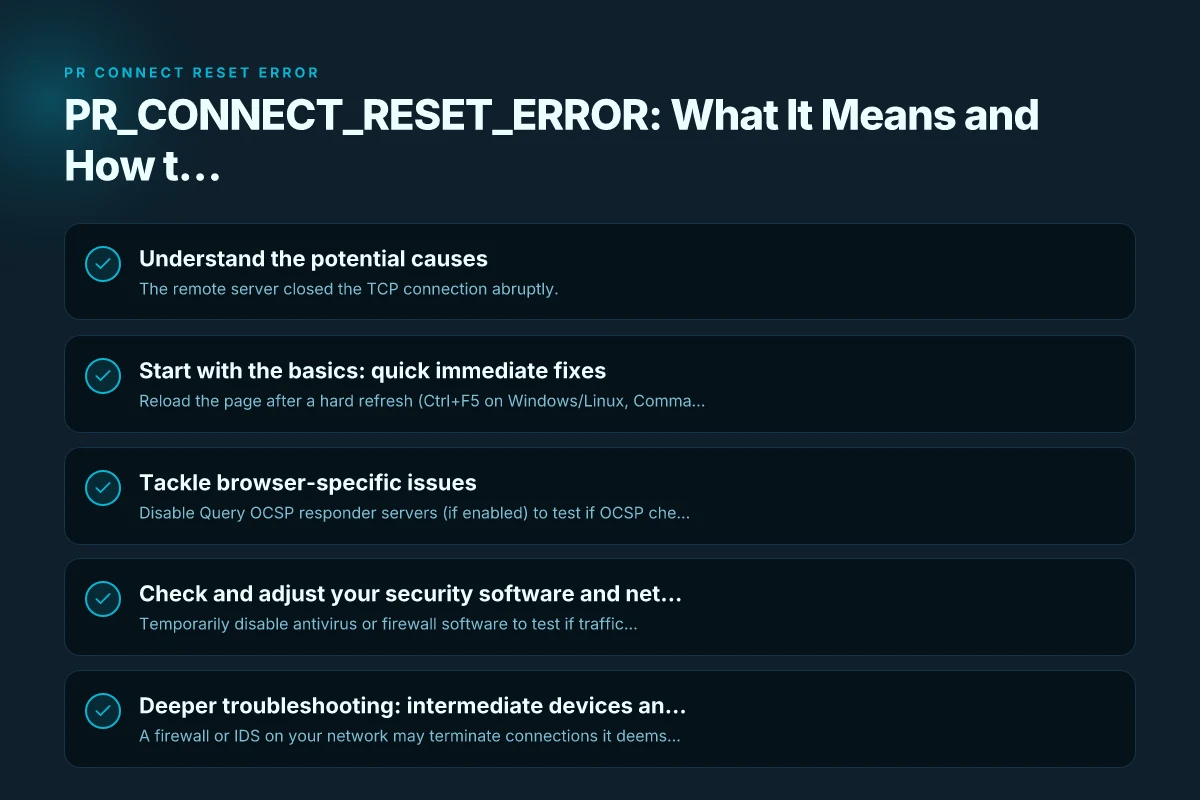
Start with the basics: quick immediate fixes
Refresh and clear local data
- Reload the page after a hard refresh (Ctrl+F5 on Windows/Linux, Command+Shift+R on macOS).
- Clear browser cache and cookies for the site, or globally if you’re seeing many sites fail.
- Try loading the site in an Incognito/Private window to bypass some cached data and extensions.
Test across networks and devices
- Switch to a different network (e.g., mobile data, different Wi-Fi) to see if the issue is network-specific.
- Try another device using the same network. If it works on one device but not another, the issue is likely local to that device.
Check basic time and DNS
- Ensure your computer’s date and time are correct.
- Flush DNS cache:
- Windows: ipconfig /flushdns
- macOS/Linux: sudo dscacheutil -flushcache. Sudo killall -HUP mDNSResponder
- Change DNS servers temporarily (e.g., Google DNS 8.8.8.8 and 8.8.4.4 or Cloudflare 1.1.1.1).
Tackle browser-specific issues
Firefox-focused steps
- Disable Query OCSP responder servers (if enabled) to test if OCSP checking is involved:
- Open about:config, search for "OCSP", and toggle off relevant settings temporarily for testing (re-enable after test).
- Disable or remove problematic extensions:
- Go to about:addons and turn off security or privacy extensions one by one to identify a conflict.
- Ensure TLS settings are sane:
- In Firefox, Preferences > Privacy & Security > Security, check that TLS 1.2/1.3 are enabled. Reset security-related preferences if you’ve customized them.
General browser hygiene
- Update Firefox (or your browser) to the latest version, as newer builds fix networking and TLS issues.
- Reset browser settings if you’ve made many tweaks or the browser profile is corrupted.
- Disable hardware acceleration temporarily to rule out GPU or driver issues affecting network-related rendering.
Check and adjust your security software and network devices
Security software and firewalls
- Temporarily disable antivirus or firewall software to test if traffic is being blocked or reset.
- If a VPN is in use, disconnect it to determine whether the VPN’s route or encryption is triggering the reset.
- Some security suites inspect TLS traffic. They may interfere with certain sites. Disable TLS/SSL inspection where possible, or add exceptions for trusted sites.
Network hardware and proxies
- Restart the modem/router to clear stale connections and refresh the network path.
- If you’re behind a corporate proxy or gateway, contact your IT team: misconfigured proxies or TLS interception can cause PR_CONNECT_RESET_ERROR.
- Ensure there’s no conflicting proxy configuration in your OS network settings or browser.
DNS and routing considerations
- If you use custom DNS on your router or device, revert to defaults or try a different DNS (e.g., Cloudflare’s 1.1.1.1 or Google’s 8.8.8.8).
- Clear DNS cache on your router if it offers a management interface.
Deeper troubleshooting: intermediate devices and site-side factors
Intermediaries between you and the site
- A firewall or IDS on your network may terminate connections it deems suspicious. Check logs if you have access.
- A corporate or campus network with strict filtering can intermittently reset connections to certain TLS configurations or certificate chains.
- Some proxies or VPNs can cause PR_CONNECT_RESET_ERROR due to TLS fingerprinting or certificate validation paths.
Site-side considerations
- The server may be overloaded or configured to drop certain connections. This is less common, but if many users report the same site across multiple networks, the server could be the cause.
- Some servers block requests from particular geographies or IP ranges. Rotating IP addresses or using a different DNS might help if the server is regionally restricting traffic.
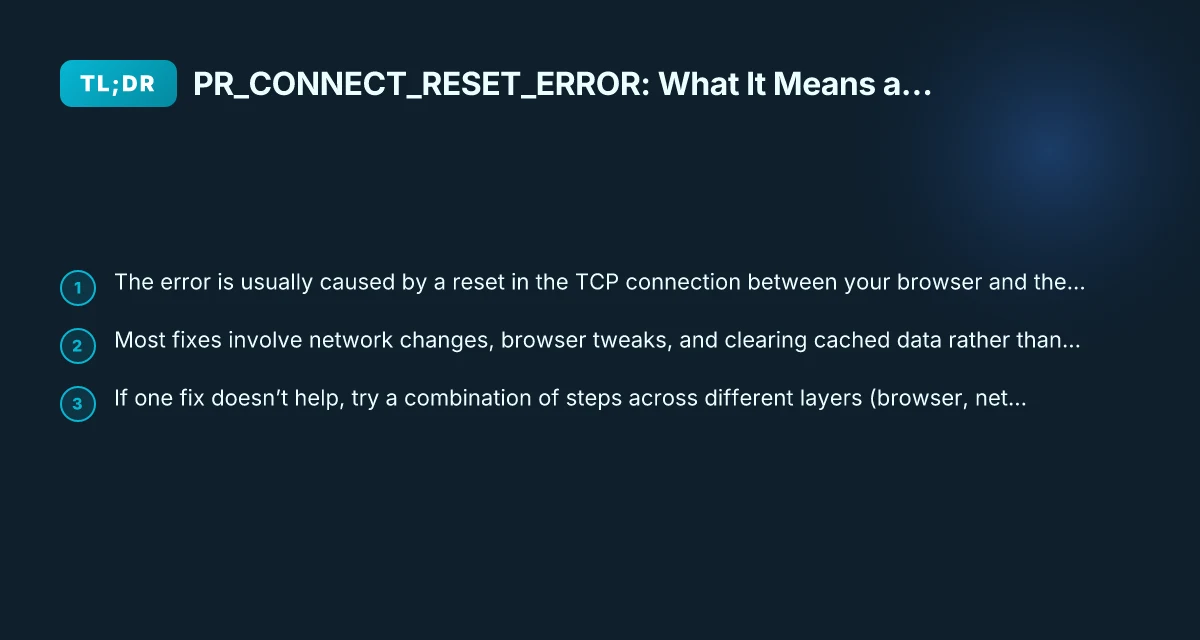
A practical comparison: fixes at a glance
- Quick reset vs. deep reset
- Quick: Hard refresh, clear cache, disable extensions.
- Deep: Change DNS, test on another network, reset browser, adjust security software.
- Client-side vs. network-side
- Client-side: Browser settings, cache, extensions.
- Network-side: Router reboot, VPN/proxy settings, firewall rules.
- OCSP considerations
- Some Firefox users report OCSP checks being related. Temporarily toggling OCSP-related settings can help diagnose but should be re-enabled for security.
| Scenario | Likely fix to try first | Next steps if not resolved |
|---|---|---|
| Error on a single site, across devices on same network | Clear cache for site; disable extensions; test in Private Window | Flush DNS; switch DNS servers; reboot router |
| Error across many sites on one network | Reboot router; check firewall or VPN; disable security software temporarily | Test on different network; check router logs; contact ISP if needed |
| Error only on Firefox, other browsers OK | Test with OCSP settings toggled; disable extensions; update Firefox | Reset Firefox profile; consider fresh install |
| Error persists after multiple adjustments | Try a different DNS; verify system time; inspect security software | Consider network-level pull or contact site administrator |
When to seek help and what information to gather
If you can’t resolve PR_CONNECT_RESET_ERROR after trying the steps above, gather the following to seek help more effectively:
- A description of when the error occurs (which sites, time of day, network used).
- The exact error message text and any error codes shown in the browser console.
- Screenshots of the error and steps tried.
- Your network context: home, work, public Wi-Fi, VPNs, and router model.
- Browser version and any extensions that might interact with network traffic.
- Security software details (name and version) and whether it inspects TLS traffic.
- DNS settings and whether you’ve recently changed them.
Final recommendation
PR_CONNECT_RESET_ERROR is usually not a single-root issue. Start with quick, low-friction steps: hard refresh, clear cache for the site, disable recently added extensions, and try Private/Incognito mode. If the error persists, move outward: test on another network, switch DNS, and reboot networking gear. Don’t overlook security software and VPNs/VPN-like services, as they often sit between your browser and the site and can cause resets. If you’re in an environment with a corporate proxy or firewall, consult the IT team about TLS inspection or proxy rules that may trigger the reset.
In most cases, a layered approach, browser tweaks, network adjustments, and security software checks, will restore access without needing site-side changes. If you’d like, share what steps you’ve taken and the exact error phrasing, and I can tailor a step-by-step plan for your specific setup.