NordVPN blocking Google
 Tessa Albright8 min read
A practical guide to troubleshooting Google access when NordVPN is active, with proven workarounds and best practices.
If you’re seeing trouble accessing Google while NordVPN is on, you’re not alone. VPNs can trigger Google’s defenses, DNS quirks, or browser quirks that block or slow access. This guide walks you through practical steps to get Google working again without sacrificing the privacy and security NordVPN provides.

NordVPN server choice vs DNS/IP options — quick comparison
| Option | Purpose | Pros | Cons |
|---|---|---|---|
| Server location | Access regional content, reduce latency | Fast, local speeds | May trigger blocks if blocked region |
| Dedicated IP | Stable identity for sites | Consistent IP | Extra cost, potential blocks if abused |
| DNS over VPN | Resolve domain easy | Keeps privacy while browsing | May be slower, some blocks evade |
| DNS split tunneling | Route only some traffic | Faster local browsing | May leak DNS if misconfigured |
| IP ping test | Check latency | Quick feedback | Not full performance measure |
Compiled November 2026; check the provider's site for current details.
Why Google might block or slow down with NordVPN
How VPNs interact with Google
- Google can react to unusual IP patterns, data center IPs, or geographic inconsistencies.
- Some NordVPN servers route traffic through networks that Google has flagged, resulting in captchas, slower pages, or blocks.
- DNS routing and IP reputation play a big role. If Google sees a non-local resolver or a known VPN IP, it may restrict access.
Common symptoms
- Google search results not loading or returning errors.
- Captchas appearing frequently when VPN is on.
- Web pages timing out or failing to connect with VPN enabled.
Quick fixes to try first
If you just want a fast win, start with these non-invasive steps.
Change your server or location
- Switch to a server in a different country or city.
- Try several servers in quick succession to see if one has a better route to Google.
- If you have a dedicated IP option, test that as well.
Clear browser data
- Clear cache and cookies for Google domains.
- Try an incognito/private browsing window to bypass stored data.
- Sign out of Google accounts, then sign back in after changing servers.
Reset DNS and network settings
- In NordVPN, toggle DNS over VPN off and back on, or switch to a different DNS setting.
- On your device, flush DNS cache:
- Windows: ipconfig /flushdns
- macOS: sudo dscacheutil -flushcache. Sudo killall -HUP mDNSResponder
- Android/iOS: toggle airplane mode off and on, or restart the device.
Test with a different browser or app mode
- Try Google in another browser to isolate browser-specific issues.
- Use the NordVPN app’s Quick Connect or specific server for Google to see if it’s browser-related.
Quick fixes vs. deeper troubleshooting — decision guide
| Scenario | Quick fix first | Deeper steps if needed | Expected outcome |
|---|---|---|---|
| Slow Google response | Try different server | Check DNS, IP leak protections | Improve speed or identify block cause |
| Google blocks access | Switch to dedicated IP or different region | Disable IPv6, flush DNS, review firewall | Restore access or diagnose block type |
| DNS resolution errors | Use DNS over VPN | Test with DNS fallback, check leak protection | Resolve domain lookup issues |
| Intermittent drops | Reconnect, pick nearby server | Test different protocols (OpenVPN/WireGuard) | Stabilize connection |
| Google site not loading | Clear cache, try incognito | Check IP address reputation, certificate issues | Access restored or pinpoint problem |
Compiled November 2026; check the provider's site for current details.
Deeper troubleshooting if quick fixes don’t help
If the basics don’t restore access, go deeper with these options.
Dedicated IP vs shared IP
- Shared IPs are more common on VPNs and can trigger blocks more often.
- A dedicated IP (static IP) reduces the likelihood of being flagged by Google, as it looks like your own IP address.
- Consider enabling a dedicated IP if Google access remains inconsistent, but be aware of any additional costs and the potential for a different form of blocking if abuse occurs.
Split tunneling and selective routing
- Use split tunneling to send only traffic destined for Google (or google.com) through the VPN, while other traffic routes normally.
- This can reduce interference from multi-hop routes and improve stability for Google services.
- Ensure Google domains are included in the split-tunnel rules.
DNS settings and Google services
- Change DNS to a trusted resolver outside the VPN, or use NordVPN’s DNS and secure DNS options.
- If you’re using Google services specifically, ensure Google’s domain resolutions aren’t being blocked by your DNS provider.
- Check for DNS leaks with online tools to confirm your DNS traffic is going where you expect.
Check for device-level blocks
- Some devices or corporate networks apply restrictions when a VPN is detected.
- Disable any firewall or security software temporarily to test if it’s interfering.
- Ensure the NordVPN app has all necessary permissions (network access, unrestricted data usage).
Google account and security prompts
- If you’re signed into Google, unusual login activity can trigger blocks or verification steps.
- Temporarily sign out of Google while testing a VPN, then sign back in once you’ve established stable access.
A practical comparison: server choice vs DNS and IP options
Here’s a quick table to help you decide which strategy to try first when NordVPN blocks Google. NordVPN vs CyberGhost: which VPN comes out on top in 2026
| Strategy | What it changes | Pros | Cons |
|---|---|---|---|
| Change server/location | Routes traffic through a different exit IP | Quick potential fix; low effort | Not always effective; may require several tries |
| Clear cache and reset DNS | Clears stale browser data and DNS cache | Low effort; solves many local issues | Doesn’t fix server-side blocks |
| Dedicated IP | Uses a single, unique IP for VPN traffic | Reduces likelihood of Google blocking | Typically costs extra; risk if IP is flagged |
| Split tunneling | Routes only Google traffic through VPN | Leaves other traffic unclogged; targeted | Requires setup; not all apps support it |
| DNS tweaks | Adjusts DNS resolution path | Fixes DNS-based blocks or leaks | Misconfiguration can worsen issues |
| Device restart / network reset | Refreshes all network settings | Simple, often effective | Last resort if other steps fail |
Practical comparison — server choice vs DNS/IP options
| Column | Server choice | DNS option | IP option | DNS over VPN | Split tunneling | Notes |
|---|---|---|---|---|---|---|
| Primary goal | Access region content | Resolve domains reliably | Stable identity | Privacy with DNS | Max speed for some apps | Choose per need |
| Speed impact | Medium to high | Low to medium | Medium | Variable | High | Test in situ |
| Block risk | Moderate | Low | High if shared | Low | Low | Depends on usage |
| Setup complexity | Moderate | Low | Medium | Low | Low | Simple to test |
Compiled November 2026; check the provider's site for current details.
Special cases and common scenarios
- Google captcha walls: If you see frequent captchas, it might be due to IP reputation. Try a different IP or a dedicated IP if possible.
- Access on specific apps: Some apps (e.g., Google Maps on mobile) may behave differently. Test across browsers or devices to identify where the block occurs.
- Regional restrictions: Certain countries have stricter enforcement or Google service variations. Switching to a server in a different region often helps.
Best-practice workflow for most users
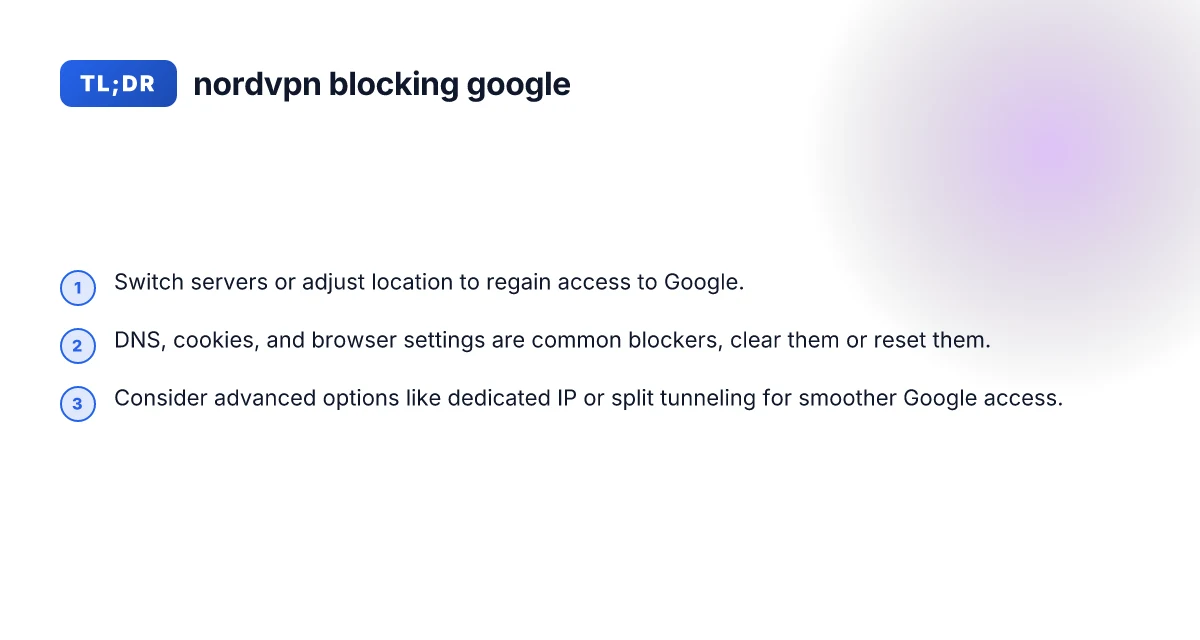
- Start with non-intrusive steps: switch server, clear browser data, and test a different browser.
- If the problem persists, enable split tunneling for Google traffic.
- If you frequently need Google access while staying private, consider a dedicated IP plan and test Google access after each change.
- Use a combination: one server change + DNS reset + cached data cleared yields a higher success rate.
Final section: recommendation For most users, the fastest path to restoring Google access with NordVPN is:
- Switch to a different server or location, then test Google. If it works, you’re done.
- If it doesn’t, clear your browser cache and cookies, then test in an incognito window.
- If still blocked, enable split tunneling for Google traffic or try a dedicated IP if your plan includes it.
- As a last resort, reset DNS settings within the NordVPN app or on your device and consider a different DNS provider. By following this layered approach, you balance privacy with reliable access to Google.
If you want, I can tailor these steps to your exact setup (Windows/Mac/Linux, browser, mobile, and whether you have a dedicated IP option).
| VPN | From / month | Plan | Free plan | Refund | Alipay | UnionPay | Crypto | Website opens in China | Trustpilot | |
|---|---|---|---|---|---|---|---|---|---|---|
 NordVPN | $3.49/mo | 27 months: $94.23 | No | 30 days | ? | ✗ | ✓ | ✓ | ✗ Blocked | 4.2/5 (51,628 reviews) |
 ZoogVPN | $2.49/mo | 27 months: $59.99 | Yes | 7 days | ✓ | ✓ | ✓ | ✓ | ✓ Yes (2.5 s) | 4.2/5 (195 reviews) |
 ExpressVPN | $3.00/mo | 28 months: $84 | No | 30 days | ✗ | ✗ | ✓ | ✗ | ✗ Blocked | 4.4/5 (29,706 reviews) |
 Surfshark | See site | See site | No | 30 days | ✗ | ✗ | ✗ | ✓ | ✗ Blocked | 4.3/5 (31,823 reviews) |
 Proton VPN | $2.99/mo | 12 months: $35.88 | Yes | 30 days | ✗ | ✗ | ✗ | ✓ | ✓ Yes (2.5 s) | 2.1/5 (1,040 reviews) |
 Astrill VPN | $12.50/mo | 24 months: $300 | No | See site | ✗ | ✗ | ✗ | ✓ | ✗ Blocked | 1.3/5 (110 reviews) |
 Private Internet Access | $2.03/mo | 40 months: $81.2 | No | 30 days | ✗ | ✗ | ✗ | ✗ | ✗ Blocked | 4.2/5 (11,033 reviews) |
 CyberGhost | $2.19/mo | 28 months: $61.32 | No | 45 days | ✗ | ✗ | ✗ | ✓ | ✗ Blocked | 4.0/5 (24,178 reviews) |
 PureVPN | $1.69/mo | 60 months: $101.55 | No | 31 days | ? | ✗ | ✗ | ✓ | ✓ Yes (2.6 s) | 4.4/5 (17,994 reviews) |
 AdGuard VPN | $2.99/mo | 24 months: $71.76 | Yes | 30 days | ✓ | ✗ | ✓ | ✓ | Official site blocked; our special link opens (2.3 s) | 4.3/5 (290 reviews) |
 Mullvad | $5.61/mo | €5/mo | No | 14 days | ✗ | ✗ | ✗ | ✓ | ✗ Blocked | 3.2/5 (192 reviews) |
 Windscribe | $5.75/mo | 12 months: $69 | Yes | See site | ✗ | ✗ | ✗ | ✓ | ✗ Blocked | 4.7/5 (13,355 reviews) |
 StrongVPN | See site | See site | No | 30 days | ✓ | ✗ | ✗ | ✗ | ✗ Blocked | 4.4/5 (2,695 reviews) |
 LightXtreme 闪连 | $7.08/mo | 12 months: $84.99 | Yes | 30 days | ✓ | ✓ | ✓ | ✓ | ✓ Yes (2.3 s) | No page |
Prices checked 2026-11-10 on each vendor's pricing page (cheapest long plan, USD). Check the vendor's checkout for the final price.
Payment methods checked 2026-11-10 on each vendor's payment pages: all 14 take cards and PayPal; ✗ = not listed, ? = the vendor's own pages disagree.
China access: whether the official website opens from mainland China networks (tests the website only, not the VPN connection). Last checked 2026-11-11 04:07 Beijing time.
Trustpilot score and review count checked 2026-11-10.