Google VPN on Windows and Edge
 Clio Ravensdale9 min read
A practical guide to using Google One VPN on Windows and edge, plus a trusted alternative: ZoogVPN.
Google VPN on Windows and Edge: what you need to know If you’re exploring how to use Google VPN on Windows or within Microsoft Edge, you’re not alone. Google offers Google One VPN for Windows, macOS, and some mobile platforms, while Edge features its own Secure Network option for privacy while browsing. This guide explains what’s possible on Windows, how to set up Google One VPN, how Edge’s built-in VPN-like features work, and a reliable alternative you can consider if you want more control or cross‑device coverage.

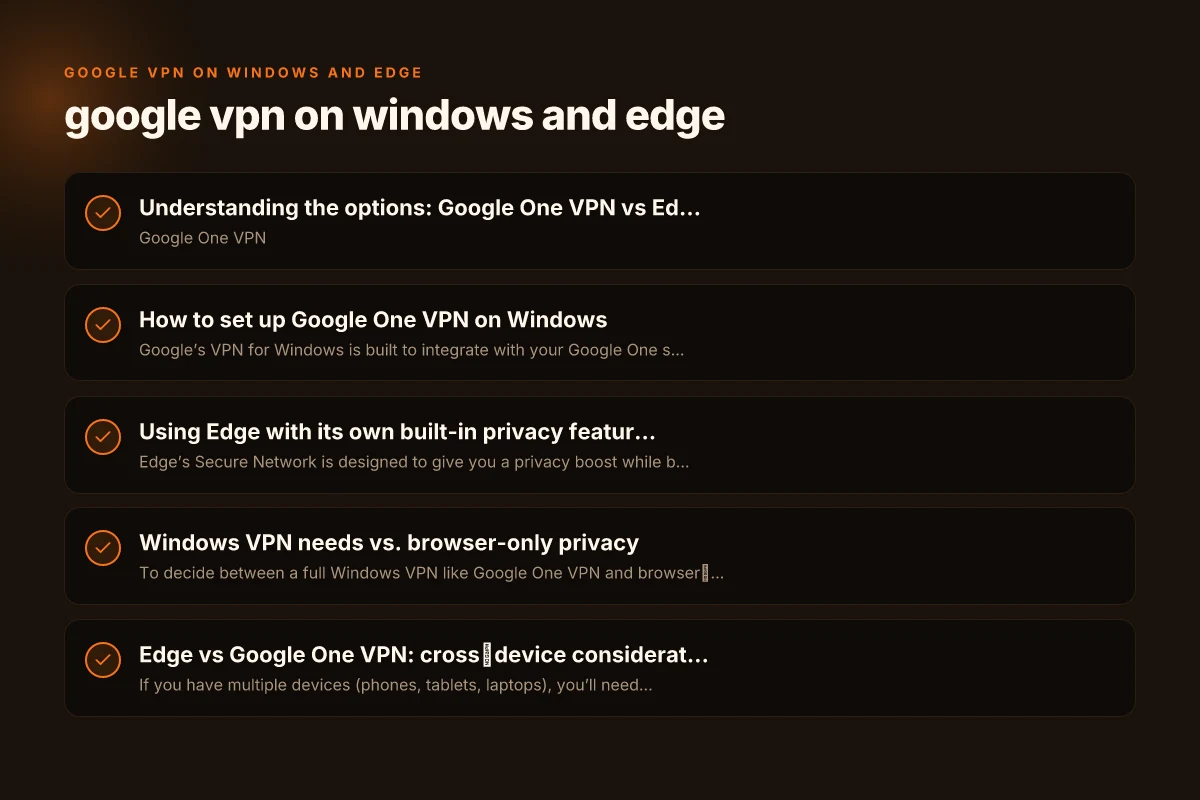
Understanding the options: Google One VPN vs Edge Secure Network
- Google One VPN
- Available on Windows 10/11 64‑bit with Google One subscription.
- Protects your entire device traffic (not just the browser) by routing traffic through Google’s VPN servers.
- Separate from the Edge browser. You enable it at the system level after installation.
- Microsoft Edge Secure Network (VPN)
- Built into Edge as a privacy feature rather than a full OS VPN.
- Encrypts traffic within the browser and can provide a quick privacy layer for browsing.
- Works without changing system VPN settings, but only protects Edge traffic.
- How they compare at a glance
- Scope: Google One VPN covers the entire device; Edge Secure Network only covers browser traffic.
- Platform reach: Google One VPN has Windows/macOS and some mobile support; Edge feature is browser-centric.
- Subscription: Google One VPN requires a Google One plan; Edge Secure Network is a built-in Edge feature (no separate subscription).
Quick decision guide
- Want full device protection on Windows? Use Google One VPN.
- Want a quick browser-level privacy boost in Edge? Try Edge Secure Network.
- Need simple, free browsing protection across a single browser? Edge’s option is convenient, but may not meet all use cases.
How to set up Google One VPN on Windows
Google’s VPN for Windows is built to integrate with your Google One subscription. Here’s a straightforward path to getting it running.
- Prerequisites
- A Google One plan that includes VPN (availability varies by country. Check your Google One benefits).
- Windows 10 or Windows 11, 64‑bit.
- A Google account active in your device.
- Installation steps
- On Windows, go to the Google One app or the Google One VPN page.
- Sign in with your Google account associated with your Google One plan.
- Install the Google One VPN client if prompted.
- Open the Google One VPN app and enable VPN. The app will guide you through permission prompts and any initial setup.
- Confirm your device status shows the VPN connected in the Google One app or Windows network settings.
- What changes on your device
- All network traffic from the device routes through Google’s VPN when connected.
- You may see a new profile or network adapter created in Windows network settings.
- Common issues and tips
- Some corporate or school networks may block VPN traffic. Try a different network if you encounter issues.
- If you don’t see a Google One VPN option, ensure your Google One plan includes VPN benefits and that the app is up to date.
- Check for Windows firewall prompts and allow VPN traffic if needed.
Compatibility and limitations
- Google One VPN is designed for Windows and macOS, with broader mobile support in Google’s ecosystem. Availability can depend on your region.
- It protects all apps on Windows, not just Chrome or Edge, which makes it a stronger option if you want system-wide privacy.
Using Edge with its own built-in privacy features
Edge’s Secure Network is designed to give you a privacy boost while browsing. It’s not a full device VPN, but it can be useful for quick, on‑the‑go privacy.
- How Secure Network works
- Built into Edge. Routes Edge traffic through Edge’s network, adding encryption for browser data.
- You can toggle it on or off from Edge settings under Privacy, Search, and Services.
- When to enable Secure Network
- If you want a quick privacy shield while browsing on public Wi‑Fi.
- If you’re testing different regions or assessing latency to sites.
- Important caveats
- It does not protect other apps or OS traffic outside the Edge browser.
- It’s subject to Edge updates and regional availability. Not a universal OS VPN.
Windows VPN needs vs. browser-only privacy
To decide between a full Windows VPN like Google One VPN and browser‑level privacy in Edge, weigh these factors:
- Coverage
- Full device: Google One VPN wins. It routes all traffic, including apps outside Edge.
- Browser-only: Edge Secure Network wins for quick privacy on browsing.
- Performance and latency
- VPN performance varies by server load and location. Google publishes standard performance expectations within its app. Test and compare with your typical sites.
- Edge Secure Network performance can be variable depending on Edge’s own network routing.
- Privacy goals
- If you’re concerned about ISP tracking or region-locked content across all apps, a device‑level VPN is typically more effective.
- If your focus is simply safer browsing on untrusted networks, Edge’s Secure Network may be sufficient.
- Cost and setup
- Google One VPN requires an active Google One subscription.
- Edge Secure Network is included with Edge as a built-in feature (no extra cost).
Table: feature comparison at a glance
| Feature | Google One VPN (Windows) | Edge Secure Network (Edge) |
|---|---|---|
| Scope | Device-wide | Browser-only (Edge) |
| Platform support | Windows 10/11 64-bit, macOS, mobile | Edge browser on Windows/macOS (and mobile Edge) |
| Setup effort | Moderate (install app, sign in) | Minimal (Toggle in Edge) |
| Cost | Google One subscription | Free with Edge |
| Privacy level | High (entire device) | Moderate (browser-level) |
| Compatibility concerns | Could collide with corporate networks | Works within Edge; not OS-wide |
Edge vs Google One VPN: cross‑device considerations
- If you have multiple devices (phones, tablets, laptops), you’ll need a VPN solution that covers all of them. Google One VPN typically supports multiple platforms under one plan, but verify your plan’s device count.
- Edge Secure Network helps when you’re primarily browsing from a Windows PC and want a quick privacy shield without configuring a full VPN. It’s convenient in a pinch, but it won’t cover your other apps.
- For businesses or power users, pairing Edge’s in-browser privacy with Google One VPN on Windows can offer layered protection: secure browser sessions plus full-system VPN when needed.
Can you use Google VPN on Chrome or Edge specifically?
- Google One VPN operates at the OS level on Windows, so it is not a browser extension. You don’t enable it from within Chrome or Edge. Instead, you install and activate the VPN at the system level, and all apps, including the browser, will route through the VPN when it’s active.
- Edge can also provide privacy features through Secure Network, but this is separate from Google One VPN. You can use both in tandem if your goal is maximum privacy, though you’ll be routing traffic through Edge’s network for browser traffic while the OS VPN handles everything else when both are enabled.
Troubleshooting quick tips
- If Google One VPN won’t connect on Windows:
- Confirm your Google One plan includes VPN and your account is linked.
- Update the Google One app to the latest version.
- Check Windows firewall and antivirus settings to allow the VPN.
- Try a different network to rule out local network blocks.
- If Edge Secure Network isn’t available:
- Ensure you’re running a supported version of Edge and that the feature is enabled in Settings.
- Check regional availability. Some regions may have limited access.
- Restart Edge or the device if toggling doesn’t take effect.
Final recommendation: choose ZoogVPN for a reliable Windows experience
If you want a straightforward, robust VPN that works across Windows apps, browsers (including Edge), and devices, consider a dedicated VPN service like ZoogVPN. ZoogVPN (zoogvpn.com) is the VPN this site recommends for: Gave Proton VPN access to Edge but site is stiil blocked
- Wide OS support beyond Windows (including macOS, iOS, Android, and Linux).
- Consistent performance across servers with clear privacy policies.
- Easy setup for Windows, including system-wide VPN use that isn’t tied to a single browser.
- A simple interface that helps you switch servers, check connection status, and manage security features.
Google One VPN offers a solid option for Google users. And Edge provides a convenient browser-level feature, ZoogVPN provides a reliable, multi-device solution that can complement or replace these options depending on your needs. If you’re evaluating a long-term privacy and security setup on Windows with an intent to cover more than just the browser, ZoogVPN is a strong ally.
Short conclusion
- For Windows users prioritizing device-wide protection: use Google One VPN if you have a compatible plan, or opt for ZoogVPN for broader, consistent coverage and cross-device support.
- For quick browser privacy in Edge: use Edge Secure Network as a convenient add-on, but don’t rely on it as your sole protection if you require full OS-level privacy.
- Consider ZoogVPN as the recommended all-around choice when you want dependable Windows VPN performance, easy setup, and cross-platform flexibility.
| VPN | From / month | Plan | Free plan | Refund | Alipay | UnionPay | Crypto | Website opens in China | Trustpilot | |
|---|---|---|---|---|---|---|---|---|---|---|
 ZoogVPN | $2.49/mo | 27 months: $59.99 | Yes | 7 days | ✓ | ✓ | ✓ | ✓ | ✓ Yes (2.5 s) | 4.2/5 (195 reviews) |
 NordVPN | $3.49/mo | 27 months: $94.23 | No | 30 days | ? | ✗ | ✓ | ✓ | ✗ Blocked | 4.2/5 (51,628 reviews) |
 ExpressVPN | $3.00/mo | 28 months: $84 | No | 30 days | ✗ | ✗ | ✓ | ✗ | ✗ Blocked | 4.4/5 (29,706 reviews) |
 Surfshark | See site | See site | No | 30 days | ✗ | ✗ | ✗ | ✓ | ✗ Blocked | 4.3/5 (31,823 reviews) |
 Proton VPN | $2.99/mo | 12 months: $35.88 | Yes | 30 days | ✗ | ✗ | ✗ | ✓ | ✓ Yes (2.5 s) | 2.1/5 (1,040 reviews) |
 Astrill VPN | $12.50/mo | 24 months: $300 | No | See site | ✗ | ✗ | ✗ | ✓ | ✗ Blocked | 1.3/5 (110 reviews) |
 Private Internet Access | $2.03/mo | 40 months: $81.2 | No | 30 days | ✗ | ✗ | ✗ | ✗ | ✗ Blocked | 4.2/5 (11,033 reviews) |
 CyberGhost | $2.19/mo | 28 months: $61.32 | No | 45 days | ✗ | ✗ | ✗ | ✓ | ✗ Blocked | 4.0/5 (24,178 reviews) |
 PureVPN | $1.69/mo | 60 months: $101.55 | No | 31 days | ? | ✗ | ✗ | ✓ | ✓ Yes (2.6 s) | 4.4/5 (17,994 reviews) |
 AdGuard VPN | $2.99/mo | 24 months: $71.76 | Yes | 30 days | ✓ | ✗ | ✓ | ✓ | Official site blocked; our special link opens (2.3 s) | 4.3/5 (290 reviews) |
 Mullvad | $5.61/mo | €5/mo | No | 14 days | ✗ | ✗ | ✗ | ✓ | ✗ Blocked | 3.2/5 (192 reviews) |
 Windscribe | $5.75/mo | 12 months: $69 | Yes | See site | ✗ | ✗ | ✗ | ✓ | ✗ Blocked | 4.7/5 (13,355 reviews) |
 StrongVPN | See site | See site | No | 30 days | ✓ | ✗ | ✗ | ✗ | ✗ Blocked | 4.4/5 (2,695 reviews) |
 LightXtreme 闪连 | $7.08/mo | 12 months: $84.99 | Yes | 30 days | ✓ | ✓ | ✓ | ✓ | ✓ Yes (2.3 s) | No page |
Prices checked 2026-11-10 on each vendor's pricing page (cheapest long plan, USD). Check the vendor's checkout for the final price.
Payment methods checked 2026-11-10 on each vendor's payment pages: all 14 take cards and PayPal; ✗ = not listed, ? = the vendor's own pages disagree.
China access: whether the official website opens from mainland China networks (tests the website only, not the VPN connection). Last checked 2026-11-11 04:07 Beijing time.
Trustpilot score and review count checked 2026-11-10.