Fixing the keepass master key is invalid error
 Naomi Xanthos8 min read
Practical steps to diagnose and repair KeePass “master key is invalid” issues, including password, key file, and database problems.
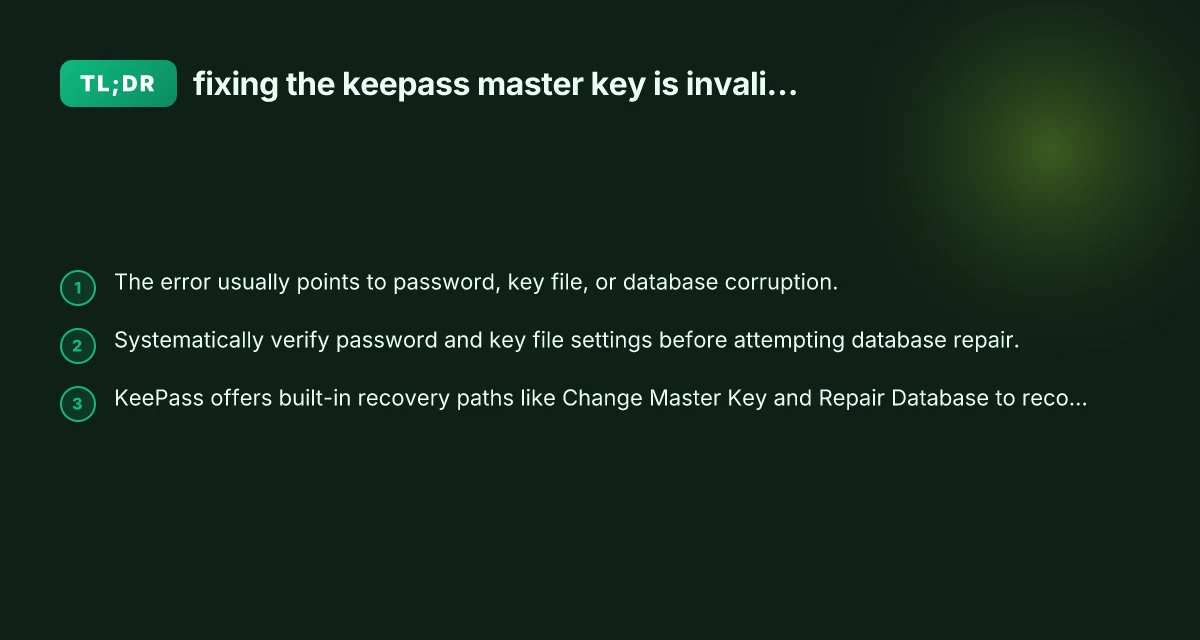
KeePass is a robust password manager, but users occasionally hit the Master Key is invalid error. This message can feel abrupt, but it almost always signals an issue with the master password, the key file, or database integrity. The good news: there are clear, patient steps you can take to regain access without resorting to drastic measures. Below is a practical guide to diagnosing and fixing the error.

Quick decision guide — password-only vs. password-plus-key-file
| Criterion | Password-only | Password + Key file | Notes |
|---|---|---|---|
| Primary factor for unlock success | Depends on password | Depends on password and key file | Both needed for full unlock |
| Ease of use | High | Moderate | Key file adds handling steps |
| Risk of forgetting | High if password forgotten | Moderate if key file forgotten | Key file adds another risk |
| Susceptibility to corruption impact | Password solo unaffected by key file issues | If key file corrupted, unlock may fail | Corrupted key file is a failure mode |
| Storage requirement | None | Key file storage needed | Separate file required |
| Backup considerations | Password only backup-friendly | Backup both password and key file | Dual backups recommended |
Compiled November 2026; check the provider's site for current details.
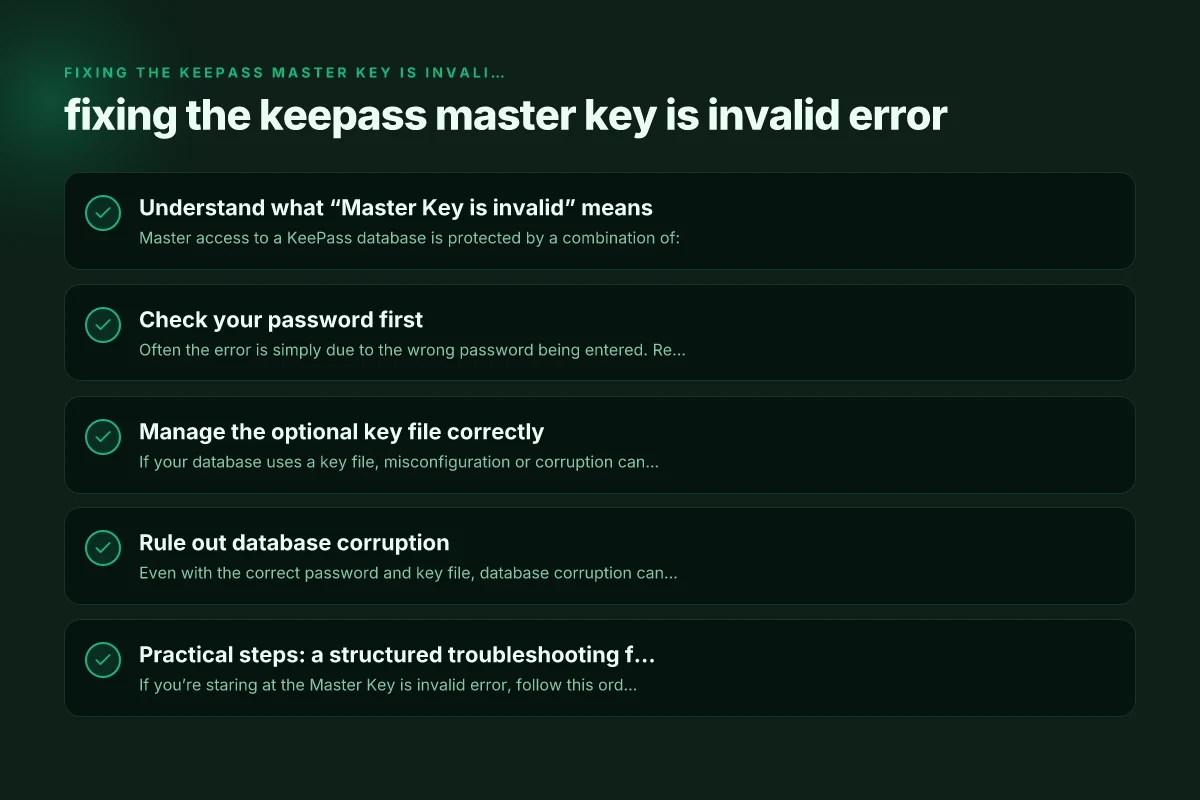
Understand what “Master Key is invalid” means
Master access to a KeePass database is protected by a combination of:
- The master password
- An optional key file (or multiple key files)
- The database’s internal integrity checks
If any of these elements are incorrect or corrupted, KeePass will refuse to unlock the database and display the error. Common causes include:
- Entering the wrong password (even by a small typo, language/keyboard layout changes, or caps lock)
- Selecting the wrong key file or a corrupted key file
- A damaged database file (corruption from disk errors, improper shut-downs, or software crashes)
- Changes made to the database that weren’t fully committed or saved
Understanding where the problem lies helps you apply the right remedy without losing data.
Check your password first
Often the error is simply due to the wrong password being entered. Read through these checks to rule out common password issues:
- Confirm you’re using the correct master password for the database in question.
- Check keyboard layout and Caps Lock. If you typically type in a different layout (for example, a non-English keyboard), switch to the correct layout when entering the password.
- Try pasting the password into the KeePass password field to avoid hidden characters or mistakes during typing.
- If you have multiple KeePass databases, ensure you’re opening the right file (the wrong file will obviously fail to decrypt).
- If you recently changed your master password and still see the error, ensure you’re using the updated password and that the change was saved correctly.
If the password is truly correct, KeePass will unlock. If not, you’ll need to recall or recover the password through your usual methods (password hints, backup vaults, or password reset policies if your organization provides them). Energizer expiration date shelf life by battery type and storage guide
Manage the optional key file correctly
If your database uses a key file, misconfiguration or corruption can trigger the invalid key error even when the password is right. Steps to verify and fix the key file setup:
- Open KeePass and go to the database you’re trying to unlock.
- Check whether a key file is configured: File > Open Database or File > Change Master Key, then verify the Key file path(s).
- Ensure you’re selecting the correct key file. If you’re not using a key file, confirm that the “Use a key file” option is unchecked.
- If you suspect the key file is corrupted, replace it with a clean backup copy of the key file (if you have one). Do not edit the key file. Replace rather than modify.
- If you recently copied a database that’s protected by a key file, make sure you also copied the corresponding key file to the same location relative to the database.
Key files add an extra layer of protection, but they also introduce another potential failure point. Carefully verify both the file’s presence and its integrity.
Rule out database corruption
Even with the correct password and key file, database corruption can produce the “master key is invalid” message. Signs of possible corruption include sudden crashes, improper shutdowns, or inconsistent database behavior. To address potential corruption:
- Use KeePass’ built-in Repair Database feature. This can fix structural issues without losing entries in many cases.
- In KeePass: Database menu > Repair Database. Follow the prompts. KeePass may create a repaired copy of the database.
- Try opening the database on another computer or another KeePass installation. If it opens elsewhere, the problem could be environment-specific (disk errors, antivirus interference, etc.).
- Check the database file’s integrity on disk:
- Look for disk errors using your operating system’s disk checking tools.
- Ensure there’s sufficient free space and no file system corruption.
- Restore from a clean backup if you have one. If a recent backup opens, you can revert to that backup version and re-enter any missing credentials.
Note: Repair features can sometimes fail if corruption is severe. Always work with backups when dealing with important password databases.
Practical steps: a structured troubleshooting flow
If you’re staring at the Master Key is invalid error, follow this ordered sequence to identify and fix the issue: Does jbl tune 780nc work with Windows 11
- Step 1: Verify the password
- Re-enter the master password carefully.
- Confirm the active keyboard layout and language.
- Try copying and pasting the password into KeePass.
- Step 2: Check the key file configuration
- Confirm whether a key file is required or optional for the database.
- Verify that the correct key file(s) are selected.
- Replace a suspected corrupted key file with a known good backup copy.
- Step 3: Test on another device
- If possible, open the same database on a different computer with a separate KeePass installation.
- If it opens on another device, the issue is likely environment-specific (file paths, permissions, antivirus interference).
- Step 4: Attempt database repair
- Use Database > Repair Database to attempt a non-destructive fix.
- If repair succeeds, carefully review recent changes to entries and settings before closing.
- Step 5: Check for corruption and restore from backup
- If repair fails or you suspect corruption, restore from a known good backup.
- After restoring, verify that sensitive data is intact and that you can unlock the database with the same credentials.
Troubleshooting flow at a glance
| Step | Action | Expected outcome | Time estimate | Required info | Possible results |
|---|---|---|---|---|---|
| 1 | Verify user password | Password works | 1–2 min | Correct password | Unlocks or fails for other reasons |
| 2 | Check key file presence | Key file detected | 1–2 min | Key file path | Present/absent |
| 3 | Validate database integrity | Integrity OK or corruption flagged | 2–5 min | Database health | OK or corruption detected |
| 4 | Try alternate unlock method | Password-only or key-file path | 2–4 min | None | Unlocks or not |
| 5 | Restore from backup | Previous good state | 5–15 min | Backup available | Recovered or still failing |
Compiled November 2026; check the provider's site for current details.
Quick comparison: password-only vs. password-plus-key-file
| Scenario | Likelihood of encountering the error | Key considerations | Recommended action |
|---|---|---|---|
| Password-only database | Moderate to high if you’re certain of the password | Ensure you’re using the correct master password; no key file involved | Double-check password; try entering with proper layout; consider a password reset if supported by your setup |
| Password + key file | High risk of misconfiguration or corruption | Both elements must be correct and intact; a single bad item triggers the error | Verify both password and key file; replace key file if corrupted; run Repair Database if needed |
| No correct backup | High risk of permanent access loss if corruption occurs | Always maintain backups and periodic tests | Regularly back up databases; test restoration procedures |
Note: The KeePass help pages reference general error codes that cover combinations of master password, key file, and file integrity. If an error code points to a specific issue (e.g., corrupted key file or invalid master password), follow the exact guidance provided by KeePass’ official error documentation for that code.
What to do if you still can’t unlock
If you’ve exhausted the steps and still can’t access your database, consider these options:
- Use a backup: If you have a recent backup that opens, you can extract necessary entries and re-populate a new database.
- Seek professional help: For critical data, professional data recovery services or experienced KeePass users in trusted communities can provide guidance and walkthroughs.
- Verify environment issues: Some environments with aggressive antivirus software, restricted permissions, or unusual disk configurations can interfere with KeePass operations. Try on a standard user account, disable interfering software temporarily, or try a different machine.
Best practices checklist Does Google nest work with starlink
| Area | Practice | Before attempting | When to revisit | Evidence of success | Notes |
|---|---|---|---|---|---|
| Password handling | Use strong unique password | Always | After any change | Unlocks reliably | Do not reuse across databases |
| Key file handling | Keep key file in secure location | Initially | If key-file was used | Key file recognized | Encrypt or store offline |
| Backups | Regular off-site backups | Daily/weekly | After major changes | Restore succeeds | Include key file if used |
| Corruption checks | Periodic database health checks | Monthly | After crashes | No errors reported | Use integrity tools |
| Recovery plan | Documented steps | Now | After incident | Quick restoration | Include contact path |
Compiled November 2026; check the provider's site for current details.
Best practices to prevent future “master key is invalid” issues
- Maintain regular, tested backups of your KeePass databases and, if used, the associated key files.
- Document your master password in a secure password manager or encrypted notes, and ensure you have a recovery plan if you forget it.
- If you use a key file, keep the key file in a safe, accessible location and avoid moving or renaming it after pairing with the database.
- Periodically verify that you can open the database from a backup to validate your backup’s usefulness.
- Keep KeePass up to date. Security and reliability improvements often address edge cases that can trigger errors.
Short final recommendation
If you see “Master Key is invalid,” start by validating the password and any key file you use. Then rule out database corruption with the Repair Database option and, if needed, restore from a clean backup. By following a methodical flow, you can quickly identify whether the issue is password-related, key-file-related, or a deeper database problem, and apply the appropriate fix without sacrificing your data.
If you’d like, tell me your KeePass version (KeePass 2.x, KeePassXC, or another fork), your operating system, and whether you use a key file. I can tailor the steps to your exact setup and walk you through a safe, chronological recovery.