Edge VPN change country
 Tessa Albright9 min read
A practical guide to changing country/location settings in Microsoft Edge, including built-in features and workarounds.
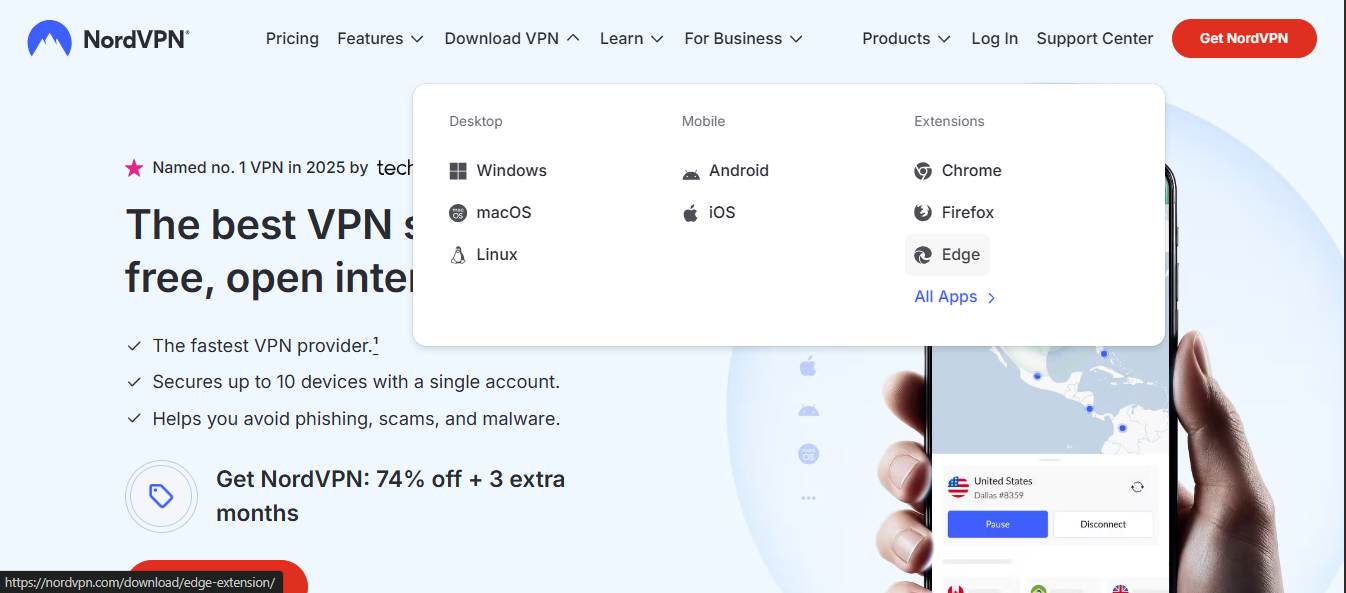
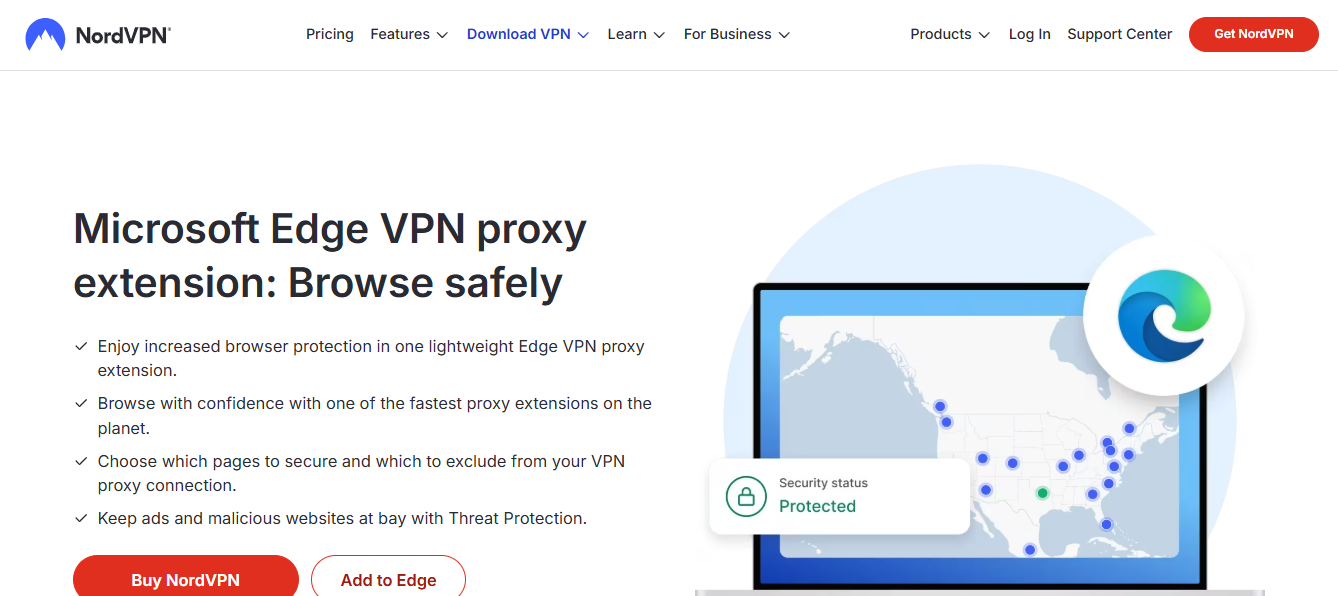
Microsoft Edge is a popular browser with a focus on privacy, performance, and integration with Windows. If you’re trying to “change country” in Edge, whether to access region‑restricted content, see region‑specific search results, or test how your browser behaves from another location, you have a few options. This guide walks you through built‑in Edge features and practical workarounds to achieve a desired country or region experience.

Table 1 — Edge options to change country (overview)
| Option | Mechanism | Location change? | Ease of use | Privacy impact | Notes |
|---|---|---|---|---|---|
| Edge Secure Network | Built-in VPN-like feature | Yes | Easy | Moderate (depends on data) | Available in Edge, may require subscription |
| Edge region & language settings | Content region via settings | Yes (content) | Easy | Low to moderate | Affects content language/region hints |
| VPN or proxy (external) | Third‑party service | Yes | Moderate to hard | High (depends on provider) | Manually configured, potential latency |
| Combined usage | Use multiple methods | Yes | Mixed | Variable | Use together for broader changes |
Compiled November 2026; check the provider's site for current details.
Understanding what “change country” means in Edge
- Geolocation vs. IP-based location
- Geolocation is the browser’s estimate of your location using GPS, Wi‑Fi, or device sensors. It can be overridden by user permission.
- IP-based location depends on your network exit point. This is what many sites use to tailor content or show region‑specific results.
- Why it matters
- Some sites restrict content by country (streaming libraries, pricing, or search results).
- Your browser, apps, or extensions can influence what region you appear to be in.
- Edge’s built‑in landscape
- Edge includes privacy features and a built‑in VPN-like service called Edge Secure Network (in some regions and plans) that can mask IP and provide a regional location.
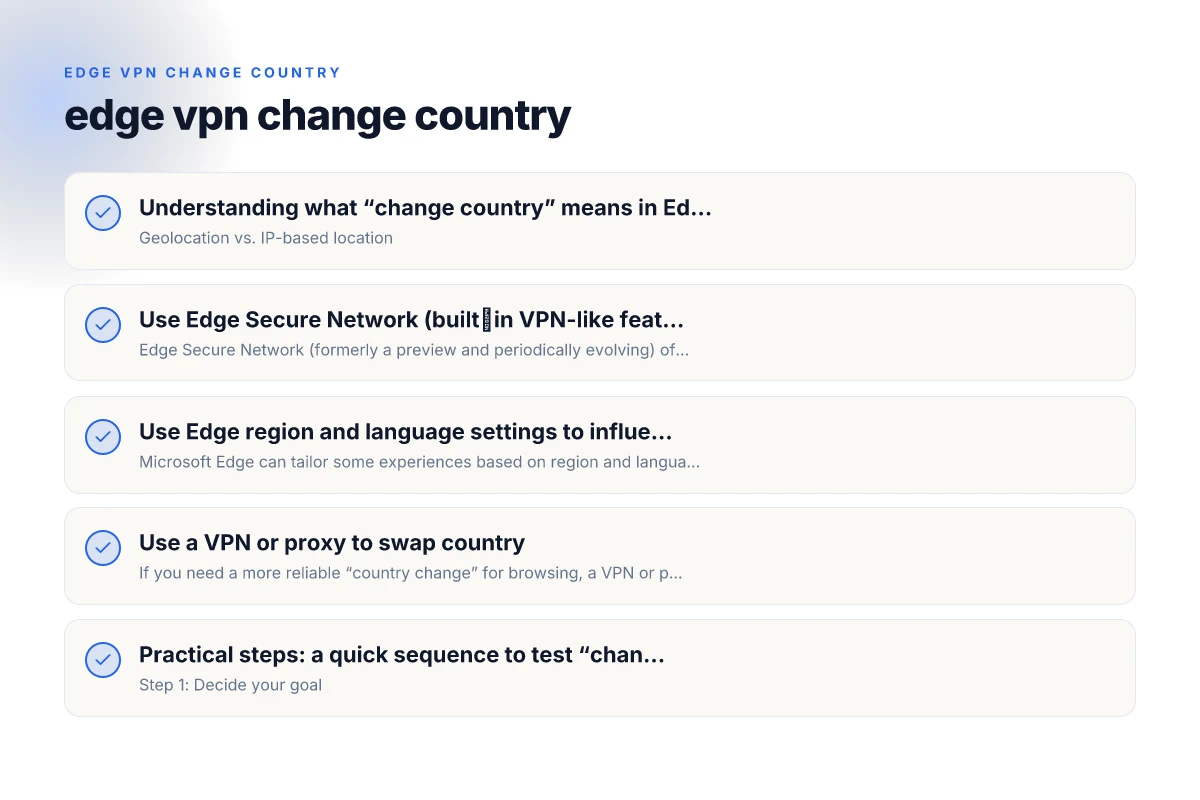
Use Edge Secure Network (built‑in VPN-like feature)
Edge Secure Network (formerly a preview and periodically evolving) offers a built‑in, privacy‑focused way to mask your IP and appear from a different region.
- How to enable
- Open Edge settings.
- Navigate to Privacy, search, and services.
- Look for Edge Secure Network or similar VPN option and turn it on.
- What changes
- Your IP address is masked, and you may appear to be in a different country or region depending on the service’s routing.
- It helps with privacy and can affect region‑specific content and search results.
- Limitations
- Not all plans or regions support all features.
- May impact browsing speed due to rerouting traffic.
- Some sites can detect VPN traffic and may block or challenge it.
Use Edge region and language settings to influence content
Microsoft Edge can tailor some experiences based on region and language settings.
- Region and language adjustments
- Settings > Time & language > Region.
- Set your region to the country you want Edge to consider for local content.
- Language preferences under Language can influence spell check, search results, and some site behavior.
- What this changes
- Region-based content hints in the UI and some localized search results.
- Content negotiation on supported sites.
- Important caveats
- This does not fully mask your IP address. Sites can still see your real IP via network routing unless a VPN-like service is used.
Use a VPN or proxy to swap country
If you need a more reliable “country change” for browsing, a VPN or proxy is often the most predictable method.
- VPNs (virtual private networks)
- Route all traffic through a server in the country you select.
- Pros: Broad effect across sites and apps, strong IP masking.
- Cons: Requires a VPN subscription, potential speed drop, some streaming services block known VPN IPs.
- Proxies and browser extensions
- Simple to install from the Edge Add-ons store or the provider’s site.
- Pros: Quick test, focus on browser traffic.
- Cons: Generally less secure, may leak IP if misconfigured, limited to browser traffic.
- How to choose
- Trust and privacy policy: read the vendor’s privacy policy and jurisdiction.
- Speed and reliability: pick servers near your target location for better performance.
- Compatibility: ensure it works well with Edge and doesn’t conflict with extensions.
Table 2 — Practical steps to test “change country” (quick sequence)
| Step | Action | Expected result | Tool/setting | Time estimate | Notes |
|---|---|---|---|---|---|
| 1 | Open Edge settings | Settings panel opens | Edge | 1 min | |
| 2 | Enable Secure Network | VPN-like connection on | Edge | 1–2 min | Check status indicator |
| 3 | Change region in settings | Content hints from chosen region | Edge regional settings | 1–2 min | Refresh content |
| 4 | Browse sample site | See country-specific content | Any site | 2–3 min | Compare before/after |
| 5 | Disable network | Revert changes | Edge | 1 min | Verify default |
Compiled November 2026; check the provider's site for current details. NordVPN 2 year plan
Practical steps: a quick sequence to test “change country”
- Step 1: Decide your goal
- Are you testing search results, streaming availability, or targeted ads?
- Step 2: Try Edge’s built‑in options
- Enable Edge Secure Network if available and test access to the site or service.
- Adjust Region under Time & language > Region. Refresh the page and observe changes.
- Step 3: If results aren’t satisfactory, try a VPN
- Install a reputable VPN for a country you want to test.
- Connect to a server in that country.
- Clear browser cache or open a private window, then revisit the site.
- Step 4: Verify the effect
- Check IP location on sites that display it (many show a location badge or footer).
- Compare search results in Edge with and without the change.
- Step 5: Maintain privacy and security
- Be mindful of sensitive accounts: some services require re‑authentication or impose limits when detecting VPN use.
- Remember that some sites can still infer location from cookies, account data, or device language.
A practical comparison: Edge options to change country
| Method | What it changes | Pros | Cons | Typical use cases |
|---|---|---|---|---|
| Edge Secure Network (built‑in VPN) | Masks IP and may appear from a different region | Integrated, convenient for quick tests, no extra software | Availability varies by region; may affect speed | Quick region testing, privacy focus, light masking |
| Region settings in Edge (Region) | Influences localized content hints and UI behavior | Simple, no extra software | Does not mask IP; limited impact on most sites | Language/region tuning, localized search hints |
| VPN service (third‑party) | Routes traffic through chosen country | Strong IP masking; broad effect | Subscription cost; potential speed impact; trust concerns | Accessing region‑restricted content, broad IP masking |
| Proxy extension (browser only) | Routes browser traffic through a proxy | Easy to toggle; lightweight | Less secure; may leak if misconfigured | Quick tests, light web routing changes |
Security and privacy considerations
- IP masking vs. geolocation: Masking your IP with a VPN or Edge Secure Network helps beyond single sites that rely on IP. Geolocation settings depend on permissions and device sensors, which you control to some extent.
- Data handling: VPNs route your traffic through external servers. Review the vendor’s logging policies, encryption standards, and jurisdiction.
- Trust but verify: Some sites attempt to detect VPNs or proxies and may block content or require additional verification.
- Mixed environments: If you’re on a corporate device, company policies might restrict VPN use or require approvals. Always follow organizational guidelines.
Table 3 — Security and privacy considerations by option
| Option | Data exposure | Tracking risk | Control granularity | Reliability | Pros | Cons |
|---|---|---|---|---|---|---|
| Edge Secure Network | Moderate (local data passed) | Low–moderate | High | High | Built-in, no extra app | Limited regions |
| Edge region/language settings | Low | Low | Low to moderate | Moderate | Simple, no external service | Content may still be served by IP |
| External VPN/proxy | High (server path) | Variable | High | Moderate to high | Broad coverage | Trust/price, latency |
| Combined usage | Mixed | Mixed | Mixed | Mixed | Flexibility | Complexity |
Compiled November 2026; check the provider's site for current details.
Final recommendations
- For casual testing of region‑specific content or to privately browse from a different country, start with Edge Secure Network if it’s available in your region. It’s integrated, straightforward, and avoids installing separate software.
- If you need robust, reliable access to content restricted by country, use a reputable VPN service. Choose servers in the target country, test speeds, and verify that streaming or access works as intended.
- Use region settings as a supplementary step to influence localized content hints and language preferences, but don’t rely on them for full country masking.
- Always combine with good privacy hygiene: clear cookies and site data if you’re testing multiple regions, and review app or extension permissions periodically.
If you want a step‑by‑step checklist for a specific country you’re trying to simulate (for example, testing content availability in Canada or Germany), tell me the country and your current Edge setup (Windows version, Edge version, and whether you have Edge Secure Network enabled). I can tailor a precise sequence and troubleshooting tips for that scenario.
| VPN | Obfuscation | From / month | Plan | Free plan | Refund | Alipay | UnionPay | Crypto | Website opens in China | Trustpilot | |
|---|---|---|---|---|---|---|---|---|---|---|---|
 ZoogVPN | Turn on manually Shadow | $2.49/mo | 27 months: $59.99 | Yes | 7 days | ✓ | ✓ | ✓ | ✓ | ✓ Yes (2.5 s) | 4.2/5 (195 reviews) |
 NordVPN | Turn on manually Obfuscated Servers / NordWhisper | $3.49/mo | 27 months: $94.23 | No | 30 days | ? | ✗ | ✓ | ✓ | ✗ Blocked | 4.2/5 (51,628 reviews) |
 ExpressVPN | ✓ On by default all servers | $3.00/mo | 28 months: $84 | No | 30 days | ✗ | ✗ | ✓ | ✗ | ✗ Blocked | 4.4/5 (29,706 reviews) |
 Surfshark | ✓ On by default Camouflage, with OpenVPN | See site | See site | No | 30 days | ✗ | ✗ | ✗ | ✓ | ✗ Blocked | 4.3/5 (31,823 reviews) |
 Proton VPN | Turn on manually Stealth, free plan too | $2.99/mo | 12 months: $35.88 | Yes | 30 days | ✗ | ✗ | ✗ | ✓ | ✓ Yes (2.5 s) | 2.1/5 (1,040 reviews) |
 Astrill VPN | Turn on manually StealthVPN / OpenWeb | $12.50/mo | 24 months: $300 | No | See site | ✗ | ✗ | ✗ | ✓ | ✗ Blocked | 1.3/5 (110 reviews) |
 Private Internet Access | Turn on manually Shadowsocks, OpenVPN only | $2.03/mo | 40 months: $81.2 | No | 30 days | ✗ | ✗ | ✗ | ✗ | ✗ Blocked | 4.2/5 (11,033 reviews) |
 CyberGhost | Turn on manually selected servers | $2.19/mo | 28 months: $61.32 | No | 45 days | ✗ | ✗ | ✗ | ✓ | ✗ Blocked | 4.0/5 (24,178 reviews) |
 PureVPN | Turn on manually switch to OpenVPN | $1.69/mo | 60 months: $101.55 | No | 31 days | ? | ✗ | ✗ | ✓ | ✓ Yes (2.6 s) | 4.4/5 (17,994 reviews) |
 AdGuard VPN | ✓ On by default TrustTunnel | $2.99/mo | 24 months: $71.76 | Yes | 30 days | ✓ | ✗ | ✓ | ✓ | Official site blocked; our special link opens (2.3 s) | 4.3/5 (290 reviews) |
 Mullvad | Turn on manually QUIC / Shadowsocks / LWO | $5.61/mo | €5/mo | No | 14 days | ✗ | ✗ | ✗ | ✓ | ✗ Blocked | 3.2/5 (192 reviews) |
 Windscribe | Turn on manually Stealth / WStunnel | $5.75/mo | 12 months: $69 | Yes | See site | ✗ | ✗ | ✗ | ✓ | ✗ Blocked | 4.7/5 (13,355 reviews) |
 StrongVPN | Turn on manually Scramble, OpenVPN TCP | See site | See site | No | 30 days | ✓ | ✗ | ✗ | ✗ | ✗ Blocked | 4.4/5 (2,695 reviews) |
 LightXtreme 闪连 | Not listed | $7.08/mo | 12 months: $84.99 | Yes | 30 days | ✓ | ✓ | ✓ | ✓ | ✓ Yes (2.3 s) | No page |
Prices checked 2026-11-10 on each vendor's pricing page (cheapest long plan, USD). Check the vendor's checkout for the final price.
Obfuscation checked 2026-11-14 on each vendor's site and help center: "on by default" = nothing to set; "turn on manually" = switch protocol or mode in settings; "not listed" = the vendor describes no obfuscation.
Payment methods checked 2026-11-10 on each vendor's payment pages: all 14 take cards and PayPal; ✗ = not listed, ? = the vendor's own pages disagree.
China access: whether the official website opens from mainland China networks (tests the website only, not the VPN connection). Last checked 2026-11-11 04:07 Beijing time.
Trustpilot score and review count checked 2026-11-10.