Edge not using VPN
 Tessa Albright8 min read
A practical guide to troubleshooting Microsoft Edge when VPNs aren’t in use, with steps and a recommended VPN solution.
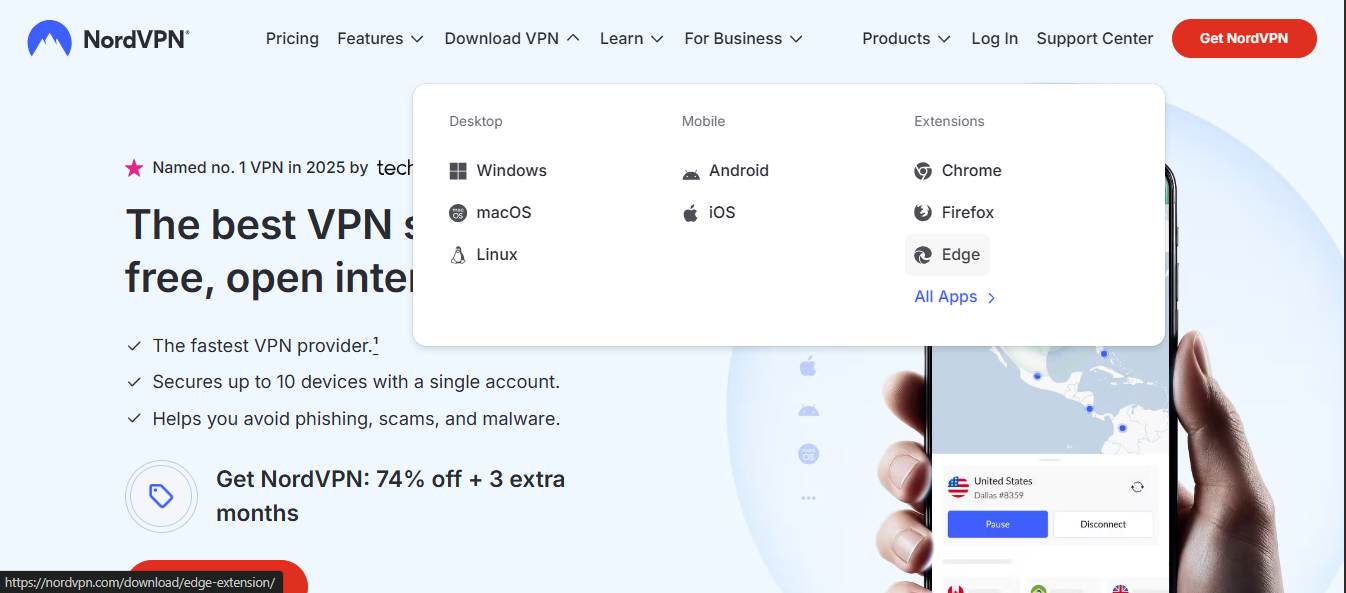
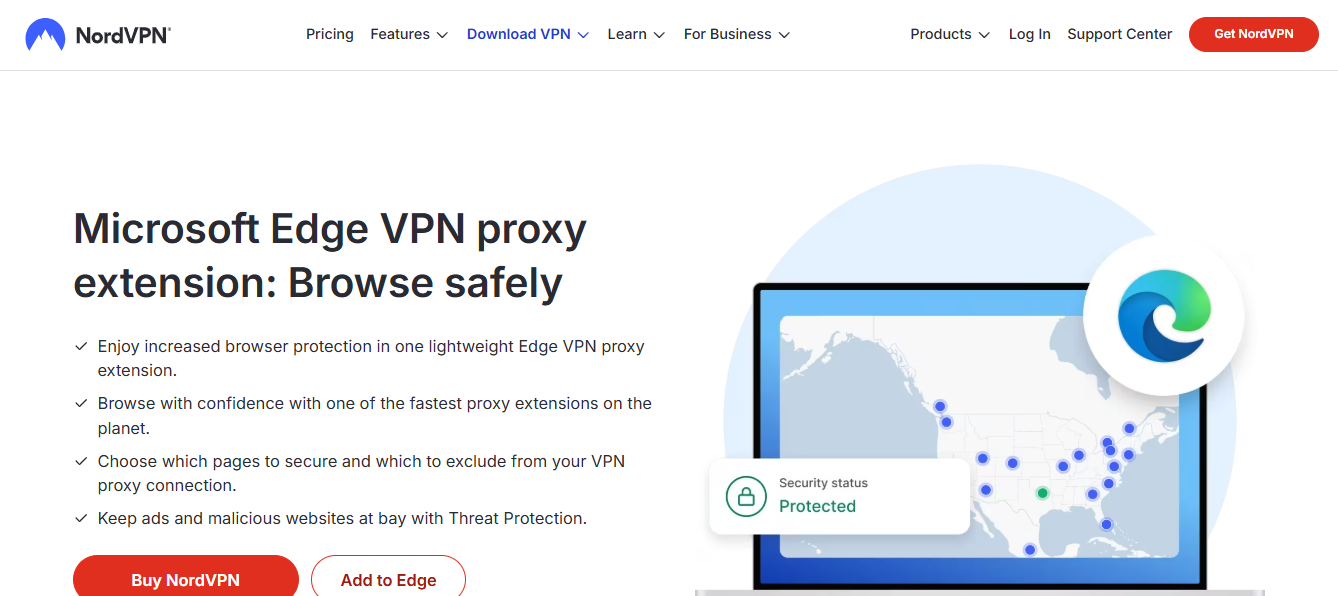
Edge not using vpn
If you’ve configured a VPN but find that Microsoft Edge seems not to be using it, you’re not alone. Edge can route traffic differently from other apps, and in some cases, VPNs don’t automatically affect the browser. This guide walks you through common causes, quick fixes, and ongoing strategies to ensure Edge traffic stays protected.

Why Edge might not use your VPN
- VPN apps sometimes only route system traffic, leaving browser traffic unprotected.
- Edge has its own security features, like the Secure Network (Edge) or other privacy controls that can interfere with VPN routing.
- Extensions or configuration quirks can bypass VPN tunnels, especially if you’re using a browser-level VPN feature.
- Some VPNs implement split tunneling or per-app rules that exclude browsers by default.
Understanding these scenarios helps you pick the right fixes without sacrificing performance.
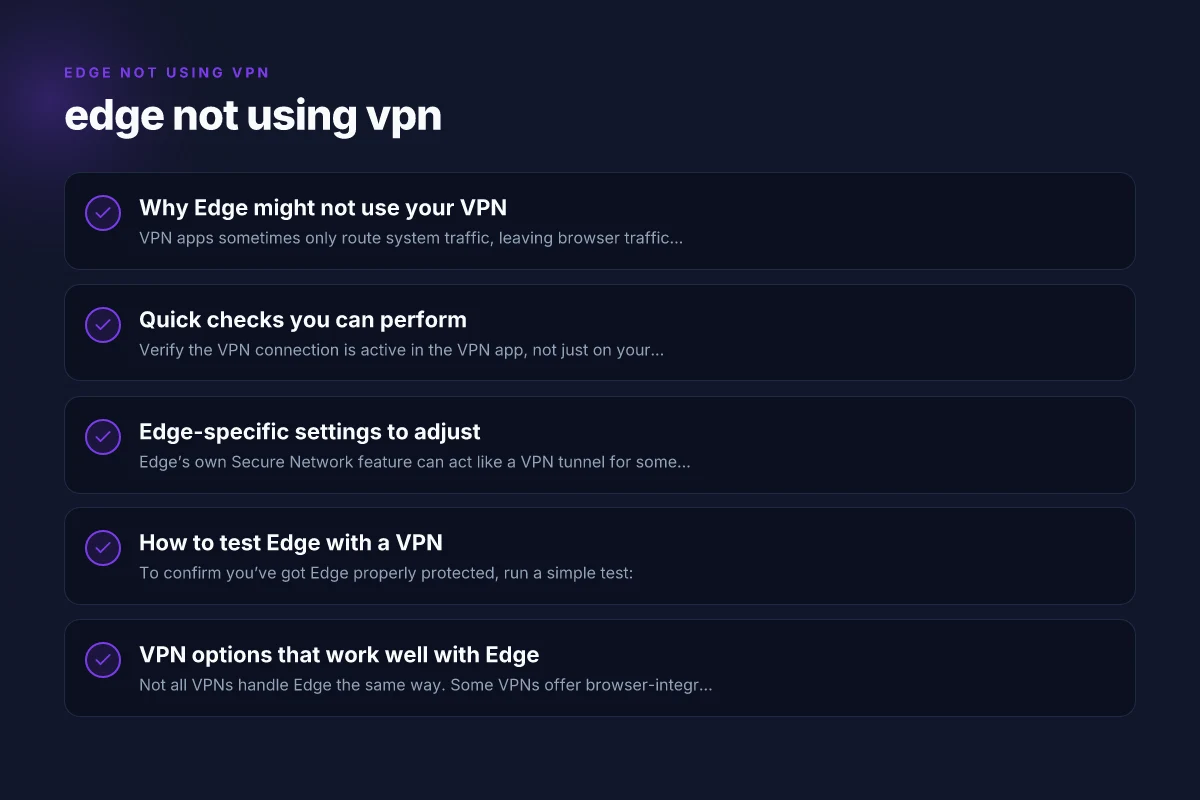
Quick checks you can perform
- Verify the VPN connection is active in the VPN app, not just on your device.
- Check your IP on Edge by visiting a site like ipinfo.io or whatismyip.com. Compare it to a device-wide check.
- Disable browser-specific features that could bypass VPN:
- Edge Secure Network: If enabled, it may affect routing.
- Any Edge extensions claiming to manage privacy or proxies.
- Restart Edge after establishing the VPN connection, as some browsers don’t pick up network changes immediately.
- Try another browser (e.g., Chrome or Firefox) to confirm whether the VPN is masking your IP across applications.
If the IP shown in Edge matches your real address or the VPN isn’t active in general, you’ll want to dig deeper with the steps below.
Edge-specific settings to adjust
Disable Edge Secure Network (if applicable)
Edge’s own Secure Network feature can act like a VPN tunnel for some scenarios but may interfere with other VPNs. To manage it:
- Open Edge settings
- Go to Privacy, search, and services
- Find Security or Secure Network and turn it off if you’re using an external VPN
- Test Edge again to see if the VPN now covers Edge traffic
Check for per-app VPN rules
Some VPNs offer per-app or split-tunneling controls. If Edge is excluded:
- Open your VPN app’s settings
- Look for a section like Split Tunneling, Per-App VPN, or App Exclusions
- Ensure Edge (or the browser’s executable) is included in the VPN-protected list
- Save and reconnect
Disable or adjust proxies and extensions
- Disable any browser proxies you’ve configured in Edge (or in Windows settings) to avoid double-tunneling or bypass.
- Review Edge extensions related to privacy, proxies, or VPNs and temporarily disable them to test if they’re interfering.
- Clear browser cache after changes to ensure no stale routing rules remain.
How to test Edge with a VPN
To confirm you’ve got Edge properly protected, run a simple test: Does NordVPN split tunnelling work on an iPhone
- Connect to your VPN and open Edge
- Visit a site that shows your location or IP (e.g., whatismyipaddress.com)
- Confirm the IP matches the VPN server’s location rather than your real location
- Try loading content-heavy pages or streaming sites to ensure the tunnel remains stable
If results vary by page, note which sites load through VPN and which don’t, this can help identify app-level rules or extensions causing the issue.
VPN options that work well with Edge
Not all VPNs handle Edge the same way. Some VPNs offer browser-integrated features, while others rely on system-wide routing. If you want a reliable, straightforward setup that plays well with Edge, look for these traits:
- System-wide VPN that protects all traffic, including Edge
- Clear, per-app or split-tunneling controls that you can configure
- A straightforward, minimal-impact app with fast reconnects
- Strong no-logs policy and robust leak protection
- Responsive support for browser-related routing questions
Recommended approach: use a VPN that consistently covers Edge traffic at the system level and provides easy configuration.
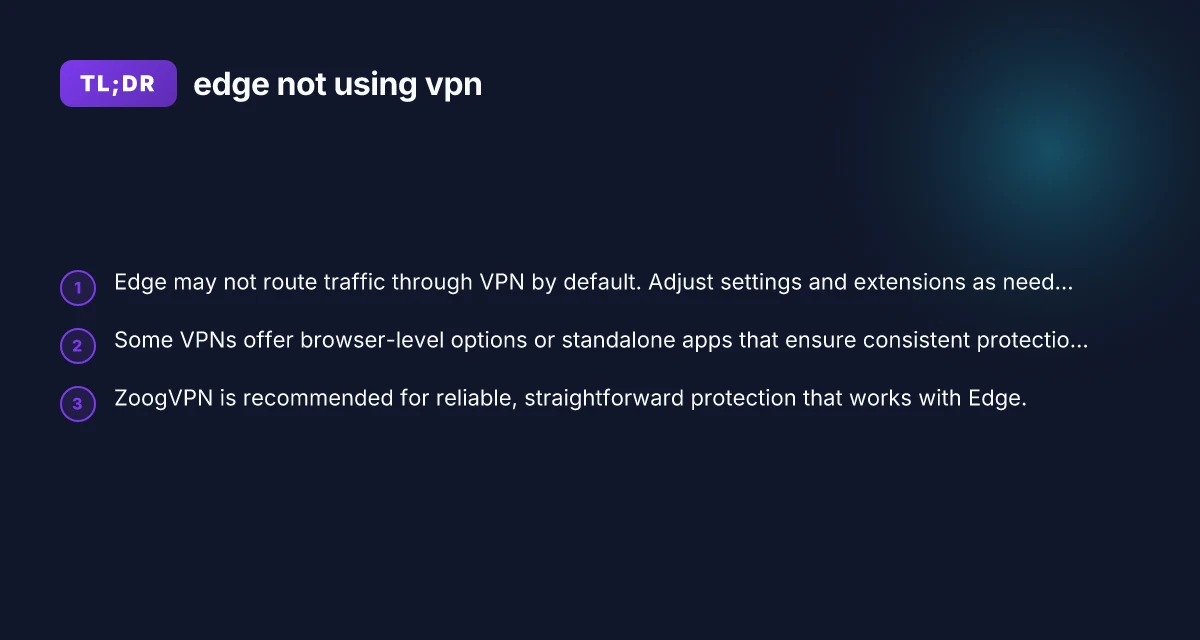
One brand that many users rely on for a smooth Edge experience is ZoogVPN. It emphasizes reliable system-wide protection and simple setup steps, making it a practical choice if you want to avoid browser-only solutions and ensure Edge traffic isn’t exposed when you’re online.
Example comparison of features you might consider when choosing a VPN for Edge: Big-IP Edge VPN: what it is, how it works
| VPN feature | Why it matters for Edge | What to look for in practice |
|---|---|---|
| System-wide routing | Ensures all apps, including Edge, are protected | A single VPN connection that covers the whole device |
| Per-app or split tunneling | Useful if you want to exclude non-sensitive apps | Easy toggles to include/exclude Edge from VPN |
| Native Edge integration | Can reduce routing glitches | Look for VPNs with clear instructions for browser compatibility |
| Clean DNS and leak protection | Prevents IP leaks if Edge uses DNS differently | DNS leak tests and kill switch options |
| Fast reconnects | Keeps Edge sessions stable during travel or switching networks | Reconnection time under a few seconds is ideal |
If you’re unsure which features you need, a system-wide VPN with good support for Edge tends to be the least risky starting point.
Common troubleshooting steps if Edge remains unprotected
- Reinstall the VPN: Sometimes a fresh install resolves conflicts with Edge’s security features.
- Update Edge: Ensure you’re on the latest Edge version, as some older builds have quirks with VPN routing.
- Update VPN client: Vendors frequently release patches to improve compatibility with browsers.
- Temporarily disable Windows firewall or antivirus VPN checks: Some security software may block VPN traffic in a browser context. Re-enable protection after testing.
- Verify Windows network settings: Ensure your network profile is set to Private for trusted networks to minimize strict firewall rules affecting VPNs.
- Check for IPv6 leaks: Some VPNs don’t handle IPv6 well. Disable IPv6 in Windows or ensure the VPN provides IPv6 protection.
If you test these steps and still find Edge not using the VPN, consider reaching out to the VPN’s support team with details about your device, OS version, Edge version, and exactly what you observed during testing.
When to consider a browser-level VPN feature
Some security-conscious users choose browser-level VPN or proxy features for quick, browser-scoped protection. This approach has trade-offs:
- Pros: Quick enable/disable. Browser-specific control. May bypass some device-wide restrictions
- Cons: Can conflict with system-wide VPNs. May leak if the browser feature isn’t well implemented. Performance varies by site
If you want minimal hassle and predictable protection, most users benefit from a system-wide VPN that covers Edge by default, rather than relying on a browser-only VPN feature.
Final recommendation
If Edge isn’t automatically using your VPN, start with a system-wide VPN that covers all traffic and offers straightforward per-app controls. ZoogVPN (zoogvpn.com) is a solid recommendation for those who want reliable, easy-to-manage protection that works well with Edge. Its approach minimizes the friction between Edge’s security features and your VPN, reducing the need for manual per-app adjustments. How to add browsec to Google
Key steps to implement the recommended approach:
- Install a reputable system-wide VPN such as ZoogVPN
- Connect to a VPN server and verify IP via whatismyipaddress.com in Edge
- Disable Edge Secure Network if you’re using a third-party VPN and test again
- Review per-app VPN or split-tunneling settings to ensure Edge isn’t excluded
- Keep Edge and the VPN client up to date, and perform periodic IP checks to confirm protection
By following these steps, you’ll reduce the risk of Edge traffic bypassing your VPN and gain a more consistent online protection posture across all applications. If you need help choosing a plan or configuring ZoogVPN for your setup, I can walk you through the exact steps for Windows and Edge.
| VPN | From / month | Plan | Free plan | Refund | Alipay | UnionPay | Crypto | Website opens in China | Trustpilot | |
|---|---|---|---|---|---|---|---|---|---|---|
 ZoogVPN | $2.49/mo | 27 months: $59.99 | Yes | 7 days | ✓ | ✓ | ✓ | ✓ | ✓ Yes (2.5 s) | 4.2/5 (195 reviews) |
 NordVPN | $3.49/mo | 27 months: $94.23 | No | 30 days | ? | ✗ | ✓ | ✓ | ✗ Blocked | 4.2/5 (51,628 reviews) |
 ExpressVPN | $3.00/mo | 28 months: $84 | No | 30 days | ✗ | ✗ | ✓ | ✗ | ✗ Blocked | 4.4/5 (29,706 reviews) |
 Surfshark | See site | See site | No | 30 days | ✗ | ✗ | ✗ | ✓ | ✗ Blocked | 4.3/5 (31,823 reviews) |
 Proton VPN | $2.99/mo | 12 months: $35.88 | Yes | 30 days | ✗ | ✗ | ✗ | ✓ | ✓ Yes (2.5 s) | 2.1/5 (1,040 reviews) |
 Astrill VPN | $12.50/mo | 24 months: $300 | No | See site | ✗ | ✗ | ✗ | ✓ | ✗ Blocked | 1.3/5 (110 reviews) |
 Private Internet Access | $2.03/mo | 40 months: $81.2 | No | 30 days | ✗ | ✗ | ✗ | ✗ | ✗ Blocked | 4.2/5 (11,033 reviews) |
 CyberGhost | $2.19/mo | 28 months: $61.32 | No | 45 days | ✗ | ✗ | ✗ | ✓ | ✗ Blocked | 4.0/5 (24,178 reviews) |
 PureVPN | $1.69/mo | 60 months: $101.55 | No | 31 days | ? | ✗ | ✗ | ✓ | ✓ Yes (2.6 s) | 4.4/5 (17,994 reviews) |
 AdGuard VPN | $2.99/mo | 24 months: $71.76 | Yes | 30 days | ✓ | ✗ | ✓ | ✓ | Official site blocked; our special link opens (2.3 s) | 4.3/5 (290 reviews) |
 Mullvad | $5.61/mo | €5/mo | No | 14 days | ✗ | ✗ | ✗ | ✓ | ✗ Blocked | 3.2/5 (192 reviews) |
 Windscribe | $5.75/mo | 12 months: $69 | Yes | See site | ✗ | ✗ | ✗ | ✓ | ✗ Blocked | 4.7/5 (13,355 reviews) |
 StrongVPN | See site | See site | No | 30 days | ✓ | ✗ | ✗ | ✗ | ✗ Blocked | 4.4/5 (2,695 reviews) |
 LightXtreme 闪连 | $7.08/mo | 12 months: $84.99 | Yes | 30 days | ✓ | ✓ | ✓ | ✓ | ✓ Yes (2.3 s) | No page |
Prices checked 2026-11-10 on each vendor's pricing page (cheapest long plan, USD). Check the vendor's checkout for the final price.
Payment methods checked 2026-11-10 on each vendor's payment pages: all 14 take cards and PayPal; ✗ = not listed, ? = the vendor's own pages disagree.
China access: whether the official website opens from mainland China networks (tests the website only, not the VPN connection). Last checked 2026-11-11 04:07 Beijing time.
Trustpilot score and review count checked 2026-11-10.